![Fabicaon.png]](https://44059364.hs-sites.com/hs-fs/hubfs/Fabicaon.png?width=40&height=40&name=Fabicaon.png)
You can now connect your own Charles River B2B account to your Chipply account and place orders directly through Chipply, streamlining your workflow and saving you time.
To get started, you will have to reach out to: helpdesk@charlesriverapparel.com to get your purchasing credentials set up for Charles River. This is not the same as your B2B login information. Once you have your purchasing credentials, follow the steps below to set up Charles River purchasing in Chipply.
How do I set up Charles River purchasing in Chipply?
-
Open up your Chipply account.
-
Click the settings gear in the top right-hand corner of your screen, then click Dealer Settings. On the left-hand side of your screen, click System Integration.
-
If you do not see Charles River under your System Integrations, click the + button on the top right-hand side and then click Charles River.
-
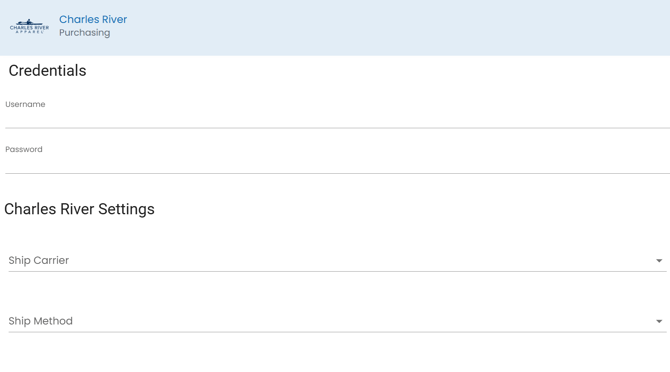
You can now enter your Username and Password that Charles River provided you.
-
If you would like to set a default shipping method, enter your Ship Carrier and Ship Method. Otherwise, you can select these manually when placing an order.
For questions or a detailed walkthrough of the purchasing workflow, contact Team Chipply using the information below.
Team Chipply contact information
Phone: 262-202-8129
Email: teamchipply@chipply.com