![Fabicaon.png]](https://44059364.hs-sites.com/hs-fs/hubfs/Fabicaon.png?width=40&height=40&name=Fabicaon.png)
Inventory Thresholds manages your product offering based on your vendor’s inventory, so customers only ever see sizes and colors you can actually fulfill.
When Inventory Thresholds are turned on for a product, Chipply automatically manages the sizes and colors available to customers based on inventory levels. If a size or color’s vendor inventory falls below your set “Tolerance Threshold,” that size or color will not be offered. You can manage and customize these thresholds for individual vendors. The offerings update automatically: if inventory rises above the threshold, the previously restricted size/color becomes available to customers without any additional action required on your part, and vice versa.
Sizes highlighted in red indicate they are below your Inventory Threshold and will be unavailable until inventory improves and exceeds your set threshold.
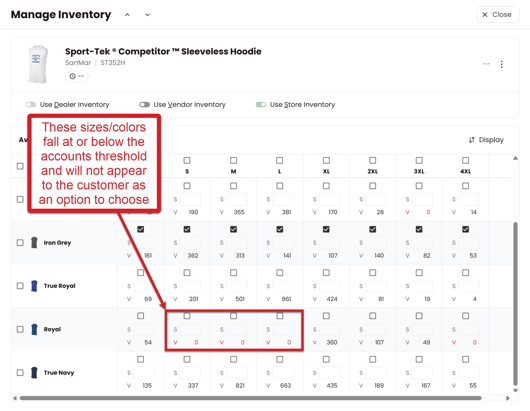
Sizes highlighted in red indicate they are below your "Inventory Threshold" and will be unavailable until inventory improves and exceeds your set threshold.
How to Set Your Inventory Thresholds by Vendor
- Click the Settings gear in the top right corner of your screen, then select Dealer Settings.
- On the Dealer Settings page, click Pricing Defaults.
- Next to each feed vendor, you'll find a box under Inventory Threshold (# of items). Enter the inventory number you'd like your threshold to be for that vendor.
- To set thresholds by size, click Adjust by Size and enter your desired threshold for each size.

How to Turn on Inventory Thresholds in your store
There are 4 ways you can turn on Inventory Thresholds. You can either turn it on when you bring products into your store, for individual products, for a select group of products, or for all the products in your store.
How to Turn on Inventory Thresholds when Adding Products to the Store
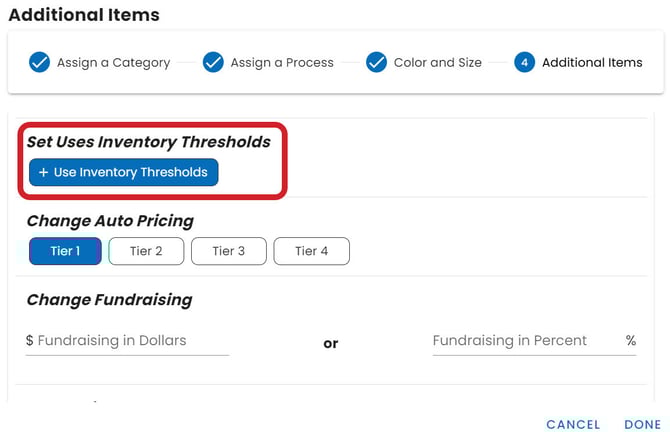
When you get to the Additional Items step when adding items to your store, you can choose to set Uses Inventory Thresholds right away. Make sure the bubble is filled in, and after those products load into the store, they will have the Inventory Thresholds turned on.
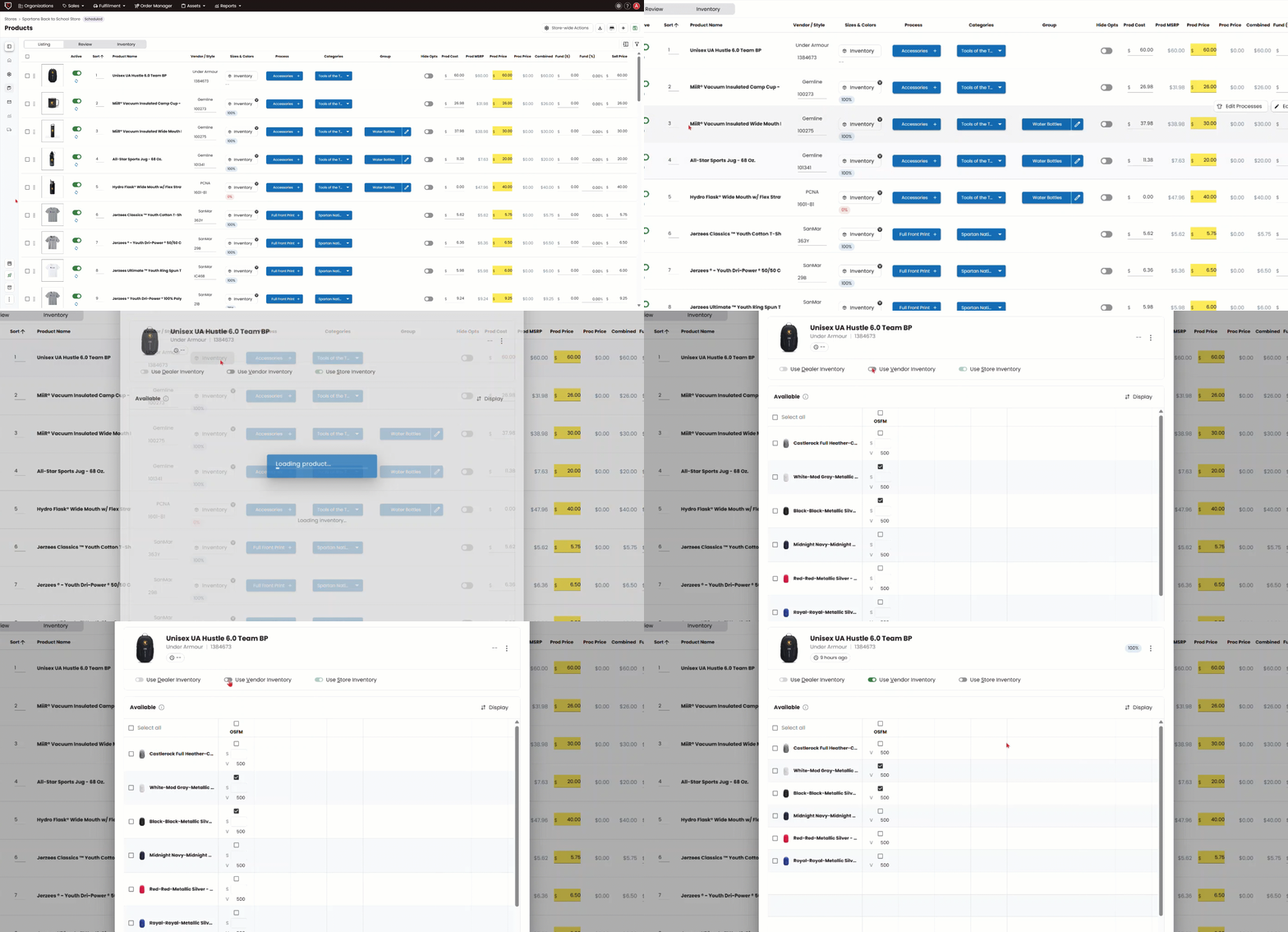
How to turn on Inventory Thresholds for Individual Products:
- Select Products on the left-hand menu.
- Click the Inventory button on the product you want Inventory Thresholds turned on for. This opens the Manage Inventory window, showing the product name, vendor, and style, and when inventory was last updated, with arrows to move to the previous or next product without closing the window.
- In the Manage Inventory window, turn on the Use Vendor Inventory toggle. This pulls availability from your vendor's feed and applies your Inventory Threshold.
Leave Use Vendor Inventory off if you don't want to use inventory thresholds for this product. Turning it off automatically turns on Use Store Inventory instead, which either offers the product with no threshold limits or lets you type your own on-hand quantities into each color/size box.
- Select to save.
How to Turn on Inventory Thresholds for a Select Group of Products:
- Select Products on the left-hand menu.
- Select all the products you want utilizing Inventory Thresholds (with the check box to the left of the product image).
- Select the Bulk Actions button in the lower left.
- Choose: Change Uses Inventory Threshold.
- Click on Use Vendor Inventory

How to turn on Inventory Thresholds for your Whole Store
- Within the products page of your store
- In the upper right of your screen, click the action menu.
- Select Set Use Vendor Inventory.
- Click on Use Vendor Inventory
Health Score
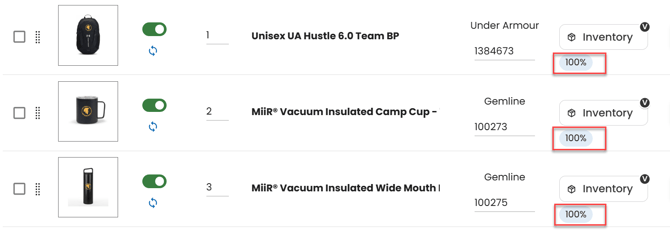
Once Use Vendor Inventory is turned on for a product, you'll see a percentage sign underneath the inventory icon. This is the product's current inventory "health score" — Chipply is letting you know what percentage of the colors and sizes you've chosen are above your Inventory Threshold.
Note that Inventory Thresholds (Use Vendor Inventory) only work for products from feed vendors. Products from vendors without an inventory feed can instead use Use Store Inventory, or will require manual inventory checks. Click here for a list of our integrated vendors.
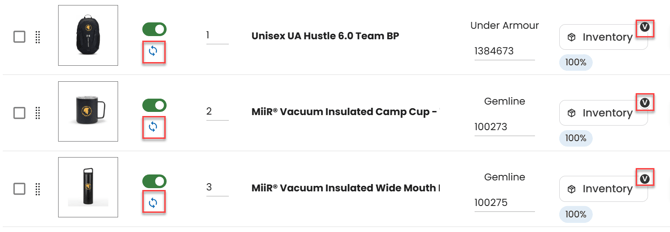
You can tell which products in your store are utilizing Inventory Thresholds based on the icon next to the product image and the V next to Inventory.