![Fabicaon.png]](https://44059364.hs-sites.com/hs-fs/hubfs/Fabicaon.png?width=40&height=40&name=Fabicaon.png)
Catalog stores in Chipply have a maximum lifespan of 24 months. For dealers who run ongoing catalog stores, especially those managing dozens or hundreds at a time, manually copying each store as it closes is a significant time investment.
The Auto Store Copy feature handles this automatically. Once you enable the toggle on a catalog store, Chipply creates a copy of that store the moment it closes — no action required on your part.
What Is Auto Store Copy?
Auto Store Copy is a Chipply setting available on catalog stores that automatically creates a copy of the store whenever it transitions from open to closed. This includes stores that reach their close date naturally, as well as stores where you manually set the close date to today or to a past date.
A few important things to know:
-
Catalog stores only. Auto Store Copy is not available for group stores.
-
The toggle defaults to off. You must enable it on each store individually. There is no bulk toggle from the store list.
-
One copy per close event. If a store is already closed and you edit its date, it will not create an additional copy. The copy is only triggered when the store moves from open to closed.
-
The toggle resets to off on the new copy. After a store is auto-copied, the new store starts with the toggle off. You will need to turn it on again if you want the next cycle to also auto-copy.
How to Enable Auto Store Copy
-
Open a catalog store in Chipply.
-
Go to your catalog store's General Settings page.
-
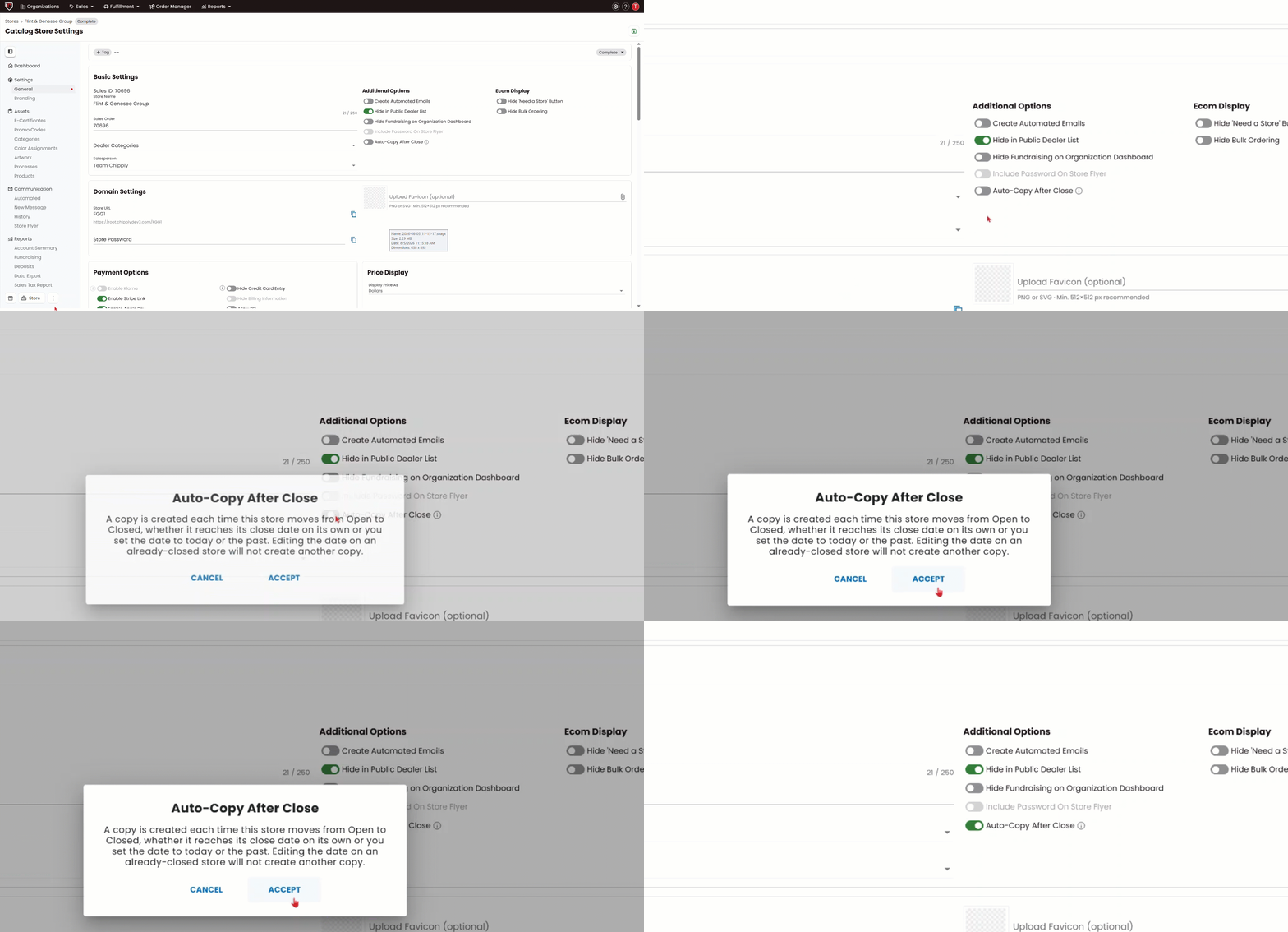
Under General, find the Auto-copy after close toggle.
-
Turn that toggle on.
-
A confirmation message will appear letting you know that this store will automatically be copied once it closes. Confirm to proceed.
What Gets Copied?
When a store is auto-copied, the new store receives everything from the original:
-
All products, artwork, and processes
-
E-certificates (including $0 e-certs)
-
The same assigned salesperson; the open date on the new store will reflect the date the copy was made, not the original store's open date.
Email Notifications
After an auto-copy completes, whether it succeeded or failed, the assigned salesperson will receive an email notification. The email includes the store name, sales ID, sales order, and the outcome.
If the copy fails, the salesperson can manually copy the store from the store list by hovering over the store and clicking the Copy button.
Email Notification Example

Best Practices
If you manage catalog stores that will run for longer than 24 months, or that you plan to keep re-opening on an ongoing basis, turning on Auto Store Copy is the easiest way to stay ahead of the renewal process.
Before your first batch of stores auto-copies, make sure each one has the toggle enabled. Since there is no bulk option, plan to work through your store list in advance — especially if you have a large number of catalog stores closing around the same time.