![Fabicaon.png]](https://44059364.hs-sites.com/hs-fs/hubfs/Fabicaon.png?width=40&height=40&name=Fabicaon.png)
Automated emails are a critical part of the store launch process in Chipply. When your store goes live, a set of automated emails is generated and sent on your behalf to the organization contacts listed on your store, keeping everyone informed from the moment the store opens.
The emails added to your account by default are listed below. They can be edited or customized to better fit your business. If you have any questions about your automated emails, reach out to your account manager.
Catalog Batch Store Emails
| Message Name | Recipients | Description |
|---|---|---|
| Launch | Store Salesperson; Organization Contact | Sent as soon as the store goes live, this email includes the live store link and store flyer so recipients can immediately share and promote the store. |
| Org Contact Login Credentials | Organization Contact; Store Salesperson | Delivers login credentials to the Organization Contact so they can access the store and monitor its progress. |
| Abandoned Cart 1 Hr | Shoppers | Automatically sent to shoppers who added items to their cart but did not complete checkout. Triggers 1 hour after the cart was abandoned to encourage them to return and finish their order. |
| Abandoned Cart 3 Hr | Shoppers | A follow-up reminder sent to shoppers who still have not completed their order. Triggers 3 hours after the cart was abandoned. |
| Catalog Store Batched | Store Salesperson | Notifies the Store Salesperson that the store has successfully batched and is moving forward in the fulfillment process. |
| Catalog Parent Store Closed | Store Salesperson | Notifies the Store Salesperson that the catalog parent store has closed. Catalog parent stores can remain active for up to 24 months before closing. |
Group Store Emails
| Message Name | Recipients | Description |
|---|---|---|
| Launch | Store Salesperson; Organization Contact | Sent as soon as the store goes live, this email includes the live store link and store flyer so recipients can immediately share and promote the store. |
| Org Contact Login Credentials | Organization Contact; Store Salesperson | Delivers login credentials to the Organization Contact so they can access the store and monitor its progress. |
| Abandoned Cart 1 Hr | Shoppers | Automatically sent to shoppers who added items to their cart but did not complete checkout. Triggers 1 hour after the cart was abandoned to encourage them to return and finish their order. |
| Abandoned Cart 3 Hr | Shoppers | A follow-up reminder sent to shoppers who still have not completed their order. Triggers 3 hours after the cart was abandoned. |
| Order Update | Store Salesperson; Organization Contact | Provides the Store Salesperson and Organization Contact with a summary of the store's current performance, keeping them informed throughout the store's run. |
| Last Day Order Update | Store Salesperson; Organization Contact | A timely reminder sent on the last day orders can be placed, giving the Store Salesperson and Organization Contact a heads-up before the store closes. |
| Web Store Closed | Store Salesperson | Notifies the Store Salesperson that the store has officially closed and is no longer accepting orders. |
Adding automated emails after a store goes live
Automated emails are generated automatically when a store launches, unless the "Create Automated Emails" option has been disabled in the General Settings. If your emails were not created, or if you have reopened your store and need the automated emails to send again, you can add them manually by following these steps:
- Within your store, click Messages under Communication on the left-hand menu.
- Click the Add Store Templates on the top of the page.
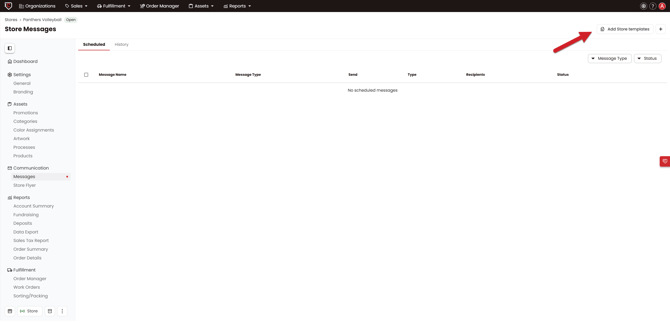
This creates the automated emails for that store, even if the store is already live. Note that emails triggered by this action will send based on current store timing — some emails, such as abandoned cart reminders, only send when the corresponding shopper action occurs after the emails are created.