![Fabicaon.png]](https://44059364.hs-sites.com/hs-fs/hubfs/Fabicaon.png?width=40&height=40&name=Fabicaon.png)
The next evolution of store branding is here. With Layouts, you can now mark products as Spotlighted or Boosted to highlight them within your store. This makes it easy to feature required items, draw attention to newly added products, or promote inventory you want to sell first.
Spotlighted vs Boosted Products
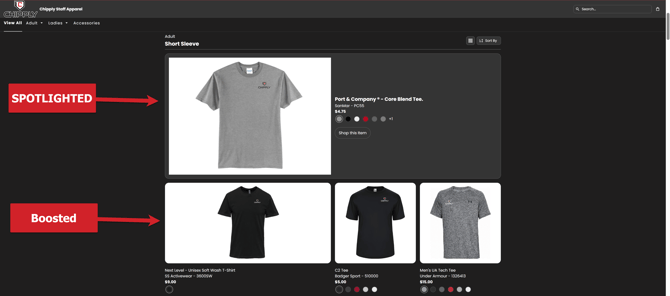
When a product is marked as Spotlighted, it appears larger and takes up an entire row of product cards on your ecommerce page. This makes it highly visible and ideal for highlighting important or featured items.
A Boosted product is also enlarged, but not as large as a Spotlighted product. Boosted products take up the space of two product cards on your ecommerce page, helping them stand out while still allowing more products to appear on the same row.
How to Enable Spotlighted or Boosted Products on Your Store
-
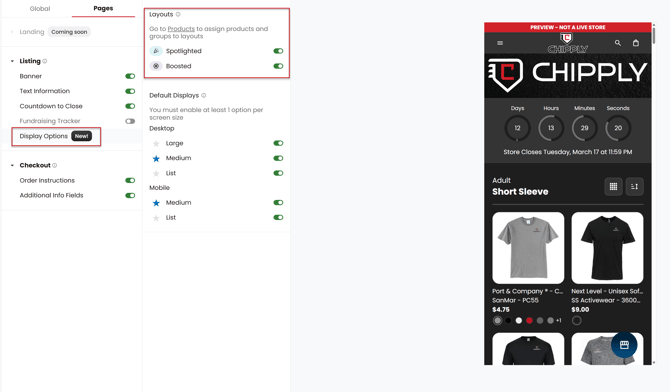
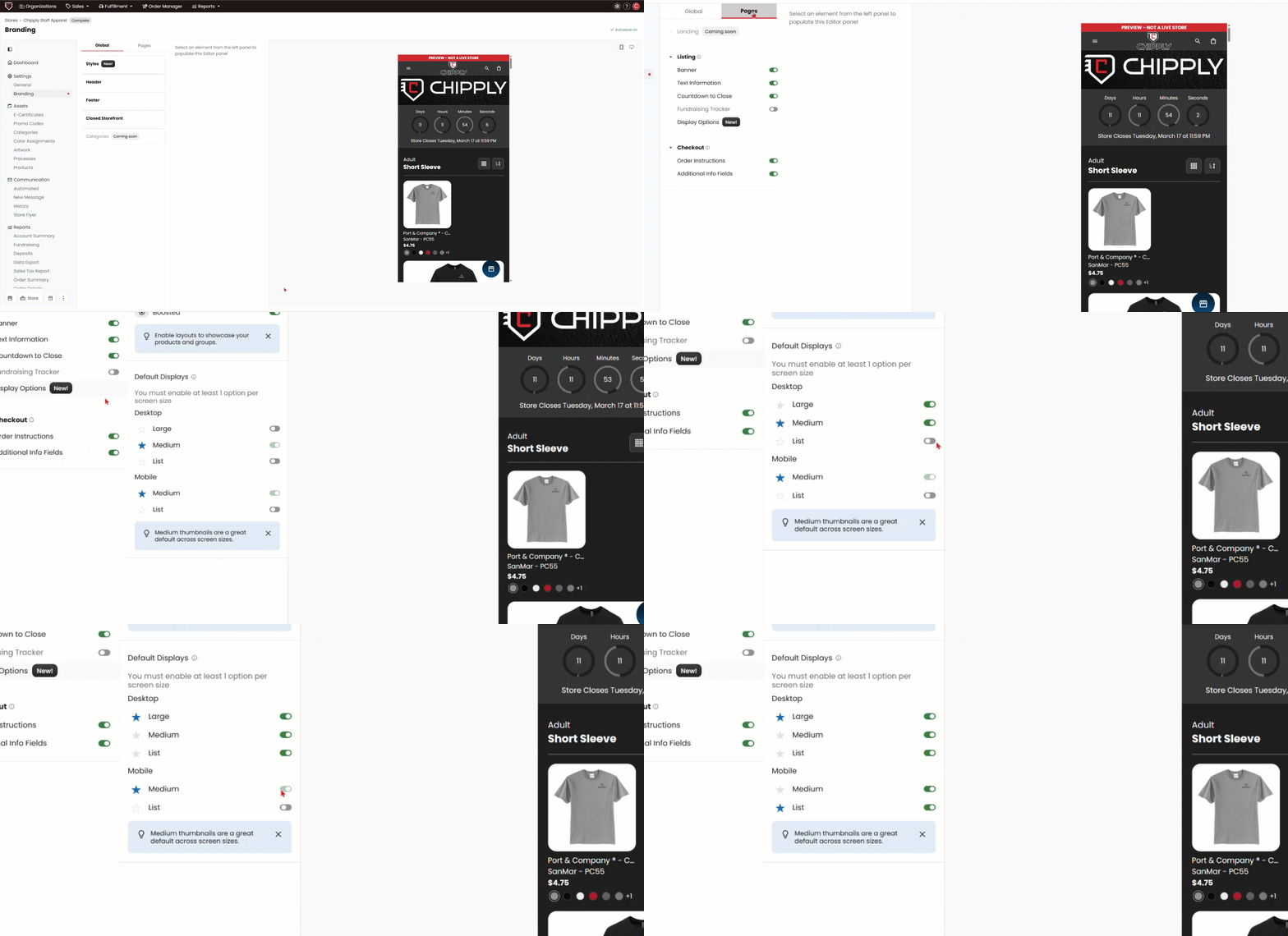
Navigate to the Branding page within your store and select Pages → Display Options.
-
Under Layouts, toggle Spotlighted Products or Boosted Products on or off.
Once Spotlighted and Boosted products are enabled within the Branding page, go to the Products page. From there, you can mark individual products as Spotlighted or Boosted.
How to Mark Products as Spotlighted or Boosted
-
On the Products page, select the products you want to highlight or boost.
-
Click Bulk Actions → eCom Display Options. From there, choose Display as Spotlight or Display as Boosted.
-
Once a product is marked as Spotlighted or Boosted, you will see the corresponding icon displayed next to the product.
If you ever need to remove a product from being Spotlighted or Boosted, hover over the product and click Edit Product. Then, under eCom Display, select Default. You can also update a product to be Spotlighted or Boosted from this page.
Default Displays
You now have more flexibility in how products are displayed on your stores across both desktop and mobile.
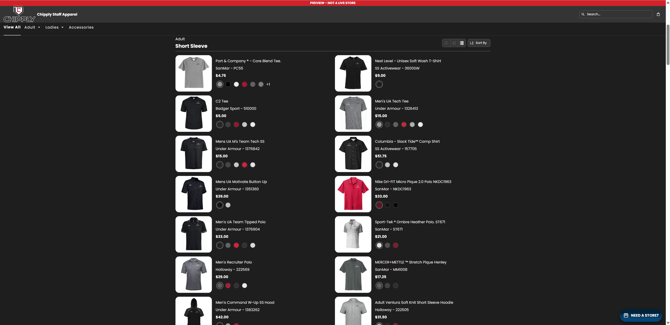
For desktop, you can choose between Large, Medium, or List views. For mobile, you can choose Medium or List view. You also have the option to enable all available views so your customers can select the layout that works best for them while shopping.
Medium is the default display for both desktop and mobile. This layout shows 4 products per row on desktop and 2 products per row on mobile.
Please Note: Products are unable to be displayed as Spotlighted or Boosted when viewed in List Mode.
How to Set Different Default Displays
-
Navigate to the Branding page within your store and select Pages → Display Options.
-
Under Default Displays, toggle on any display options you want to make available for Desktop and Mobile.
-
To set a default display, click the star icon next to your preferred display option.
Different Default Options
Below are examples of the Different default display options.
Desktop - Medium
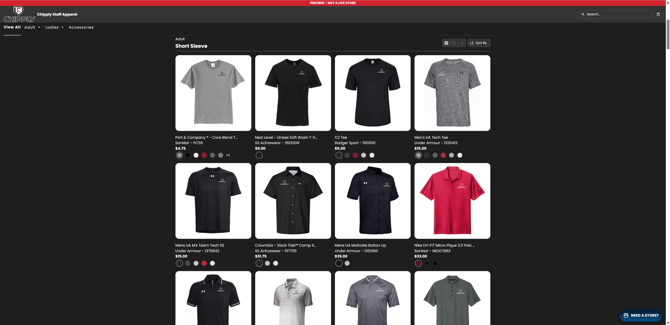
Desktop - Large
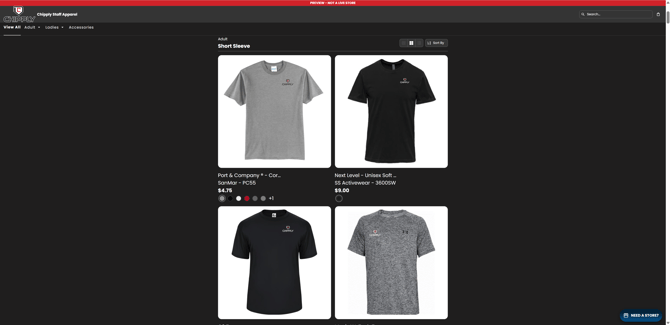
Desktop - List
Mobile - Medium
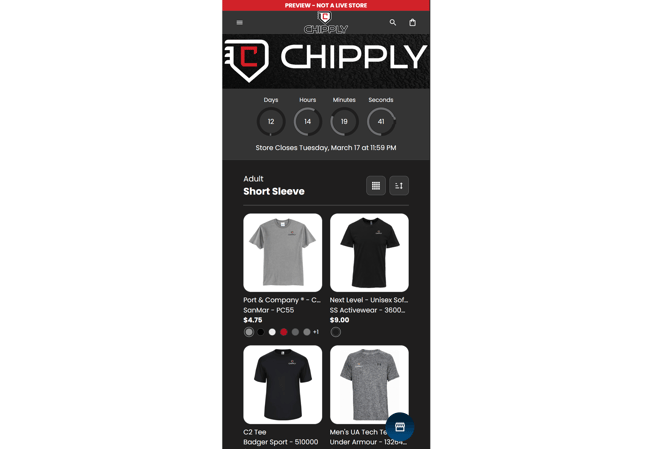
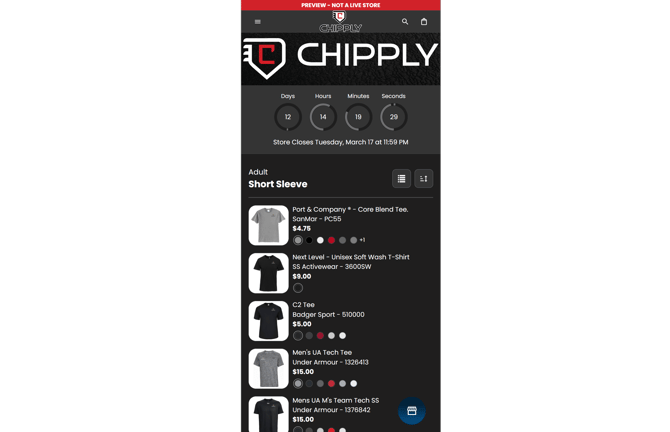
Mobile - List