![Fabicaon.png]](https://44059364.hs-sites.com/hs-fs/hubfs/Fabicaon.png?width=40&height=40&name=Fabicaon.png)
Bruce is a software platform built for decorators that makes creating custom team artwork fast and easy. Once connected, the Bruce integration brings your artwork and product workflow directly into Chipply. Dealers can create professional team artwork inside Bruce using its template library, logo upload tools, and design builder, then carry that work seamlessly back into Chipply. When artwork is added from Bruce into Chipply, it comes in as an artwork .PNG as well as an additional .PNG and EPS file in your production files area within your artwork.
Don't have an account? Sign up for a Bruce account here: askbruce.ai
How to Set up Your Bruce Integration
- Within your Chipply account, click the Settings gear icon in the top right corner of your dashboard.
- Navigate to Dealer Settings > Integrations.
- If Bruce is not already listed under your Integrated Systems, click the + button in the top right and select Bruce.
- Enter the email address associated with your Bruce account.
- Enter your Bruce integration token.
- Click Save to complete the connection.
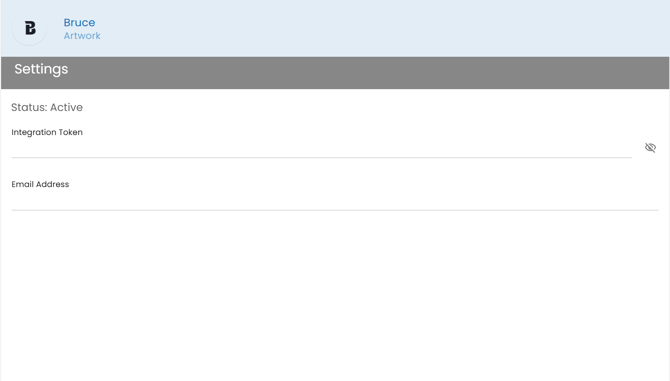
Note: If you are having trouble locating your integration token, reach out to Ask Bruce AI support at support@askbruce.ai.
Adding Bruce Artwork To your Stores
Within your store, click Artwork. On the Top right hand side, click + button and then click Create with Bruce. If your integration is not yet set up, Chipply will give you a list of instructions on how to set up your integration.
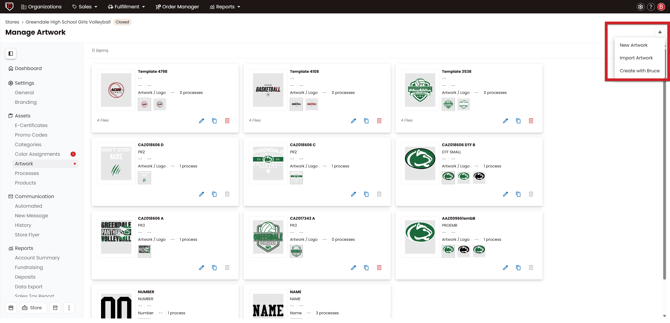
Once within Bruce, you will have three options
Search for a School
Search for the school or organization you are working with. Bruce will display a library of logos and artwork available for that school. Select the one you want, then customize the colors and text to match your customer's needs. When you are happy with the design, click Add to Chipply to bring it into your store.
Create a Custom Team
If you are creating artwork for a group that is not in Bruce's catalog, you can build something from scratch. Choose from Bruce's default graphics or upload your own vector or SVG file. From there, fill in the team details such as school name, mascot name, and initials. Once your base logo is set, you can select from Bruce's templates to build out the full artwork.
Choose from Your Team Lockers
Any artwork you have previously created or searched for in Bruce is saved to your Team Locker. You can pull from your Team Locker to quickly add existing artwork to a new store without starting over.