![Fabicaon.png]](https://44059364.hs-sites.com/hs-fs/hubfs/Fabicaon.png?width=40&height=40&name=Fabicaon.png)
Production Files and Artwork Enhancements
Chipply’s Production Management tools are designed to bring your artwork, vendors, and production workflow into one connected system. With these updates, your team can centralize production files, standardize decoration details, and ensure everything flows cleanly from order to fulfillment.
Production Files Within Artwork
You can now upload your production artwork files directly into Chipply. Each artwork variation can store up to five separate production files, giving you a centralized place to manage everything tied to that design. Along with that you can also upload up to 5 additional production files to the artwork itself.
To display artwork on your online store, you will still upload your .png files in the Artwork section as you do today. The difference is that your production files now live alongside each variation, so your team no longer has to search across folders, emails, or shared drives.
This functionality is a core component of Chipply’s Production Management tools. To fully utilize the new workflow, teams should begin uploading and organizing production files within each artwork variation. Keeping files stored directly in Chipply ensures jobs move smoothly from order to production without extra steps, missed files, or manual follow up.
These features are currently in beta and available at no cost for a limited time. Additional details will be shared soon.
Managing Artwork Basic Information
Before uploading production files, there are new customization options that expand how you organize and structure your artwork data.
You can now assign an Artwork Vendor, Decoration Type, and Decoration Vendor to each artwork. These fields help standardize production details and play an important role in Production Management.
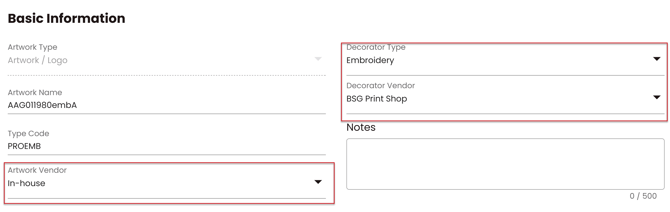
How to Add Artwork Vendors, Decoration Types, or Decoration Vendors
-
Click the settings gear icon in the top-right corner and select Dealer Settings.
-
Select Decorations, then choose either the Vendors or Types tab.
-
Click the + button in the top right corner to add a new entry.
When adding a Decoration Vendor, you can enter Name, Short Code, Vendor ID, Email, Ship To Address, Bill To Address, and Notes.
When adding a Decoration Type, you can enter Name, Short Code, Type ID, Description, and Notes.

Please note: Chipply provides a list of predetermined decoration types that cannot be edited. If you need a more specific option, you can create an additional decoration type to better match your workflow.
How to Upload Production Files
-
Inside your store, navigate to the Artwork tab and select the artwork where you want to add production files.
-
Within each artwork variation, click Add Files next to the variation. A side panel will open.
-
Under Production Files, click Upload. Files must be uploaded one at a time.
How to Upload Additional Production Files
You can also upload up to five additional production files that apply to the overall artwork rather than a specific variation.
-
Under Additional Production Files, click Upload.
-
Select File, then choose the production file you want to upload.
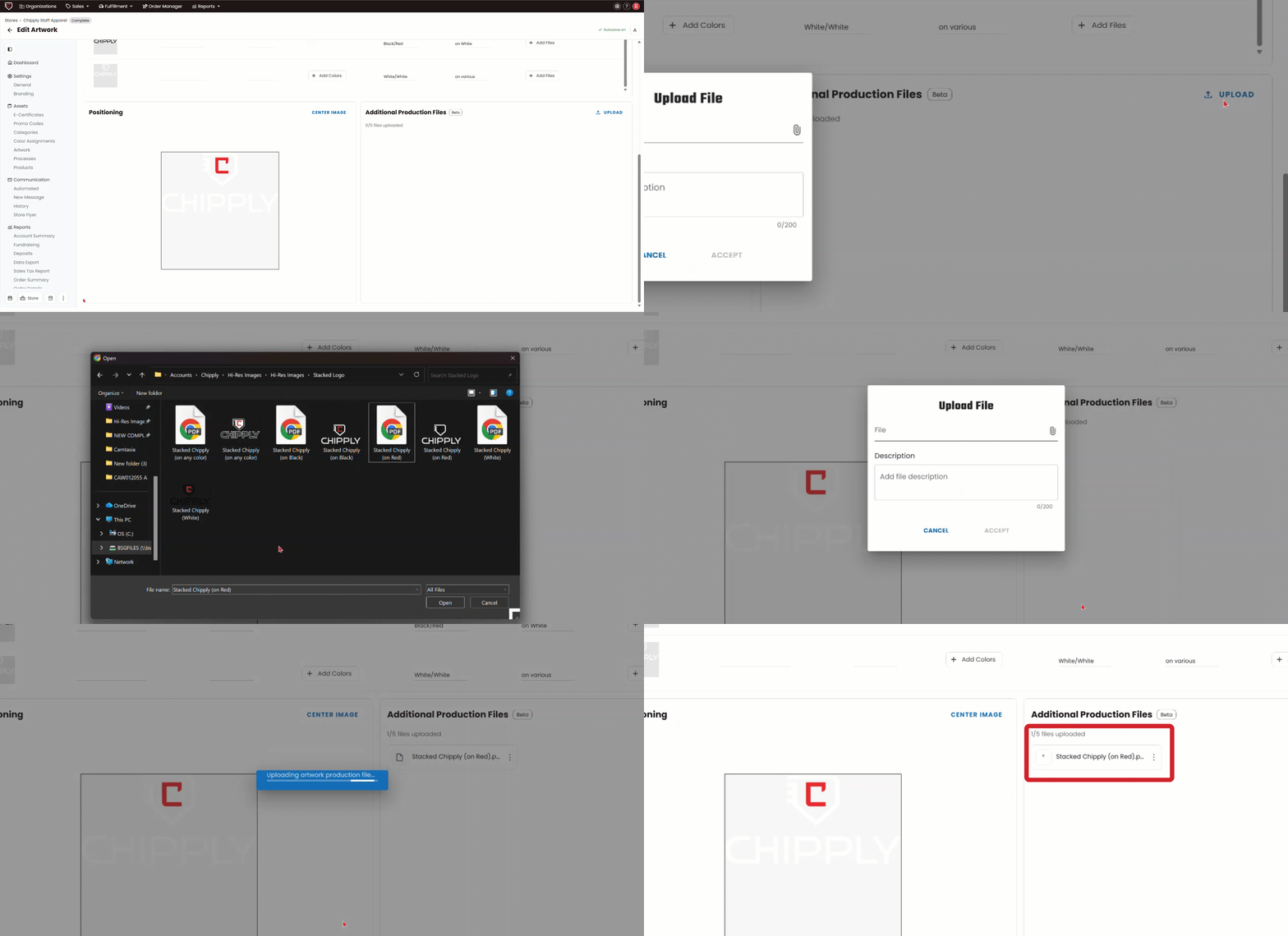
Important: Start Using Artwork Importing
Now that production files, Artwork Vendors, Decoration Types, and Decoration Vendors live within the artwork record, it is important to begin using the Import Artwork feature. This ensures that when you create a new store, all associated artwork details and production files transfer with it, keeping your workflow complete and consistent.
How to Import Artwork
-
Within your store, click Artwork.
-
In the top right corner, click the + button and select Import Artwork.
-
Use the available filters to find the artwork you need. You can search by Store, Sale Order, Artwork Name, Type Code, Variation ID, Organization, Vendor, Store Open Date, or Store Close Date.
-
Select the artwork you would like to import into your store.