![Fabicaon.png]](https://44059364.hs-sites.com/hs-fs/hubfs/Fabicaon.png?width=40&height=40&name=Fabicaon.png)
When you copy a store in Chipply, you can now bring its e-certificates along with it. This is especially useful for corporate catalog stores where employees hold ongoing e-certificate codes that need to carry over each time a store renews.
Learn How to Add E-Certificates to Your Store
How It Works
Manual copy: When e-certificates are present on a store, you will see a Copy E-Certificates toggle on the Copy Store page. Turning this on will copy all e-certificates from the original store to the new one.
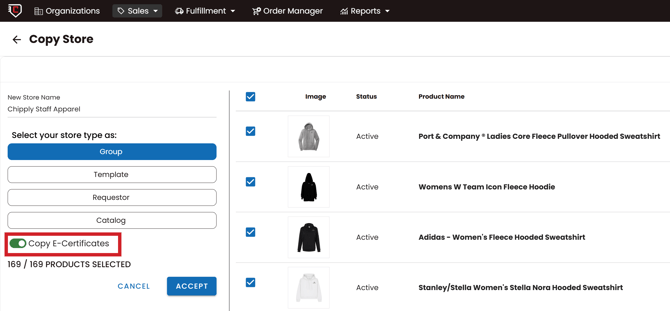
Auto copy: When a store uses the Auto Store Copy feature, e-certificates are always copied automatically. No additional toggle is needed.
What copies over:
- Active or inactive status
- Customer name and email
- E-cert code
- Amount issued and amount remaining (the remaining balance from the old store carries over as both the issued and remaining amount on the new store)
- $0 e-certs
The Date Created on each copied e-cert will update to the date the store was copied. If you do not need certain e-certs on the new store, you can delete them since they have not been used yet.
$0 E-Certificates
You can now add e-certificates with a $0 balance to a store. This is useful when an employee has used their full balance but you want to keep their code in place so funds can be added again later. $0 e-certs can be added individually, through the bulk add option, or via spreadsheet upload. When copying a store, $0 e-certs will also be copied over.