![Fabicaon.png]](https://44059364.hs-sites.com/hs-fs/hubfs/Fabicaon.png?width=40&height=40&name=Fabicaon.png)
Origin Branch
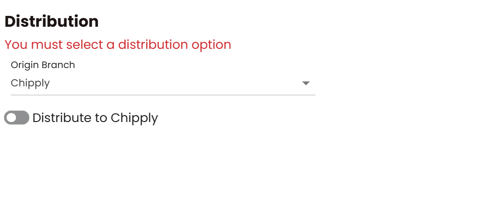
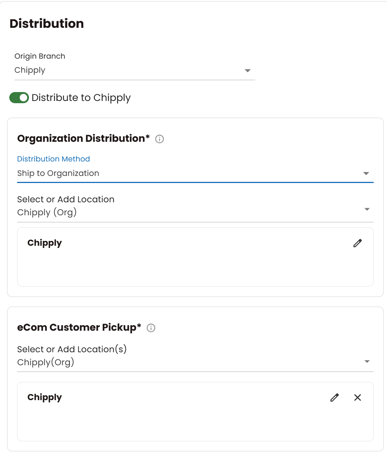
Some states, like Illinois, tax orders based on where they ship from rather than where they're going. To handle this correctly, Chipply added an Origin Branch setting under Distribution on your Store Settings page, so the right tax rate can be applied for orders shipping from these states.
Origin Branch defaults to your primary branch. If you copy a store, the new store carries over the same Origin Branch setting, so it's worth double-checking this setting on every store, including copies, to make sure it matches where that store actually ships from.
Your Sales Tax Report has also been updated to reflect Origin Branch, so keeping this setting accurate keeps your tax reporting accurate as well.

Organization Distribution
Selecting Distribute to [organization name] will give you 3 options to communicate how the orders will get to the Organization Representative/end customer.
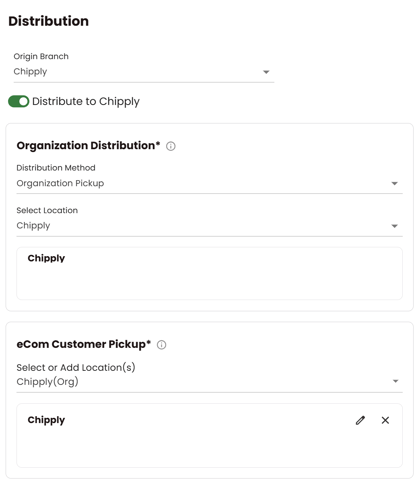
Organization Pickup
This option means the organization representative will come into your shop and pick up all the orders, then go back to the group and distribute the orders.
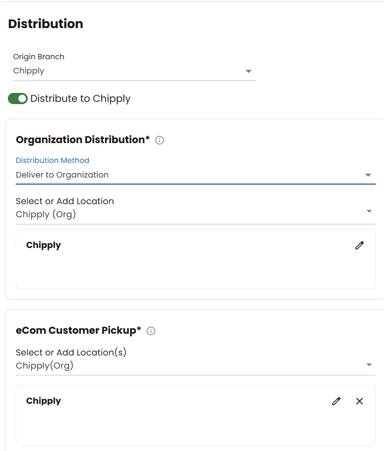
Deliver to Organization
This option means you will deliver the orders to the organization yourself. You will have to select the and then input the address you plan to deliver to. If the customer selects this option at checkout, this is the address they will be taxed on.
Ship to Organization
This option means you will ship all the orders to the organization for them to distribute. You will have to select this and then input the address you plan to ship to. If the customer selects this option at checkout, this is the address they will be taxed on.
eCom Customer Pickup
Under eCom Customer Pickup, use Select or Add Location(s) to tell Chipply where the end customer will pick up their order. You can add just one location or several, all through this same field.
Adding one pickup location
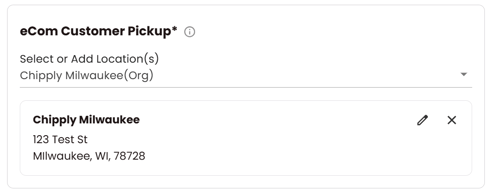
If the customer is only picking up from one place, add that single location. If it's the same address as the organization, choose the organization from the list, rather than entering the address separately.
Adding multiple pickup locations
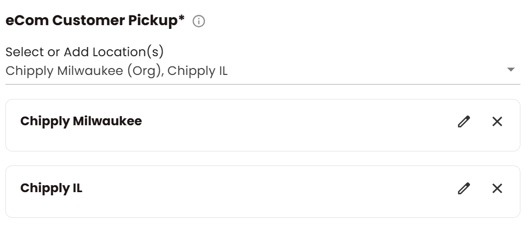
If the organization wants to offer the customer a choice of pickup locations, for example a corporate account with several branches, or a district with multiple schools, add each one through Select or Add Location(s). Every location you add shows up as its own card, with a pencil icon to edit the name or address and an X to remove it. At checkout, the customer picks which location they want, and is taxed based on the one they select.
Customer In-Store Pickup
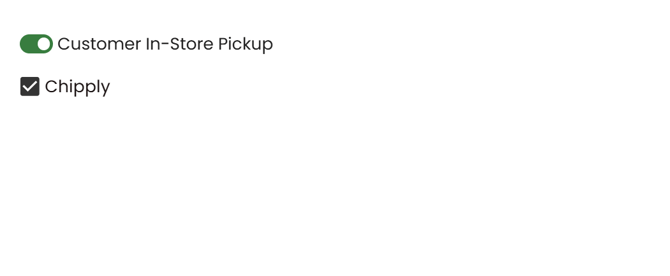
This option is for customers who want to come into your store, give you their name/order number, and you retrieve their order and then they go home. If this option is selected, the customer will be taxed based on your dealer branch address. If you have multiple branches, you must select at least 1 branch option for the customer to select pickup from.
Ship To Customer
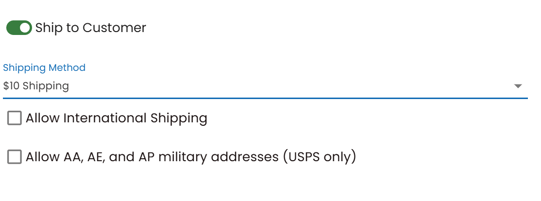
This option should be selected if you plan to ship directly to the customer. After this option is selected, you will be prompted to select your preferred shipping method/rate. (Currently only one option can be selected at a time.)