![Fabicaon.png]](https://44059364.hs-sites.com/hs-fs/hubfs/Fabicaon.png?width=40&height=40&name=Fabicaon.png)
What is an E-Certificate?
E-Certificates (E-Certs) are digital gift cards with a dollar or point value. For example, an employer might give a new hire a $200 E-Cert to purchase company swag. Recipients can place multiple orders until the balance is spent, making E-Certs a great option for controlled spending and personalized gifting.
Depending on your store's price display setting (dollars, points, or both), you will be able to choose whether each E-Certificate is issued as a dollar or point value.
Chipply makes it easy to add E-Certificates to your store in three ways.
Option 1: Add E-Certificates Manually
- Within your store, navigate to the promotions page and click the plus button in the top right corner, select E-Certificate. Make sure Add E-certifiates is selected and click Accept.
- Enter the Customer Name, Amount, and number of Codes.
- Click Accept when finished.
Chipply will use the customer name you provided to generate a random E-Certificate code with the specified dollar amount, creating as many codes as you selected.

Option 2: Add E-Certificates from a Table
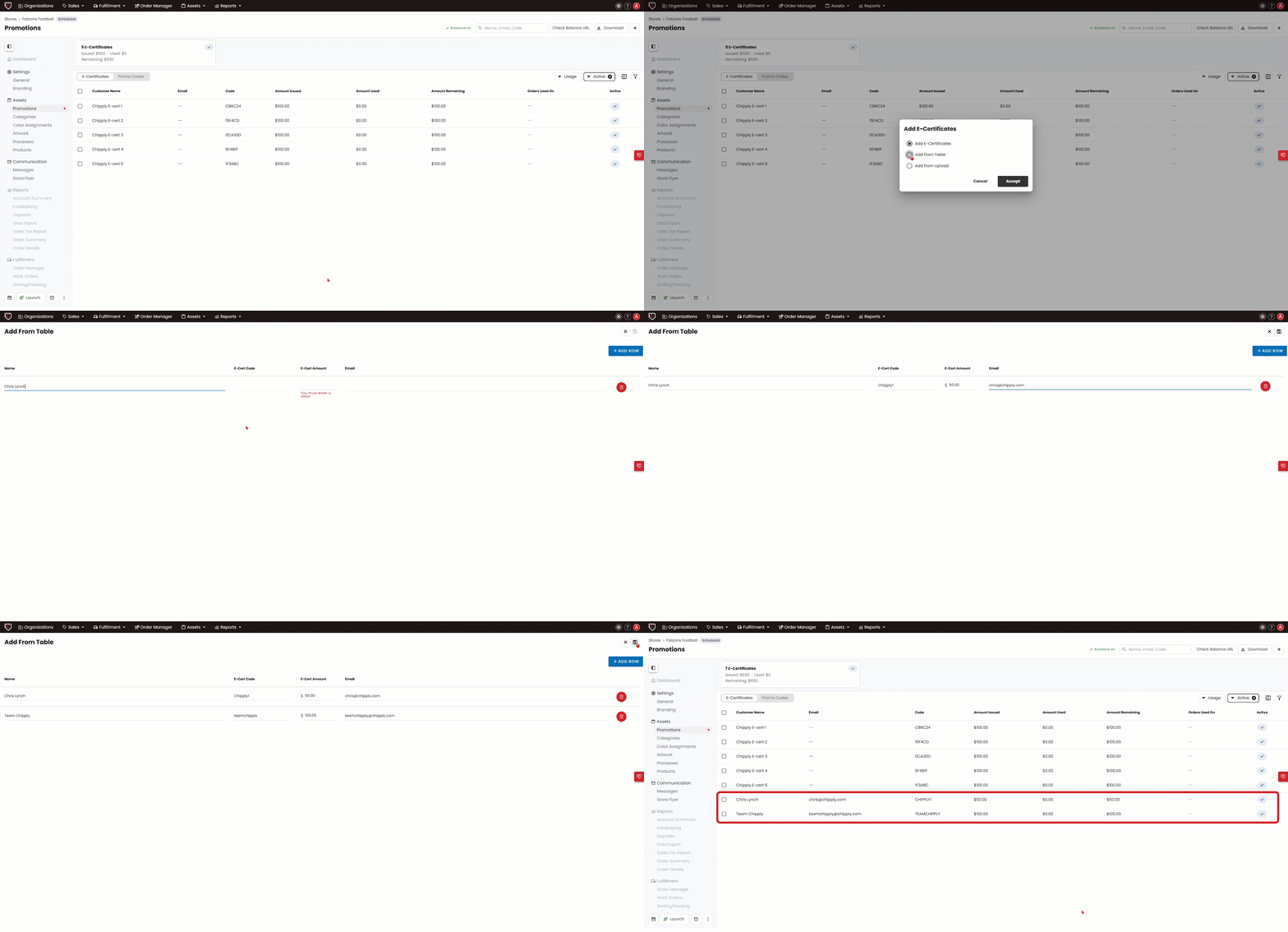
- Within your store, navigate to the Promotions page and click the plus button in the top right corner. Select E-Certificate, select Add from Table, and click Accept.
- Fill out the table with the desired information. The only required field is "E-Cert Amount." If you leave the "E-Cert Code" column blank, a code will be auto-generated for you.
This method lets you customize each E-Certificate code, add individual customer names, and include email addresses. It works best when uploading a small number of codes.
Option 3: Add E-Certificates from an Upload
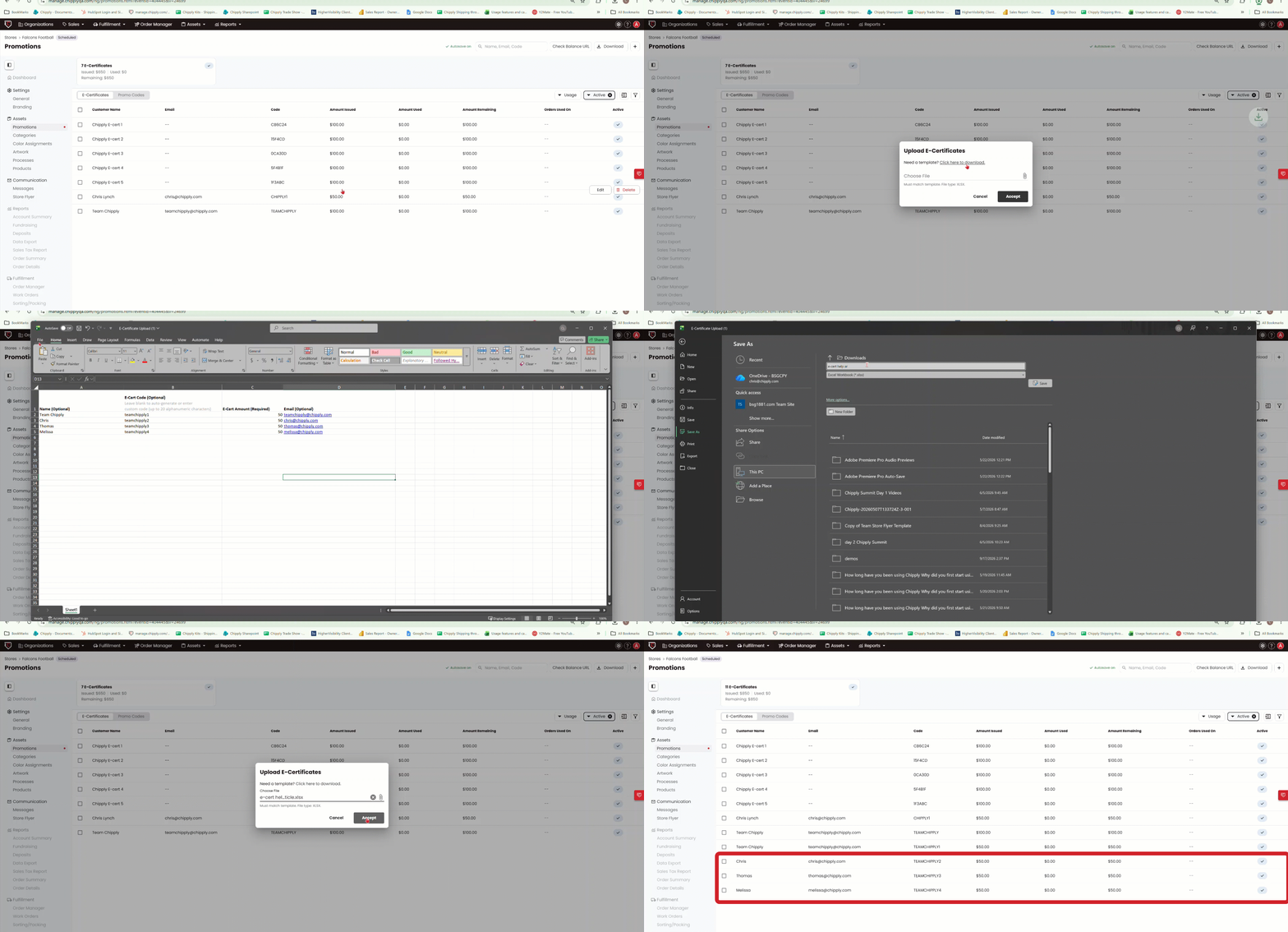
- Within your store, navigate to the Promotions page and click the plus button in the top right corner and click E-Certficates. Select Add from Upload, then click Accept.
- A template prompt will appear. Click the Download button to save the Excel file to your computer.
- Open the downloaded file and fill in the following columns: Customer Name, E-Cert Code (leave blank if you want Chipply to auto-generate codes), E-Cert Amount, and Customer Email.
- Save the file, then return to Chipply.
- Click "Choose File," select your saved Excel file, and click Accept. Chipply will add all entries to your store as E-Certificates.