![Fabicaon.png]](https://44059364.hs-sites.com/hs-fs/hubfs/Fabicaon.png?width=40&height=40&name=Fabicaon.png)
Often you may design products to have more than one logo on the product. However, if the customer requests an additional artwork location after you've already created a process, or if you are trying to add multiple artworks to items such as hats, backpacks, coolers, etc., here is how to accomplish that.
1) Select Processes from the Left-Hand Menu.
2) Find the process that you want to add the additional artwork to and click the Edit Processes Pencil button.
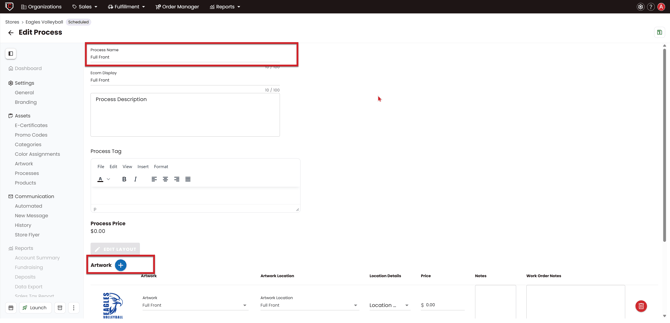
3) This will bring you into the Edit Process screen. Update your process name to be representative of the new artwork. For example, if you had a "Full Front" process and you are adding a full back artwork, update the process name to "Full Front/Full Back."
4) Scroll down to the Artwork section and click the Add Artwork button.
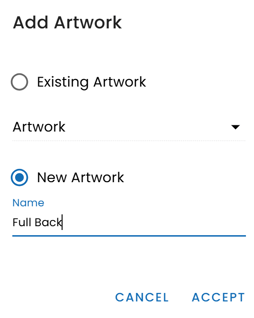
5) Click New Artwork and give it a name (ex: "Full Back"), then hit Accept.
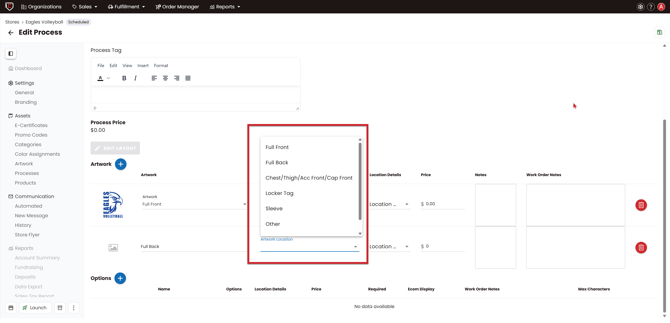
6) Choose the artwork location from the Artwork Location dropdown. There are many options to choose from. If none of the pre-determined locations fit, select "Other." Once selected, hit Save in the top right corner of your screen.
7) You have now successfully added an extra artwork to your process. To upload your additional artwork file, navigate to the Artwork section by clicking Artwork on the Left-Hand Menu.
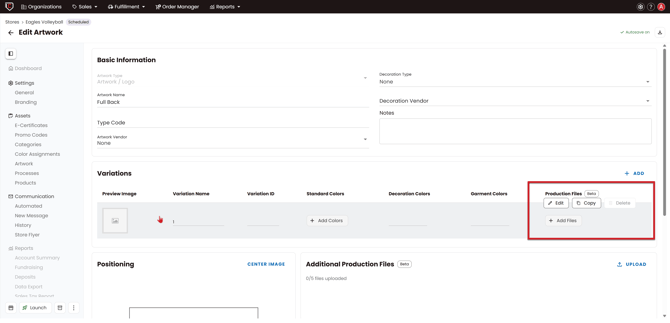
8) You will see a blank artwork with the name you just created. Click the Edit button.
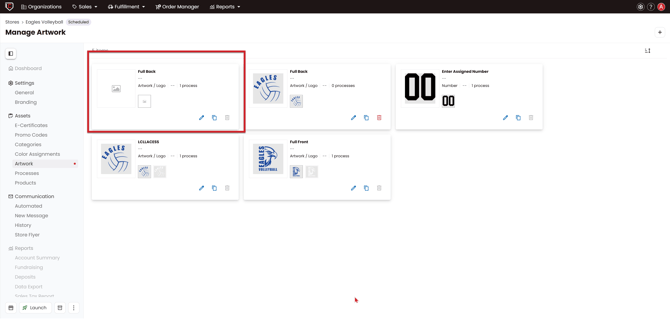
9) Hover over the blank artwork and click Edit. The Edit Variation Drawer will open.
10) Click Preview File and choose the artwork file from your computer.
11) Fill in your Standard Colors if those apply, then fill in the Decoration Color and the Garment Color. We always recommend filling in both of these fields, as they appear on the work order so your production team can see exactly what colors are involved with the artwork. Then hit Accept.
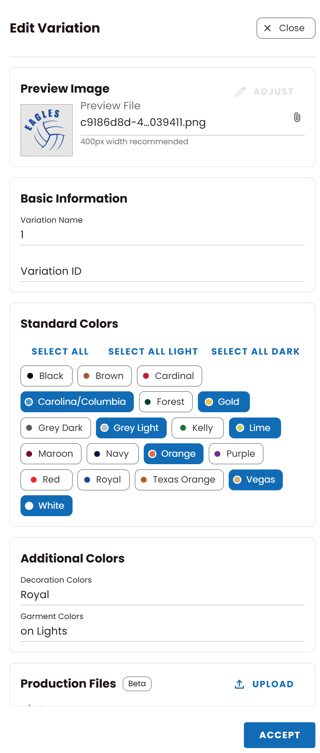
12) Your artwork is now uploaded. Follow your standard artwork procedures to upload any remaining color variations if needed.