![Fabicaon.png]](https://44059364.hs-sites.com/hs-fs/hubfs/Fabicaon.png?width=40&height=40&name=Fabicaon.png)
Please note: You must have the ShipStation integration enabled for this feature to work.
1) Within Chipply, click the Settings gear in the top right corner of your screen. Then navigate to Store Settings > Shipping Methods.
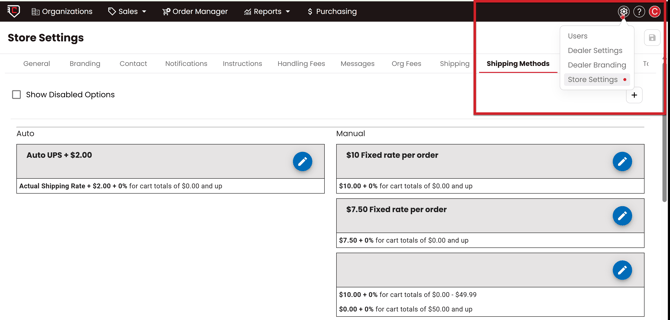
2) Click the + button in the top right corner of the screen to add a new shipping method.
3) Enter a name for your new Shipping Method. We recommend using a name that clearly describes the carrier and service.
4) Select your Carrier and Service. Any carriers and services you have configured in ShipStation will appear here.
5) We recommend adding a few dollars on top of the calculated shipping rate to account for any unintended or unexpected shipping costs.
6) We also recommend adding a failsafe dollar amount. This is used in the unlikely event that ShipStation is unable to communicate with Chipply. In this case, the system will still charge the customer a shipping amount instead of nothing.
Note: The failsafe amount you enter will be added on top of the dollar amount entered above. Example: If the added amount is $2 and the failsafe amount is $8, the customer would be charged $10 at checkout.
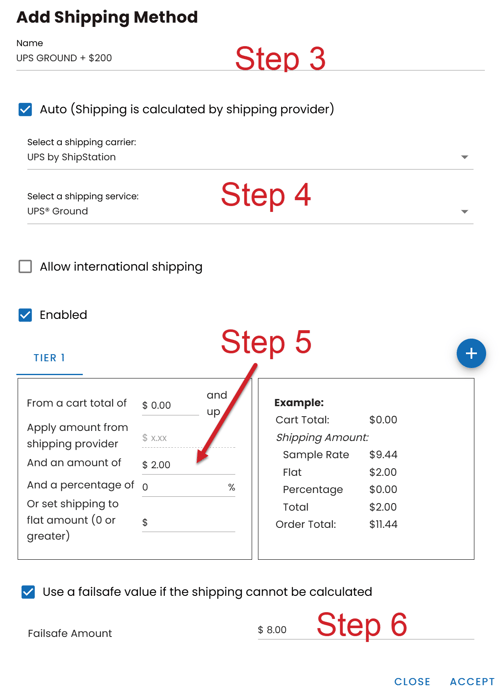
7) Once you are finished, click Accept. Your new automated shipping method is now set up and ready to use.