![Fabicaon.png]](https://44059364.hs-sites.com/hs-fs/hubfs/Fabicaon.png?width=40&height=40&name=Fabicaon.png)
E-Certificates are digital gift cards with a dollar or point value that you can issue to customers and organization members. Once an E-Cert has an email address attached to it, you can send that person an email containing their personal code, balance, and a link to the store, either right away or on a schedule, using Chipply’s Message Customers feature.
Before You Start
Each E-Cert needs an email address associated with it before you can email the e-certficate code. You can add email addresses when you create the E-Certs, or add them afterward by editing existing E-Cert records.
- Add from Table – lets you enter a Customer Name, E-Cert Amount, E-Cert Code, and Customer Email for each recipient. Best for smaller lists.
- Add from Upload – download the Excel template, fill in Customer Name, E-Cert Code (leave blank to auto-generate), E-Cert Amount, and Customer Email, then upload it. Best for bulk lists.
If you only need to add codes without emailing them yourself (for example, a sales rep will share codes individually), you can leave the email column blank.
Sending the E-Cert Email
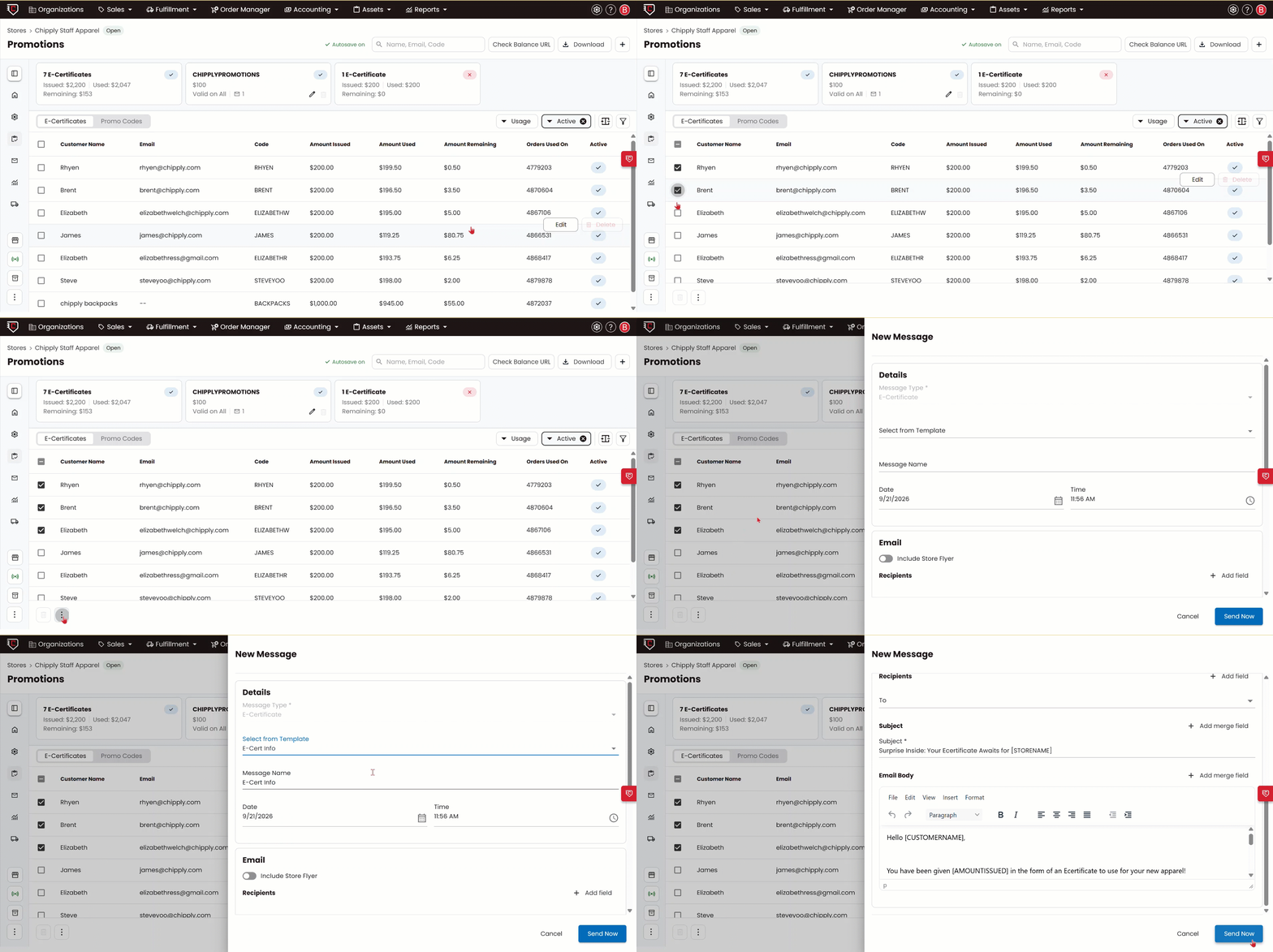
- Open the store and go to the Promotions page from the left-hand menu.
- Select the checkbox next to each E-Certificate recipient you want to email. You can select individual recipients or select all results on the page by clicking the check box on the header.
- Click Bulk Actions -> Message to message the selected recipients thier e-certfficate.
- You can either draft your own message and use Chipply's email merge fields or use Chipplys E-Cert Info or E-cert Reminder email template.
- Choose to send the message immediately, or pick a date and time to schedule it for later.
- Click Send (or Schedule).