![Fabicaon.png]](https://44059364.hs-sites.com/hs-fs/hubfs/Fabicaon.png?width=40&height=40&name=Fabicaon.png)
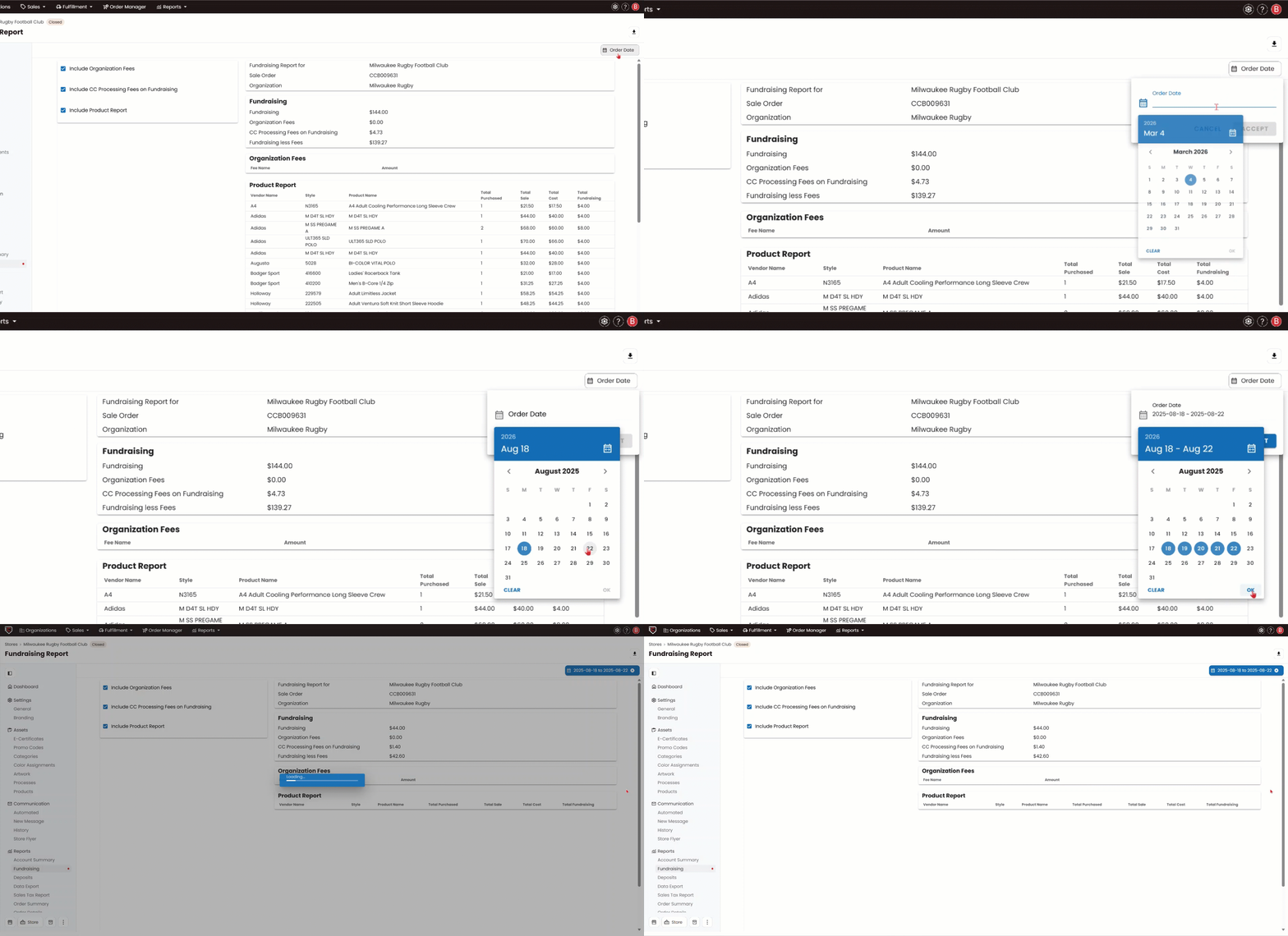
You can filter the Fundraising Report by a specific date range, making it easy to view fundraising totals for any defined period. This is especially helpful for catalog parent stores, where you have the flexibility to align reports with your batching schedule in Chipply. Quickly determine the total fundraising amount for each batch window.
Understanding Fundraising Totals for Catalog Batches
For Catalog stores, each batch shows fundraising collected only for the orders included in that batch, not your total fundraising across all orders. If your stores are set up to batch out as standalone orders, the fundraising shown in that batch reflects just the amount collected on that one order.
To see the total amount collected across all orders, go to the Catalog Parent store and click Fundraising in the left-hand menu.
How to Filter Fundraising Report by Date:
1) From within your store, navigate to Reports and select Fundraising from the left-hand menu.
2) On the top-right corner, click Order Date.
3) Enter the start and end dates you want to filter by, then click OK to run the report.
4) Click Accept. The Fundraising Report will update to show results for orders placed within the selected date range.