![Fabicaon.png]](https://44059364.hs-sites.com/hs-fs/hubfs/Fabicaon.png?width=40&height=40&name=Fabicaon.png)
Chipply now integrates with Fulfill Engine, making it easy to purchase decorated items directly through your Chipply account. This guide covers how to set up the integration, configure artwork with Design IDs, submit orders using production files, and purchase items.
How to Set Up the Fulfill Engine Integration
1) In your Fulfill Engine account, under Configuration click API Keys.
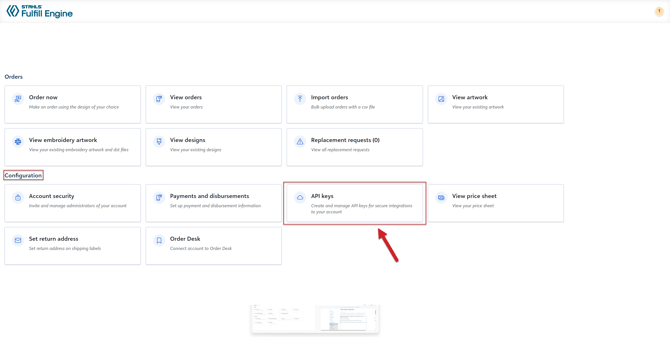
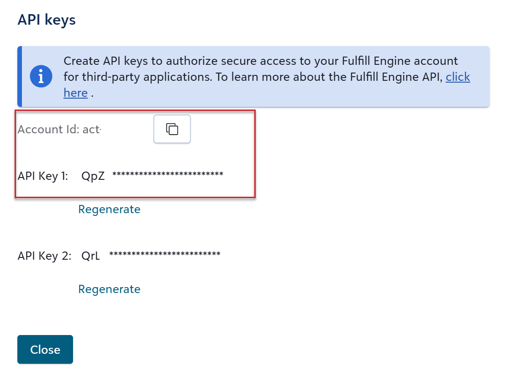
2) You will see two API keys available. Copy API Key 1, and note your Account ID, as you will need both.
Please Note: If you are unable to copy your API keys, try regenerating them and copying them again.
3) In your Chipply account, click the Settings gear icon in the top right corner, then navigate to Dealer Settings > Integrations.
4) If Fulfill Engine is not already listed under your Integrated Systems, click the + button in the top right and select Fulfill Engine.
5) Enter your API Key and Account ID from Fulfill Engine into the corresponding fields in Chipply.
6) Select your preferred Shipping Carrier and Shipping Method. This determines how Fulfill Engine will ship your products, either back to, or directly to your customer.
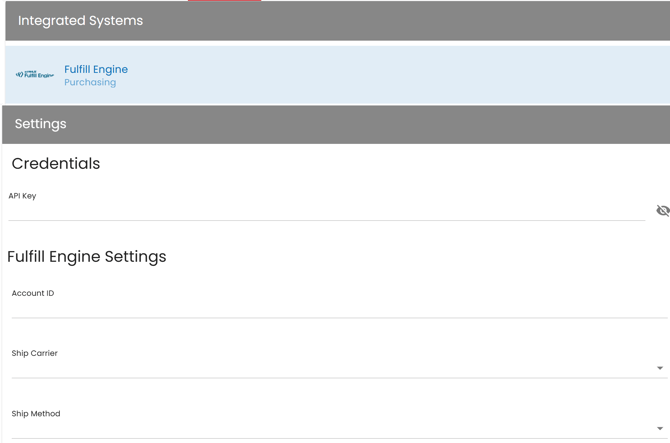
7) When finished, click Save (on the top right-hand side of your screen).
To verify that this integration is set up correctly, you should now be able to click on Decorations under Dealer settings and see that Fulfill Engine falls into the Vendors Tab.
Updating Artwork Vendor and Adding a Fulfill Engine Design ID
Fulfill Engine generates a Design ID that must be added to the corresponding artwork in your Chipply store. You will also need to set the Decoration Vendor to Fulfill Engine at the artwork level within your Chipply Store.
For DTF, DTG, UV DTF, UV Print, Liquid 3D, Laser Engraving, and Dye Sublimation decoration types, you can send an order to Fulfill Engine using a production file, without first creating a Design ID in Fulfill Engine.
How to Find Your Design ID in Fulfill Engine
1) In Fulfill Engine, navigate to Orders and click View Designs.
2) You will see a list of all designs currently uploaded in your Fulfill Engine account. Locate the Design ID that corresponds to the artwork in your Chipply store.
Important things to know about Fulfill Engine's Design IDs:
- When sending a Design ID from Fulfill Engine (for example, D-12345677), Fulfill Engine does not use the Decoration Type or Location Details fields from Chipply. Fulfill Engine uses all decoration information directly from the design on their side.
- Screen print minimum: If a design is set up as screen print, the single PO must have a minimum of 24 pieces, all receiving the exact same Design ID, and all shipping to the same location. Chipply will not display an error if this minimum is not met -- however, the order will be placed on hold on the Fulfill Engine side and Fulfill Engine will contact the dealer to resolve it. Fulfill Engine still offers screen printing, but because of this 24-piece minimum, Screen Printing is not available in the Decoration Type dropdown for Fulfill Engine in Chipply. If a design in your Fulfill Engine account is set up as screen print, you can still send it using its Design ID, and the 24-piece minimum will apply.
Adding Your Fulfill Engine Design ID to Your Chipply Artwork
1) In your store, navigate to the Artwork page.
2) Select the artwork that requires a Design ID.
3) Change the Decoration Vendor to Fulfill Engine. The Decoration Type dropdown will now show only the decoration types Fulfill Engine supports (see Supported Fulfill Engine Decoration Types below). If the artwork already had a decoration type with a matching name, such as UV DTF, it carries over automatically. Otherwise, select a new decoration type.
4) For each artwork variation, enter the corresponding variation ID from Fulfill Engine. Please note that without this ID, the integration will not function.
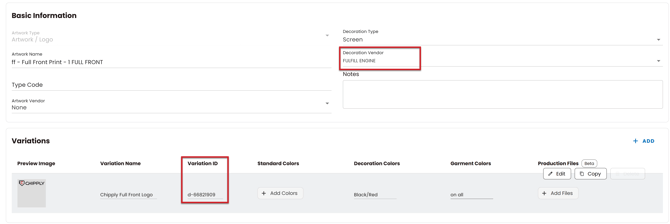
Repeat this process until all the artwork(s) you are going to utilize with Fulfill Engine are completed.
Please Note: If you also use the Stahls’ integration, double-check that Artwork Vendor is set to Fulfill Engine, not Stahls’. If it's left on Stahls’, the order will go there instead — with no error shown.
Supported Fulfill Engine Decoration Types
When the Decoration Vendor is set to Fulfill Engine, the following decoration types are available:
- DTF
- DTG
- Embroidery
- UV DTF
- UV Print
- Liquid 3D
- Laser Engraving
- Dye Sublimation
Hangtag, Heat Seal Patch, Screen Printing, Sticker, and Transfer Label are no longer offered for Fulfill Engine. Fulfill Engine requires inventoried product housed at their facility for Hangtag, Heat Seal Patch, Sticker, and Transfer Label, and Screen Printing has a 24-piece minimum, so these types are not a fit for print-on-demand orders. Screen print designs can still be sent by Design ID (see Screen print minimum above).
Please Note: If you have existing Fulfill Engine artwork set to one of these retired types, the artwork editor will flag the decoration type as no longer offered. If that artwork has a primary production file, the purchase order will not submit until you select one of the supported types above. Artwork sent with a Design ID only is not affected, since Fulfill Engine uses the decoration method from the design on their side.
Existing Fulfill Engine artwork that was set to Sublimation has been automatically moved to Dye Sublimation. No action is needed.
Submitting Orders Using a Production File
For DTF, DTG, UV DTF, UV Print, Liquid 3D, Laser Engraving, and Dye Sublimation decoration types, you can send an order to Fulfill Engine using a production file, without first creating a Design ID in Fulfill Engine. Chipply sends the production file URL, decoration type, and location details, and Fulfill Engine can print the garment without a predefined Design ID.
Please Note: Decoration Type and Location Details are both required this to work. If either is missing on the artwork, the purchase order will not submit. The error message will tell you exactly which artwork and line item is affected, so you can set the missing value and resubmit.
Embroidery still require a Design ID (External ID). If a Design ID is not provided for embroidery, you'll see a friendly error message letting you know a Design ID is required.
Learn More About Production Files
Marking a Primary Production File
This is key if you are uploading multiple production files. Each artwork variation can have up to 5 production files uploaded. The first production file you upload is automatically set as the Primary file, no additional action needed.
If more than one file has been uploaded, you can change which file is Primary by editing a file and selecting it as Primary. Only one production file per variation can be Primary at a time, and the previous Primary designation is automatically removed. The Primary file is always displayed first in the production files list on the Edit Variation panel and displays a star icon and label so it's clearly identifiable.
When an order is sent to Fulfill Engine using a production file URL (rather than a Design ID), Chipply uses the Primary production file for that artwork variation to build the file sent to Fulfill Engine. If no production files have been uploaded, the order still proceeds without a production file URL.
Understanding Shipping Options with Fulfill Engine
The shipping options available to you during the Fulfill Engine purchasing process are determined by how your store's distribution settings are configured in your General Settings. Below is a breakdown of what to expect based on your setup.
Ship Directly to Customer If your store is configured to offer Shipping to shoppers, then you will have the option to have FulFill Engine Ship Directly to the Customer or Ship to your dealer branch, depending on your preference.
Ship to Dealer Branch If your store is configured with in-store pickup, single pickup location, or multiple pickup locations, you will only have the option to ship products back to your branch instead of directly to the customer.
Both Options Available If your store is configured with a combination of shipping and pickup options (such as organization pickup, single pickup location, or multiple pickup locations), you will be able to choose between shipping directly to the customer or shipping products to your dealer branch at the time of purchase.
Adding Products to Your Store
To ensure a seamless experience, it is important to use products from the Fulfill Engine catalog when setting up this integration. Before launching your store, please verify that all products you are using for the processes that you have Fulfill Engine artwork attached are products that Fulfill Engine are integrated with.
View Fulfill Engine list of products
Once all the steps above are completed, you can now launch your store and collect orders.
Purchasing Fulfill Engine Items
The Decorated Items tab in Purchasing is where you'll find all items purchased through your store that are linked to your Fulfill Engine integration.
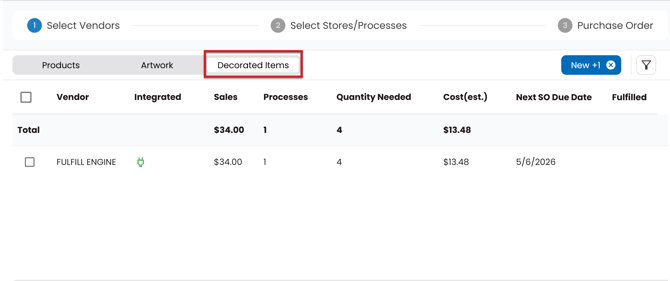
To Purchase Items From Fulfill Engine
- Within your store or catalog batch, navigate to Purchasing in the left-hand menu.
- Click the Decorated Items tab, select Fulfill Engine, and click Next. Chipply will display all processes in your store that are connected to Fulfill Engine. Click Next again to continue.
- With your products selected, click Check Availability. From here, you can fill in the following details:
- PO Number
- Attention Name
- Ship Email
- Notes (optional)
- Shipping Carrier and Method
- Chipply will ping Fulfill Engine to confirm item availability. Available items will display a green checkmark, while unavailable items will display a red X. Please note that for best practices on using Chipply's Purchasing Utility, contact Chipply Support.
- Once you are ready to purchase, click Order Digitally and verify that your PO Number, Attention Name, Ship Email, Phone Number, and Shipping Carrier and Method are all correct before proceeding.
How orders appear in Fulfill Engine after purchasing:
- Ship to dealer orders: When one or more orders are shipping to your dealer location, everything on the PO shipping to the dealer will be combined into a single order in Fulfill Engine. This order will display the PO number used in Chipply in the Custom ID field.
- Ship to customer orders: All orders shipping directly to a customer with individual addresses will appear as separate orders in Fulfill Engine. The customer order number from Chipply will appear in the Custom ID field in Fulfill Engine for each of these orders.
Getting Help with Fulfill Engine
If a dealer needs help directly with their Fulfill Engine account or an order that has already reached Fulfill Engine (not a Chipply setup question), direct them to info@fulfillengine.com.