![Fabicaon.png]](https://44059364.hs-sites.com/hs-fs/hubfs/Fabicaon.png?width=40&height=40&name=Fabicaon.png)
Chipply now integrates with Vantage, making it easy to purchase decorated items directly through your Chipply account.
Before getting started: A corresponding program must be set up on the Vantage side before launching a store on Chipply. Use the form below to submit an integration request. Both the Chipply and Vantage teams will be notified and will work together to get the account connected.
Submit a Vantage Integration Request
How to set up the Vantage integration
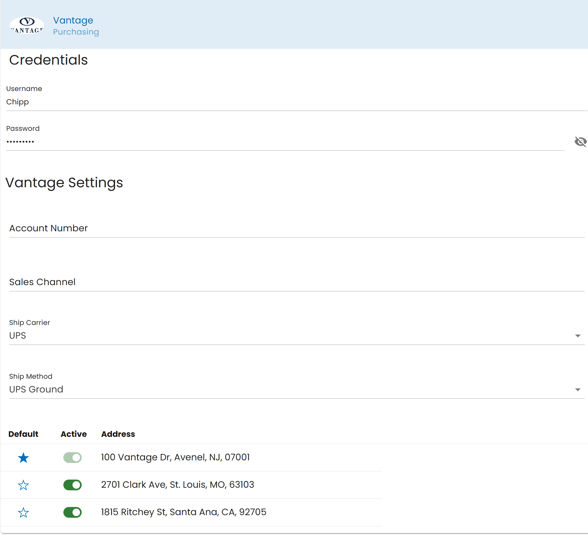
Before you begin, gather the following credentials from your Vantage account: Username, Password, and Account Number. You will need all of these to complete the setup.
Credential notes:
- Username and Password come directly from Vantage.
- Account Number is your 6-digit Vantage account number.
- Sales Channel should typically be left blank unless you are always sending orders from a single program (for example, one dedicated corporate customer). The Sales Channel field corresponds to a Program ID in Vantage. The test Program ID is CHP.
- Ship Carrier and Ship Method are both required fields.
- In your Chipply account, click the Settings gear icon in the top right corner, then navigate to Dealer Settings > Integrations.
- If Vantage is not already listed under your Integrated Systems, click the + button in the top right and select Vantage.
- Enter your Username, Password, and Account Number into the corresponding fields.
- Enter your Sales Channel if applicable.
- Select your preferred Ship Carrier and Ship Method. This determines how Vantage will ship your products, either back to your dealer branch or directly to your customer.
- Under the warehouse address list, toggle each location Active or Inactive as needed. You can also mark one address as the Default by clicking the star icon next to it.
- When finished, click Save in the top right corner.
Setting up your artwork
Vantage requires specific settings at the artwork level in your Chipply store.
Important: All artwork and variations must be set up on the Vantage side before Variation IDs can be populated in Chipply. Reach out to your Vantage rep or submit the integration request form above to get designs configured first.
- In your store, navigate to the Artwork page and select the artwork you want to connect to Vantage.
- In the edit artwork page, change the Decoration Vendor dropdown to Vantage.
- Select a Decoration Type from the dropdown. Note: Decoration Type is not required for this integration but should reflect the type of artwork uploaded in Vantage's system.
- For each artwork variation, enter the corresponding Design ID from Vantage into the Variation ID field. Variation IDs in Vantage are always a G code,
for example: G0609137.
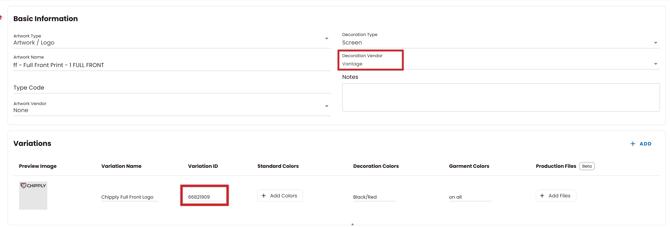
Please note: Without the Variation ID entered for each color variation, the integration will not function. Repeat this process for all artwork you plan to use with Vantage.
Setting up your processes and products
Each decoration placement must have its own dedicated process, and products must be separated by type. For example, if you have both adult and youth products receiving a full front logo, you will need two separate processes: one for Adult Full Front Print and one for Youth Full Front Print.
Location Details is not required for the Vantage integration. Unlike some other integrations, you do not need to select a Detailed Location on the process or product level for Vantage orders to function correctly.
Adding products to your store
Adding products to your store
The Vantage integration supports products from Vantage as well as the following sourced suppliers: Vantage, S&S Activewear, SanMar, & Cutter & Buck
Before launching your store, verify that all products you are using for processes with Vantage artwork attached are available through one of the supported suppliers listed above.
Once all the steps above are completed, you can launch your store and begin collecting orders.
Understanding shipping options with Vantage
The shipping options available during the Vantage purchasing process are determined by how your store's distribution settings are configured in General Settings.
- Ship directly to customer: If your store is configured to offer shipping to shoppers, you will have the option to ship directly to the customer or back to your dealer branch.
- Ship to dealer branch: If your store is configured with in-store pickup or single/multiple pickup locations, you will only be able to ship products back to your branch.
- Both options available: If your store uses a combination of shipping and pickup options, you can choose between shipping directly to the customer or to your dealer branch at the time of purchase.
Purchasing Vantage items
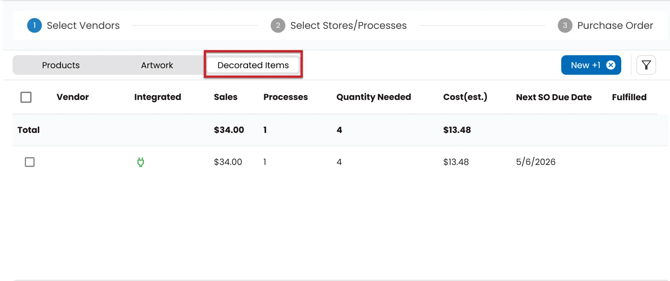
Items purchased in your store that are linked to your Vantage integration will appear in the Decorated Items tab within Purchasing.
To purchase items from Vantage
- Within your store or catalog batch, navigate to Purchasing in the left-hand menu.
- Click the Decorated Items tab, select Vantage, and click Next. Chipply will display all processes connected to Vantage. Click Next again to continue.
- With your products selected, click Check Availability and enter a PO Number. Chipply will confirm item availability with Vantage. Available items will display a green checkmark; unavailable items will display a red X.
- Once availability is confirmed, Order Digitally will become enabled. Verify your PO Number, shipping details, and carrier before proceeding.
Need to Make Changes to an Existing Vantage Program?
If your Vantage integration is already live and you need to make updates to your program, use the Vantage Program Modification form. This form can be used to:
- Add new products or variants to your program
- Add new logos to your program
- Modify existing logos on your program
Once submitted, a copy will be emailed to you along with a link to the Product & Logo form if additional details are needed. If you have questions, reach out to Vantage directly at webstores@vantageapparel.com.
Frequently asked questions
What types of stores work best with the Vantage integration?
The Vantage integration is best suited for long-term catalog or employee stores, such as a corporate customer with a standard product and decoration array that stays open year-round. It is not typically used for short-term spirit wear stores.