![Fabicaon.png]](https://44059364.hs-sites.com/hs-fs/hubfs/Fabicaon.png?width=40&height=40&name=Fabicaon.png)
Chipply now integrates with FAST, making it easy to purchase decorated items directly through your Chipply account using FAST's automated order management platform.
FAST is purpose-built technology for Promotional Products Distributors and decorators, offering end-to-end workflow automation from quoting through invoicing. Key benefits include:
- Single Invoice Solution -- source blanks and decoration together using your existing S&S credit line and rebates.
- Free Freight with No Minimums -- available from S&S and select suppliers.
- Improved Turnaround Times -- tap into the FAST network for quicker fulfillment.
- Consistent Quality and Service -- reduce errors, rework, and customer escalations.
- No Markup on Blanks: FAST is owned by S&S Activewear, so blanks are purchased on your own S&S account at your existing program pricing — nothing gets marked up before it reaches you.
- No Digitizing Fees: FAST does not charge to digitize a logo, as long as the finished artwork is fulfilled through FAST.
- A Vetted Decorator Network: orders are automatically routed to the closest of FAST's 30+ decorators to the end customer, minimizing shipping time.
How to set up the FAST integration
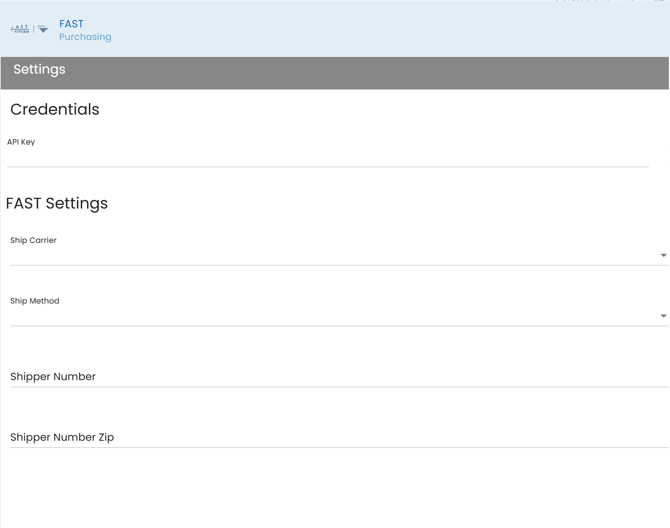
Before you begin, you will need your API Key from your FAST account. You will also need your Shipper Number and Shipper Number Zip if you are shipping via a carrier account.
- In your Chipply account, click the Settings gear icon in the top right corner, then navigate to Dealer Settings > Integrations.
- If FAST is not already listed under your Integrated Systems, click the + button in the top right and select FAST.
- Enter your API Key into the corresponding field under Credentials.
- Select your preferred Ship Carrier and Ship Method. This determines how FAST will ship your products, either back to your dealer branch or directly to your customer.
- If applicable, enter your Shipper Number and Shipper Number Zip.
- When finished, click Save in the top right corner.
Important notes about integration settings:
- Ship Carrier, Ship Method, Shipper Number, and Shipper Number Zip are all required fields.
Setting up your artwork
FAST requires specific settings at the artwork level in your Chipply store.
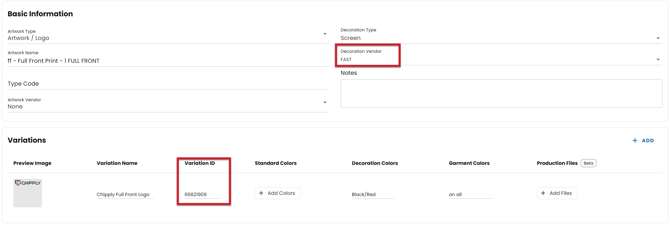
- In your store, navigate to the Artwork page and select the artwork you want to connect to FAST.
- In the edit artwork page, change the Decoration Vendor dropdown to FAST. The Decoration Vendor must be set to FAST for the integration to work.
- Select a Decoration Type from the dropdown. This must be a valid FAST decoration type. Supported decoration methods include embroidery, DTF, DTG, and screen print.
- For each artwork variation, enter the corresponding External ID from FAST into the Variation ID field. This Variation ID must already be set up in FAST Platform for linking to work.
Embroidery files (.DST) are automatically detected and set to the Embroidery decoration type. All FAST decorators stitch with Madeira Polyneon thread as the standard — enter your exact thread number in the Madeira Override field (which shows a live color preview) rather than relying on the closest match, to guarantee color accuracy.
Screen print files (.EPS) additionally require the number of ink colors used in the design. For Direct to Film and Direct to Garment, decorators print the exact file uploaded with no alterations.
A new Variation ID is required per color for every decoration type. For embroidery specifically, a different logo size (not just a different color) also requires its own Variation ID — DTF, DTG, and screen print files are instead automatically scaled to the standard size noted in the design location guide.
Repeat this process for all artwork you plan to use with FAST.
Setting up your processes and products
Each decoration placement must have its own dedicated process, and products must be separated by type. For example, if you have both adult and youth products receiving a full front logo, you will need two separate processes: one for Adult Full Front Print and one for Youth Full Front Print.
Location details
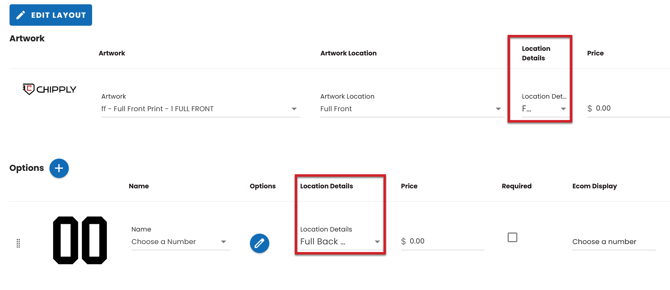
Within each process, at the artwork and options level, you will find a Location Details dropdown. This field is required and must have a value selected. It allows you to specify exactly what the artwork or option represents, for example a full front print labeled as Full Front - Adult 12" x 12".
In some cases, you may need to override location details at the product level.
How to set location details per product
- Navigate to the Products page and use the filters to locate the products you want to update.
- Click Review at the top of the page. Beneath each artwork and option associated with a product, you will see the Location Details field.
- Manually update the artwork location details for each product as needed.
The Location Details field must be set to a valid FAST location. This can also be selected at the individual product level on the product review page if you need to override it for specific products.
In practice, one unified process can typically cover both adult and youth sizing without duplicating it — use the Location Details override on the Products > Review page for the rare product that needs to break from the process default, rather than always building a second process.
Adding products to your store
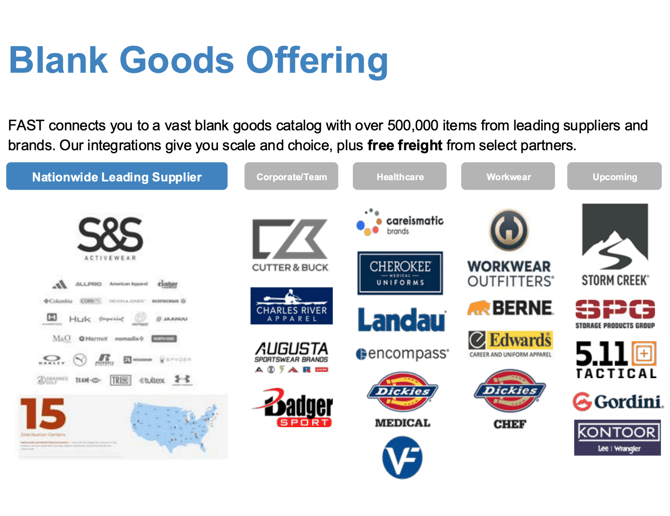
FAST Platform products are primarily S&S Activewear products. Before launching a store, verify that all products being used for processes with FAST artwork are available in the FAST library.
If you are unsure whether a product is compatible, visit fastplatform.com or reach out to your FAST account manager before building your store.
If you are unsure whether a product is compatible, visit fastplatform.com or reach out to your FAST account manager to confirm availability before building your store.
Once all the steps above are completed, you can launch your store and begin collecting orders.
FAST Pricing and Fees
The following fees apply to orders placed through the FAST integration.
Blank Goods Fee
|
Vendor |
Fee* |
|
S&S Activewear |
0% |
|
Other Vendors |
4% |
*Markup is built into the listed garment price. Rates are based on FAST Platform's negotiated pricing and may be lower than your current costs, even with markup applied. For garment-specific pricing, contact your account manager or log in to FAST Platform to quote.
Freight
All freight is billed through your shipper account. Rates and fees are determined by your third-party carrier based on your negotiated pricing.
FAST Technology Fee
|
Quantity |
Fee* |
|
1 - 11 pieces |
2.75% |
|
12 - 71 pieces |
2.25% |
|
72+ pieces |
1.75% |
*Fee is calculated based on the order subtotal and included as a line item at the end of each invoice. Quantity breaks are determined by the total number of items per invoice.
Understanding shipping options with FAST
The shipping options available during the FAST purchasing process are determined by how your store's distribution settings are configured in General Settings.
- Ship directly to customer: If your store is configured to offer shipping to shoppers, you will have the option to ship directly to the customer or back to your dealer branch.
- Ship to dealer branch: If your store is configured with in-store pickup or single/multiple pickup locations, you will only be able to ship products back to your branch.
- Both options available: If your store uses a combination of shipping and pickup options, you can choose between shipping directly to the customer or to your dealer branch at the time of purchase.
Understanding FAST minimums
FAST requires a minimum of 12 pieces per screen print design, checked per shipment rather than per order. If Ship directly to customer is on, each shopper's address ships separately, so an order can total well over 12 pieces and still get rejected because no single shipment reaches 12. Combining more standalone orders into the same PO doesn't help, since each one still ships on its own.
If you see a Screenprint minimum of 12 not met error, switch the order to Ship to dealer branch. That puts everything in one shipment, clears the minimum, and you can redistribute to shoppers yourself once it arrives.
Purchasing FAST items
Items purchased in your store that are linked to your FAST integration will appear in the Decorated Items tab within Purchasing.
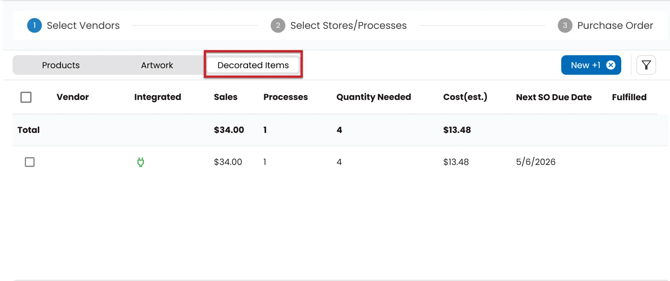
To Purchase Items From FAST
- Within your store or catalog batch, navigate to Purchasing in the left-hand menu.
- Click the Decorated Items tab, select FAST, and click Next. Chipply will display all processes connected to FAST. Click Next again to continue.
- With your products selected, click Check Availability and enter a PO Number. Chipply will confirm item availability with FAST. Available items will display a green checkmark; unavailable items will display a red X.
- Once availability is confirmed, Order Digitally will become enabled. Verify your PO Number, shipping details, and carrier before proceeding.
Once an order is placed, it typically appears on the FAST side within about 15 minutes.
A note on personalizationName and number personalization can be collected as a Chipply Option and passed to FAST, but FAST does not currently offer a structured list of fonts to choose from. Any specific personalization instructions (font, placement, etc.) should be entered in the process's Notes field, which routes directly to FAST's decoration services team.
A note on non-decorated (blank) itemsBundling an undecorated item together with a FAST-decorated item into a single shipment is not currently supported — FAST's routing is optimized to ship decorated goods directly from the nearest decorator. If your store needs both decorated and blank items, they may ship separately.
Frequently Asked Questions
Freight is billed through your shipper account, with rates and fees determined by your third-party carrier based on your negotiated pricing.
Does FAST charge to digitize my logo?
No — FAST does not charge a digitizing fee, as long as the artwork is fulfilled through FAST.
Can I bundle blank (non-decorated) items with my FAST order?
Not currently — FAST's system is optimized to ship decorated items directly from the nearest decorator, so blank items may need to ship separately.