![Fabicaon.png]](https://44059364.hs-sites.com/hs-fs/hubfs/Fabicaon.png?width=40&height=40&name=Fabicaon.png)
You can now add a custom favicon to your store. A favicon is the small logo that appears in the browser tab, and it plays an important role in building brand recognition and credibility. Previously, the Chipply logo was displayed by default, but now you can upload your own!
How to Upload a Favicon on Your Store:
1) From your store, navigate to the General Settings page.
2) Locate the new Domain Settings section, which includes the Store URL, Store Password, and Favicon upload.
3) Click Upload Favicon and select an image from your computer.
Please note: The image must be exactly 512 x 512 pixels; if it does not meet this requirement, you will receive an error, and the image will not upload. We also recommend using a simple, bold design that is easily recognizable. Avoid text or complex details for best results.
Add a Default Favicon Across All Your Stores and Landing Page
You can also set a default favicon that applies across all your stores. This is a great way to create a consistent, branded experience using your company logo. If needed, you can still upload store-specific favicons to override the default for individual stores.
Uploading a default favicon will automatically update your current stores, your company landing page, and any new stores you create going forward.
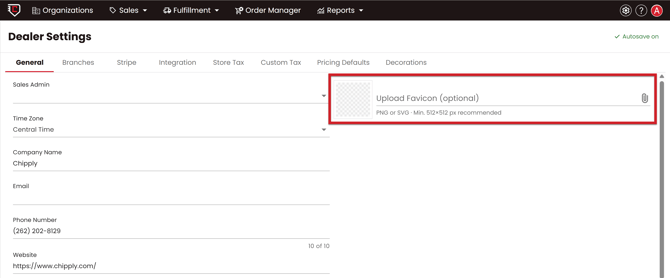
To Upload a Default Favicon:
1) Click the settings gear in the top right corner of your screen, then select Dealer Settings.
2) You'll land on your General Dealer Settings page, where you'll find the option to upload a favicon.