![Fabicaon.png]](https://44059364.hs-sites.com/hs-fs/hubfs/Fabicaon.png?width=40&height=40&name=Fabicaon.png)
Dealer Inventory is a feature in Chipply that lets you track and sell from your own on-hand inventory, instead of relying only on vendor inventory. This article covers how Dealer Inventory works and the changes it brings to the products area of a store.
Watch the Dealer Inventory Walkthrough
For a guided, visual tour of Dealer Inventory, watch the walkthrough video below.
Getting to Dealer Inventory
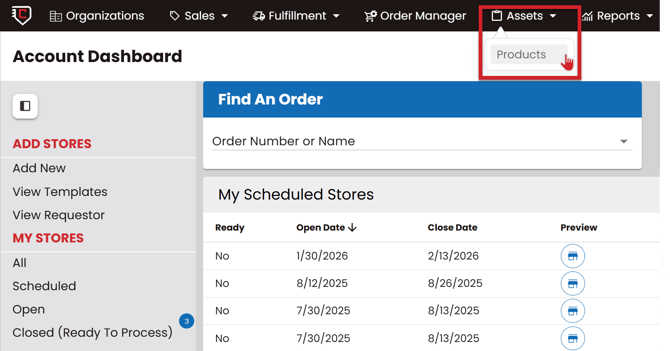
There is a new Assets button in the top navigation bar. Hovering over Assets reveals Products — clicking it opens a new page where you manage all of your dealer inventory.
Dealer, Chipply, and Offered Products
The new Products page is organized into three tabs:
-
Dealer: Any product you've added that you intend to upload and track your own inventory for. This is the main tab you'll work in.
-
Chipply: Browse the full catalog of products available in Chipply, across all vendors.
-
Offered: Coming soon.

Listing, Inventory, and UPC Codes
Within each of the Dealer and Chipply tabs, there are three sub-tabs:
- Listing shows the list of products.
- Inventory is where you add your inventory to your dealer products, or view the inventory for Chipply products.
- UPC Codes shows the same split-screen, color-by-size layout as the Inventory tab, but each cell holds a UPC instead of a quantity. On the Dealer side you can type a Dealer UPC directly into any cell — it's free text, so no UPC-A/EAN-13 format is enforced, and it autosaves. If the product is linked to a Chipply catalog item, that item's Chipply UPC is also shown for reference, but it's read-only. This is where the UPC and Alternate UPC values that the inventory upload matches against actually get set.

Adding Dealer Products
Adding dealer products to your account is very similar to adding products to your store. You can easily search the Chipply database and add the products that you have on hand to your account. From there, you can easily add in the inventory. You can also easily add custom products in case you have any specifc products that you carry that are not in the Chipply database. Think custom jerseys, already decorated promo items, etc. The way you add a custom product is the exact same way you would do it in your store.
To add a Dealer product:
-
Click the + button and search the Chipply catalog to add an existing product. For example, searching “8000” and choosing the vendor (say, Sanmar) will surface the Gildan 8000, which you can then add directly into your dealer products.
-
Click the + button in the top right and choose Create Custom Product to build a product from scratch. This is useful for something like a branded item you stock yourself that isn't in the Chipply catalog at all (a batch of notebooks or baseballs with your own logo, for example).

Linking to Active Stores
The first time you add a particular product to your Dealer tab, Chipply shows a confirmation before finishing:
“You are about to add [count] product(s). Are you sure you want to continue?” — with a choice to link to products in active stores or leave them unlinked.

Choosing to link is useful if that product is already offered on one or more of your open (active or scheduled) stores and you want it linked as a dealer product across all of them at once — for example, after adding a whole booking order's worth of new products, so they're tied together instead of managed as separate one-off listings.
Please Note: Linking to active stores happens in the background rather than instantly, so it can take a little while to finish after you confirm. The linking only reaches stores that are scheduled or open. Stores that are closed, in production, or complete won't have the product linked to them.
Cost, MSRP, and Inventory Thresholds
Once a product is in your Dealer tab, you can set:
Cost: What the product costs you.
MSRP: The suggested retail price.
Dealer Inventory Threshold: A buffer quantity, set per product, that keeps you from selling your very last items out of your own stock. Inventory thresholds used to be set per vendor; with Dealer Inventory, you can now set a different threshold for each individual product. This is currently defaulted to 4. Setting a product's threshold to 0 is not recommended if it's also being offered on a store — it could still sell even after you're actually out of stock.
Vendor Inventory Threshold: The same idea, but for vendor (feed) inventory instead of your own. This shows up as its own column next to Dealer Inventory Threshold in the product list, shown above.
You'll also see an Inventory Last Updated field, which timestamps the last time inventory was updated for that product. This is especially helpful for whoever on your team is responsible for keeping inventory current, so they know at a glance how fresh the numbers are.

Setting Default Thresholds by Vendor
You can also set a default Dealer Inventory Threshold per vendor, instead of relying on the same value for every product:
- Click the Settings gear icon in the top right, then go to Dealer Settings > Pricing Defaults.
- You'll see two threshold columns: Vendor Inventory Threshold (the existing setting — for example, when a vendor's feed inventory drops to 50, turn it off) and Dealer Inventory Threshold (new).
- Set a Dealer Inventory Threshold for each vendor based on how quickly that vendor's products typically sell for you. A vendor whose items sell fast might warrant a higher threshold so you never oversell; a vendor whose products barely move — sunglasses, for instance — may only need a low threshold, or none at all.

This vendor-level value becomes the default for any dealer product under that vendor. You can still override it for an individual product — for example, one specific tee style that consistently outsells the rest of that vendor's catalog might need its own higher threshold, set on the product itself as described above.
Updating Your Inventory
There are 3 ways to update your dealer inventory quantities.
Option 1: The Inventory Tab by Product
Click the Inventory button directly on a product's row in the Dealer tab's listing. This opens a Manage Inventory popup with the same color/size grid, without leaving the listing page — up and down arrows let you page to the next or previous product in your current sort and filter order.

Option 2: The Inventory Tab
The Inventory Tab shows every color and size for each of your products, along with two numbers: V (vendor inventory) and D (dealer inventory). This is where you can click in and manually enter your on-hand quantity for each color and size — for example, entering 10 for a medium ash tee and 100 for an extra-large.

Option 3: Uploading Inventory
From the Dealer tab, click the Download Button on the top right-hand side of your screen. An Excel file containing all of the products currently in your dealer inventory, one row per color/size combination, along with vendor, style, product name, color, size, cost, MSRP, UPC, and available quantity.


Fill in the Available Quantity column, and save the file. Within the Dealer Products page, click the Upload Button and drag and drop it back into Chipply to upload your updated counts all at once. This is a good option if you want to update a large number of products in one pass — for example, after a full physical count, or when pulling numbers from another system you use to track stock.
A few rules to keep in mind when uploading:
- Each row needs at least one identifier: a UPC, Alternate UPC code, Dealer product ID (external), or Dealer product color size ID (from Chipply). A row without one of these isn't valid and won't be processed.
- The upload updates products already in your Dealer tab — it does not add a brand-new product on its own. If a row's identifiers don't match an existing dealer product (or don't match anything in the Chipply catalog at all), you'll see an error such as “No dealer product matches this row's identifiers” on the error report you can download after uploading. Add the product to your Dealer tab first (see Adding a Dealer Product above), then download, edit, and re-upload.
- Whatever value you enter in Available Quantity replaces the current value in Chipply — it isn't added to what's already there.
- If Available Quantity is left blank for a row, Chipply treats it as 0. Double-check your file before uploading so a blank cell doesn't accidentally zero out inventory you meant to leave alone.
Adding Dealer Products to a Store
When adding a product to a store using the + button, you'll now see three sources: Chipply Products, Dealer Products, and My Products.
Chipply Products searches the full Chipply catalog, same as today.
Dealer Products searches your own dealer inventory-enabled products, by SKU or keyword, the same way you search today — except the product now brings its dealer inventory information along with it.
My Products works the same as it does today.

Choosing an Inventory Source on Your Products
When you click into a product to choose colors and sizes, you now have more control over which inventory source you offer in your store.

Use Vendor Inventory: Turns on inventory thresholds for the product, pulling from your vendor inventoy threshold.
Use Store Inventory: Lets you enter a fixed quantity for this store specifically (for example, 12 units). Once those sell out, the product is sold out for this store — it does not pull from vendor or dealer inventory. You can also leave these blank and offer colors and sizes with no threshold limititaions.
Use Dealer Inventory: Pulls from your own dealer inventory. With this turned on, only the colors and sizes you actually have stock in are available for purchase. You can also turn on Use Dealer Inventory together with Use Vendor Inventory — in that case, the store sells from your dealer inventory first, and automatically falls back to vendor inventory once your dealer stock runs out.
Each product will show D (Dealer Inventory), V (Vendor Inventory), and/or S (Store Inventory) badges indicating which inventory source(s) are active for it.
Overall, this gives you a lot more flexibility in how you offer products — whether from your own inventory, your vendor's, or a fixed store quantity.
Inventory Remaining View
You can easily see how much of your inventory you have remaining, after what's sold on your store. Whenever something sells, this shows you exactly what's left, not just what you started with.
Turning on Remaining
- Within your store, click on the Products page, then find the product you've uploaded your own inventory for, and click Inventory.
- Under Display, turn on Remaining.

Converting a Store Product into a Dealer Product
If you already have a product in one of your stores, for example, a custom product you created, or one you just realized you have stock of. You can easily turn it into a dealer product without leaving the store:
- On the store's Products page, click Inventory on the product you want to convert.
- Click the three dots (⋮) in the top right, then choose Add to Dealer Products.
- Click Accept to confirm. You'll see a notification confirming the dealer product was created.
- Go to Assets > Products to find the new product in your Dealer tab and enter the on-hand inventory you have for it.

Once that's done, this product is available to offer as dealer inventory on this store, and on any of your other stores going forward.
Dealer Inventory is a powerful addition to Chipply, and because it changes an area customers rely on daily, we want to make sure everyone is comfortable with how it works. This is the main help article for Dealer Inventory, and we'll keep it updated as remaining details (like the Offered tab, final default threshold values, and upload validation edge cases) are finalized and as screenshots become available.
If you have any further questions, please don't hesitate to reach out to the team.
Email: teamchipply@chipply.com
Phone: 262-202-8129
Want to learn more? Check out our other Dealer Inventory help articles: