![Fabicaon.png]](https://44059364.hs-sites.com/hs-fs/hubfs/Fabicaon.png?width=40&height=40&name=Fabicaon.png)
Accessing and Using the Organization Contact Login in Chipply
When you launch your online store, Chipply’s automated system will send your organization contact an email containing their login information. This login allows them to view store sales and see who has placed orders.
If you are not using the automated Organization Contact Login email, you can still access this information manually:
-
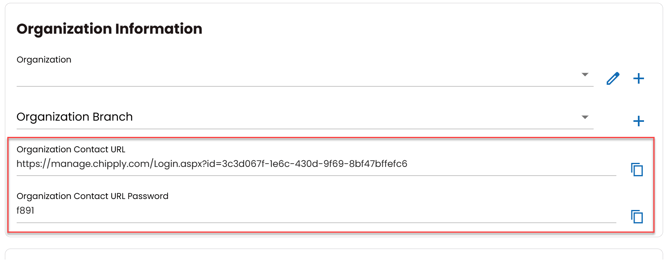
Go to your General Settings page.
-
Scroll to Organization Information.
-
Copy the login details and share them with anyone who needs access.
Navigating the Organization Contact Dashboard
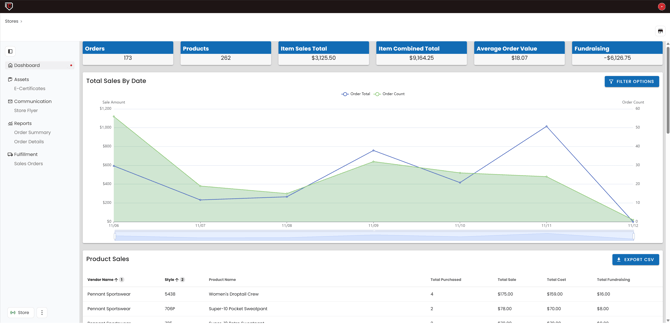
When the organization contact logs in, they’ll be greeted with a dashboard overview that displays key store sales data and performance metrics.
From the left-hand menu, the organization contact can:
-
View and download store flyers
-
Access reports and sales orders
-
Manage any e-certificates associated with the store
Reports Overview
There are two primary reports available to the organization contact:
1. Order Summary
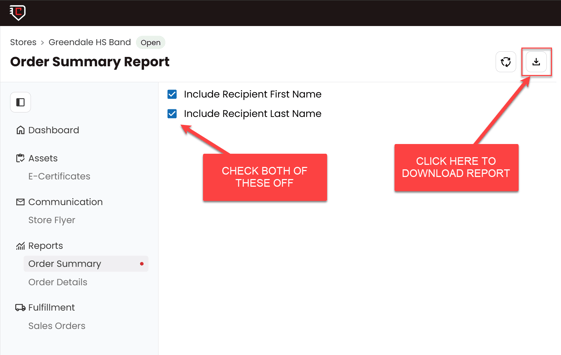
This report provides a list of everyone who has placed an order in the store.
To generate it:
-
Select Include Recipient First Name and Last Name
-
Click Download
The resulting file will show all customers who have made purchases.
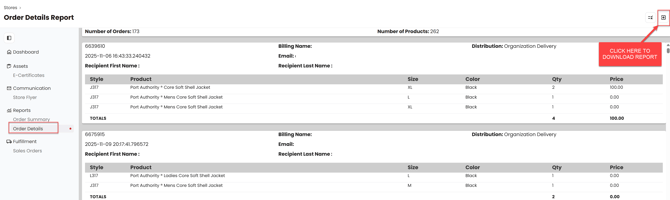
2. Order Details
This report includes detailed information on each order, including:
-
Customer names
-
Products ordered
-
Quantities and order information
Sales Orders
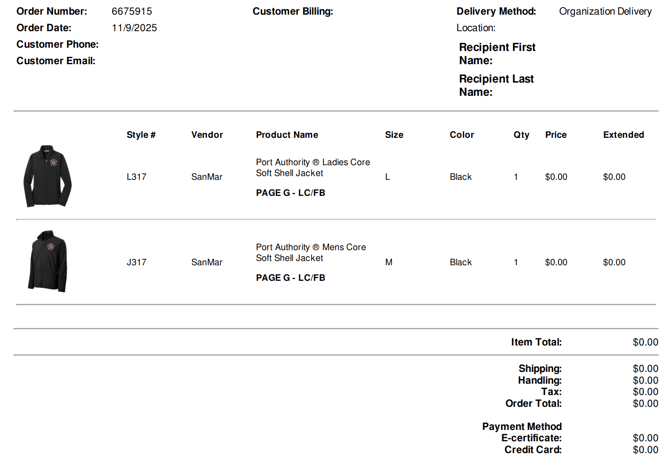
The Sales Orders section provides a complete list of customers and the exact products they purchased, including product images for easy reference. This report is ideal for tracking inventory, managing fulfillment, and reviewing product popularity.