![Fabicaon.png]](https://44059364.hs-sites.com/hs-fs/hubfs/Fabicaon.png?width=40&height=40&name=Fabicaon.png)
The Products page inside a store is being redesigned with a cleaner layout for managing inventory, giving you more control over where that inventory comes from, and a faster way to see availability across an entire store.
These updates are the groundwork for Dealer Inventory, a new feature that will let you sell from your own on-hand stock alongside your vendors' inventory.
Rather than change the Products page twice, we are putting the new inventory framework in place now for everyone, so that when Dealer Inventory becomes available to your account, it simply appears as one more option on a page you already know. The result is that you will have more ways to manage and offer inventory, and you can choose the approach that fits each product and each store.
New Top Navigation Button
There is a new Assets button in the top navigation bar. Hovering over Assets reveals Products. Clicking it opens a new page. We're putting this in place now, ahead of Dealer Inventory becoming available, so it's already somewhat familiar once your account gets access.
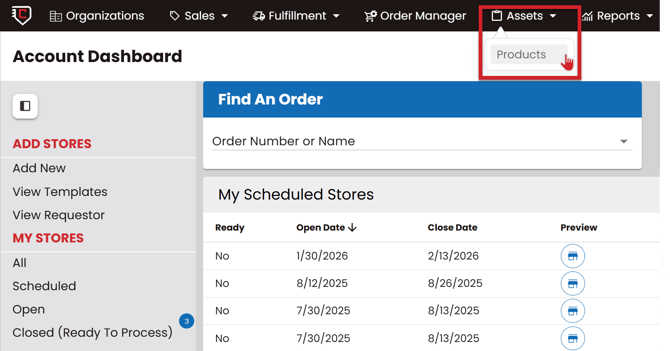
Right now, its Dealer Inventory features aren't turned on yet. you can only currently browse and search Chipply products and see current inventory.
New Views on the Products Page
The views at the top of a store's Products page have changed.
-1.png?width=670&height=393&name=image%20(12)-1.png)
Listing is the new name for the default product list you are used to. The information and columns are the same.
Review has not changed.
Inventory is new. It gives you a store-wide view of inventory across every product on the store without having to open each product one at a time. This is the fastest way to spot what is running low before a store closes.

The New Manage Inventory Window
Clicking the Inventory button on a product now opens a larger Manage Inventory window, replacing the small icon and inline grid used previously.
-3.png?width=670&height=275&name=image%20(12)-3.png)
At the top you will see the product name, the vendor and style, and when the product's inventory was last updated. The arrows next to the window title let you move to the previous or next product without closing and reopening the window.
.png?width=670&height=520&name=image%20(11).png)
Below that are the toggles that control where inventory comes from for this product on this store.
Use Vendor Inventory: Pulls availability from your vendor's feed and applies your inventory threshold. This is the same setting that was previously called Use Inventory Thresholds. It has been renamed and moved into this window, and it works the same way it always has.
Note: Leave Use Vendor Inventory off if you do not wish to use inventory thresholds
Use Store Inventory: This is great if you don't want to opt in to using the vendor's inventory (or also int he cases in which the vendor doesn't have an inventory feed). This is the base setting for inventory on a product and will automatically be toggled on for you if you turn off Use Vendor Inventory.
What does 'Use Store Inventory' mean? It means that you will either offer the product with no inventory threshold limitations OR, it allows you to type your inventory amounts into the individual color/size boxes for the pre-decorated inventory you have on hand.
Underneath the toggles, the Available [Remaining] grid lists every color and size with a checkbox for each. A V (V=Vendor) number shows the vendor quantity remaining, and when Use Store Inventory is turned on, an S (S=Store) number shows your store quantity. The Display option in the top right of the grid lets you switch between a dense layout that fits more on screen and a spacious layout that spreads the colors and sizes out.
What Happens to Your Existing Settings
Nothing you have already set up needs to be redone.
Any product that currently has Use Inventory Thresholds turned on will automatically show as Use Vendor Inventory after the update. This is the same setting under a clearer name.
Any inventory number you previously typed into a color and size cell is still there. Those numbers now appear as the S value in the new grid, since they were always store inventory. All existing data has been kept.
Coming Soon: Dealer Inventory
Dealer Inventory is the reason for the changes described above. It adds a third source of inventory alongside vendor and store: your own stock, tracked in one place and available to any store you choose to offer it on.
With Dealer Inventory, products you stock live under a new Assets > Products area, where you set cost, MSRP, and an inventory threshold for each one, and update quantities either product by product or with a spreadsheet upload.
On a store, you will then see a third toggle, Use Dealer Inventory, and a D number in the grid alongside the V and S numbers. You will be able to sell from your own stock only, or sell from your own stock first and fall back to your vendor automatically once it runs out.
If you have any further questions, please don't hesitate to reach out to the team.
Email: teamchipply@chipply.com
Phone: 262-202-8129