![Fabicaon.png]](https://44059364.hs-sites.com/hs-fs/hubfs/Fabicaon.png?width=40&height=40&name=Fabicaon.png)
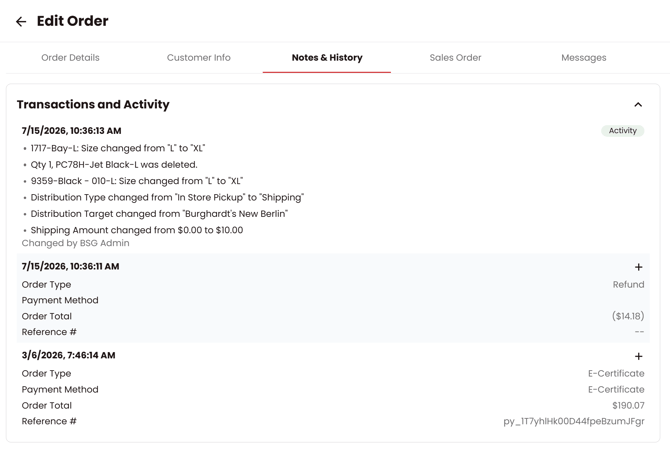
Order Manager now provides a complete history of every change made to an order. The tab previously labeled **Notes and Transactions** has been renamed to **Notes and History** to reflect this expanded view. You can see exactly what was changed on any order, who changed it, and when — giving you a full audit trail in one place.
What Gets Tracked
Every time a change is saved to an order, a new history entry is automatically created. The following changes are tracked:
- Product changes (size, color, quantity, or other updates)
- Manual price adjustments
- Shipping and handling changes
- Sales tax changes
- Payment method changes
- Transaction history (payments, refunds, fees)
- Promo code additions and removals
- Customer information updates
- Notes additions and edits
- Chargebacks
Each history entry shows what changed, who made the change, and when.
How to Access Notes and History
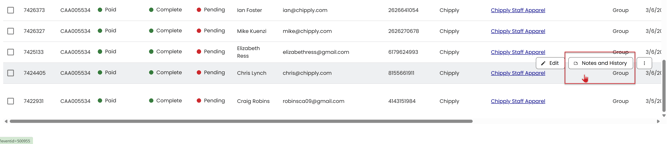
From the Order Manager list view: Click the Notes and History icon on any order row to open the side drawer without leaving the list.
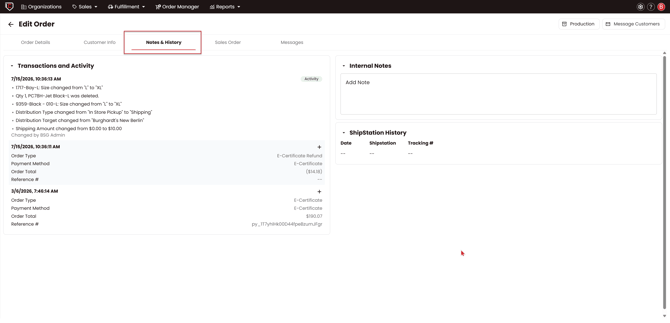
From within an order: Open any order and select the Notes and History tab at the top of the page.
Reading the History
Entries are listed in chronological order, with the most recent at the top. Items that represent activity rather than a financial transaction are flagged with an **Activity** indicator, so you can quickly distinguish them from financial entries like payments and refunds. History entries cannot be deleted or edited once created, ensuring a reliable and tamper-proof audit trail.