![Fabicaon.png]](https://44059364.hs-sites.com/hs-fs/hubfs/Fabicaon.png?width=40&height=40&name=Fabicaon.png)
How to Print Labels in Chipply Production
Chipply Production now supports label printing, making it easy for your team to track and organize work at every stage of production. Each label includes a QR code or barcode that your team can scan to jump directly to the relevant page within Chipply Production.
Label Types
There are five types of labels available in Chipply Production. Each label is designed for a specific level of your production workflow.
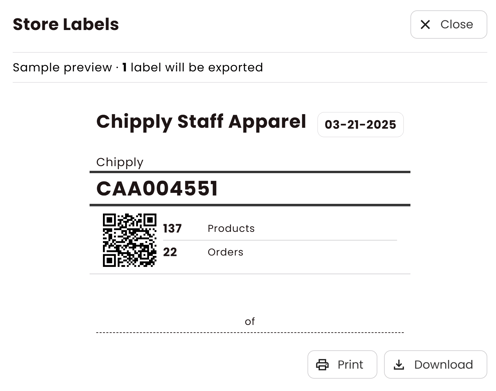
Store Label: The store label includes the store name, organization, sales order, production due date, number of products, number of orders, spaces for box count, and a QR code. Scanning the QR code brings you to the store overview page.
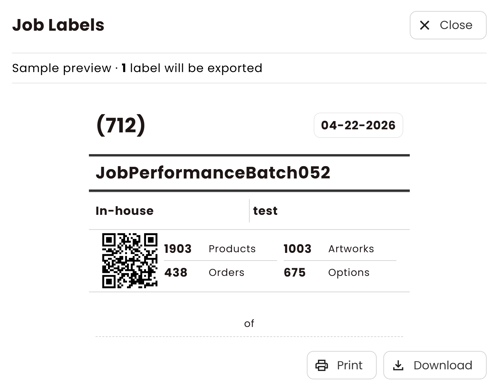
Job Label: The job label includes the job name, job ID, production due date, decoration types, decoration vendors, number of products, number of orders, number of artworks, number of options, spaces for box count, and a QR code. Scanning the QR code brings you to the job overview page.
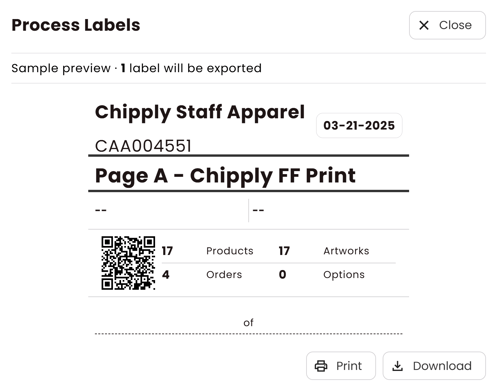
Process Label: The process label includes the store name, sales order, due date, process name, decoration vendor, decoration type, number of products, number of orders, number of artworks, number of options, spaces for box count, and a QR code. Scanning the QR code brings you to the process overview page.
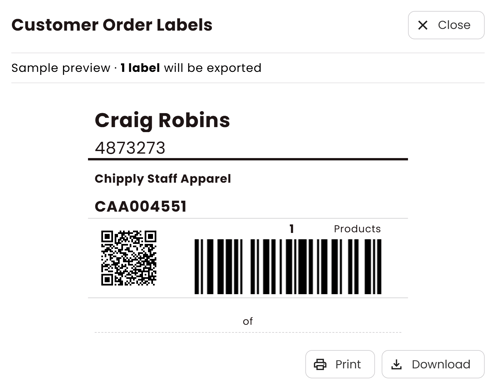
Order Label: The order label includes the customer name, order number, store, sales order, number of products, a barcode, and a QR code. Order labels can only be printed from the Orders tab (see below).
Item Label: The item label includes the product style, product name, color, size, decoration type, order number, a barcode, and a QR code. Item labels are smaller than the other label types because they are designed to attach directly to an individual item, not a box. Scanning the QR code brings you to the work order page for that specific item.
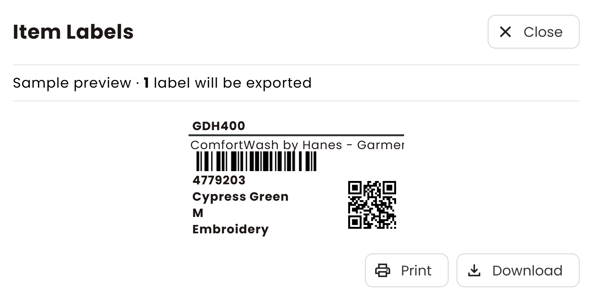
Please Note: Item labels and order labels are the only two label types that include a barcode. All other labels include a QR code only.
How Scanning Works
Chipply does not use a dedicated scanning app. When you scan a QR code or barcode with a label gun, it copies the URL or number and pastes it wherever your cursor is active in your web browser.
To scan a QR code using a label gun:
- Open your web browser and make sure you are logged into Chipply.
- Click into the address bar so your cursor is active.
- Scan the QR code. The URL will paste into the address bar and load the page automatically.
Please Note: You must be logged into Chipply before scanning. If you are not logged in, the QR code will not bring you to the correct page. If this happens, log in and scan again.
If you are scanning with a smartphone instead of a label gun, the QR code works like any standard QR code and opens the page directly in your browser without any extra steps.
Scanning Barcodes
The barcode on item labels and order labels outputs the order number as a string of digits. To use it:
- In Chipply Production, navigate to the Processes, Jobs, or Stores list.
- Open the filter drawer and click into the Customer Order field.
- Scan the barcode. The order number will paste directly into the field, bringing you to that order.
Where to Print Labels
Store Labels
Store labels can be printed from the following locations:
- The store overview page
- The work order page in Production
Job Labels
Job labels can be printed from the following locations:
- The job overview page
- The work order page in Production, as long as a job is associated with that work order
Process Labels
Process labels can be printed from the following locations:
- The process overview page
- The work order page in Production
Item Labels
Item labels can be printed from the following locations:
- The work order page in Production, from the main header
- The work order page in Production, by clicking into an individual item to open the customer orders drawer and using the bulk actions menu
- The store, job, or process overview page, by clicking into the Orders segment, then clicking into a customer order
Order Labels
Order labels can be printed from the following locations:
- The store, job, or process overview page, by clicking into the Orders segment and using the bulk actions menu
- The store, job, or process overview page, by clicking into the Orders segment and then clicking into a specific customer order to print from the header