![Fabicaon.png]](https://44059364.hs-sites.com/hs-fs/hubfs/Fabicaon.png?width=40&height=40&name=Fabicaon.png)
Chipply Production
Chipply Production is a core part of Chipply One, where selling meets fulfillment. Built-in workflow management, job tracking, product status tracking, and real-time production visibility keep teams aligned from order to delivery.
Instead of managing production through disconnected tools, spreadsheets, or manual follow-ups, Chipply Production centralizes everything inside the same platform you use to sell.
With Chipply Production, you can:
- Mark products as received, pulled, shipped, or backordered
- Track decoration readiness and completion
- Manage work by store, process, or job
- Batch work in the way your shop operates
- Keep artwork and production details connected to the order
Whether you batch daily production runs, manage complex decoration workflows, or operate print-on-demand programs, Chipply Production adapts to how your shop works.
Production-ready artwork files uploaded within your Chipply Stores flow directly into Production, so your team always has the correct files connected to the work being produced. No more searching through emails, folders, or shared drives. Everything is centralized and accessible inside Chipply.
Chipply Production gives you the visibility, flexibility, and control to run a more efficient operation from start to finish.
Below is an in-dpeth walkthrough and a video that will take you through everything that you can do with Chipply Production.
These features are currently in beta and available at no cost for a limited time. Additional details will be shared soon.
Accessing Chipply Production
You can access Chipply Production in two ways, depending on whether you want to manage a specific store or view production across your entire account.
Accessing Production for a Specific Store or Catalog Batch
To view production for a specific store:
-
Go into a Store or Catalog Batch.
-
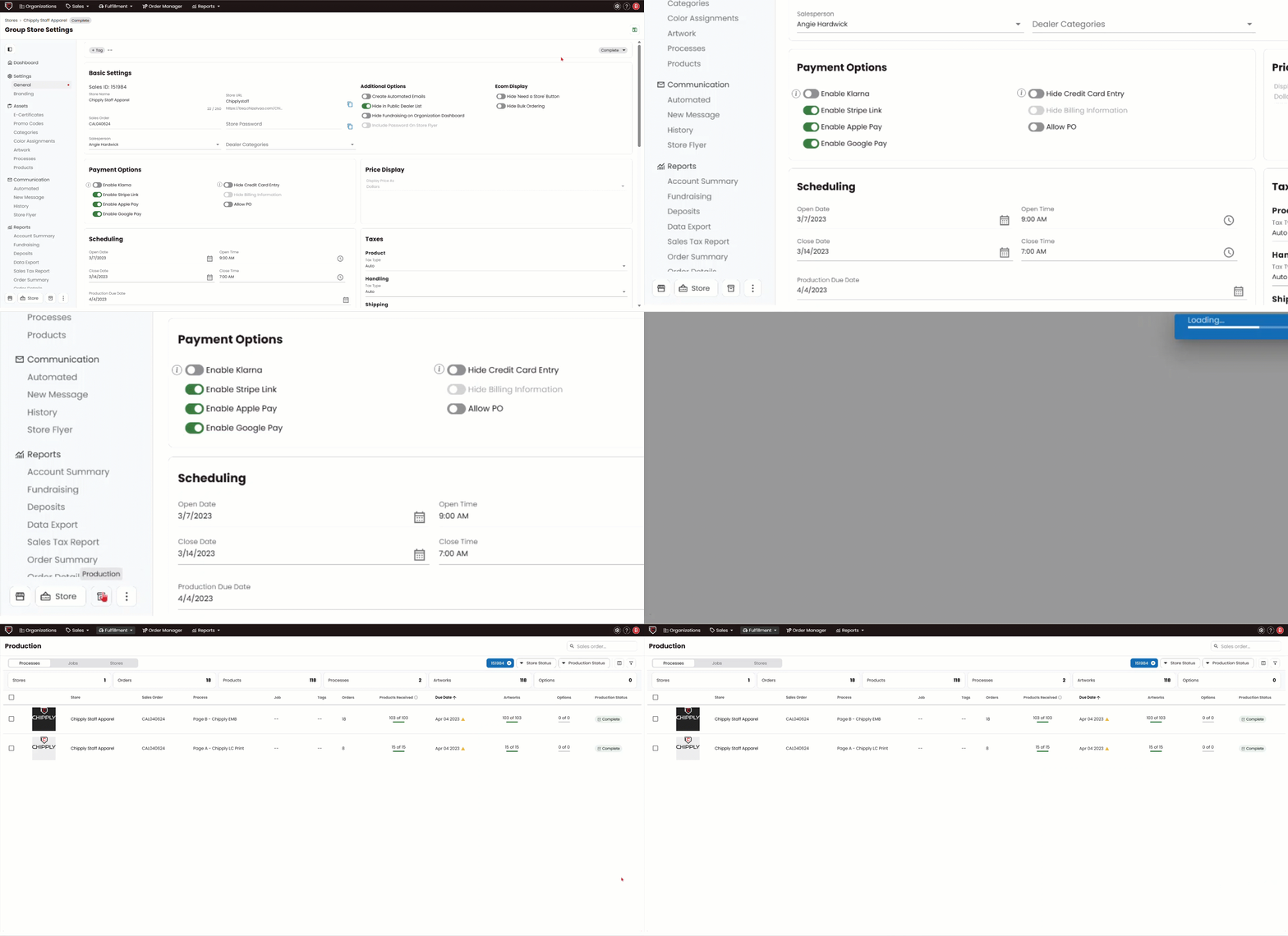
At the bottom of the left hand menu, there is a new Production Icon.
-
Click the Production button.
This opens Chipply Production already filtered to that specific store or batch.
Use this view when you want to:
-
Check the status of a single store/batch
-
Manage processes tied to a single store/batch
-
Update product or production statuses for that store only
You can remove the filter at any time to return to the full Global Production view.
Accessing Global Production
To access Global Production, on your main top navigation click Fulfillment → Production.
Chipply will automatically filter by the store status of Production, displaying all stores and catalog batches currently in Production. From there, you can use the available filters to narrow results by specific production statuses and quickly focus on the work that matters most.
This view functions similarly to Global Purchasing in that it provides a centralized view of production activity across all stores and catalog batches.
Use Global Production when you want to:
-
Prioritize work across multiple stores
-
Batch processes from different stores into a single job
-
Monitor overall production workload
-
Perform bulk updates across multiple stores
How Production is Structured
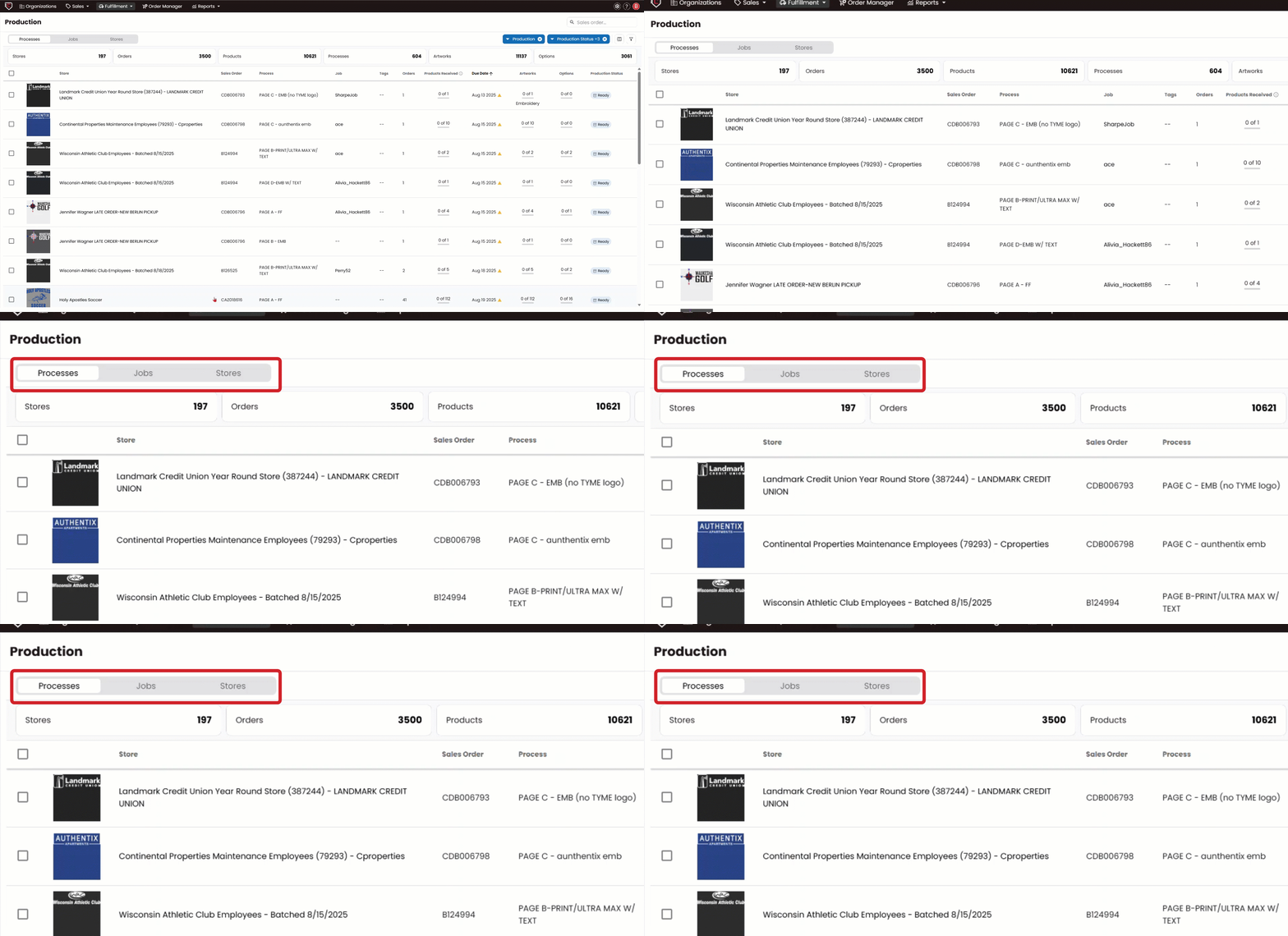
Production is organized into three primary views:
- Processes
- Jobs
- Stores
Each view provides a different level of visibility into your production workflow.
Processes
Processes are the backbone of your production workflow. They are created within your store setup and represent individual units of decorated work.
Think of Processes as individual sections or “pages” on your work order.
For example:
- A full front print is one process
- A left chest embroidery is another process
- A different logo is its own process
Each decoration type, artwork size, and separate logo should be set up as a separate process within the store.
Best Practice for Naming Processes
With Chipply Production, the way you name processes becomes even more important.
Process names are no longer just internal labels during store setup. They now appear throughout Chipply Production and directly impact how clearly your team can understand and manage work.
Include:
- Artwork name
- Location
- Decoration type
Example:
Lemon Perfect Full Front Print or (Lemon Perfect) Full Front Print
Clear naming improves visibility, reporting, and production clarity.
Bulk Actions Within Processes, Jobs, and Stores
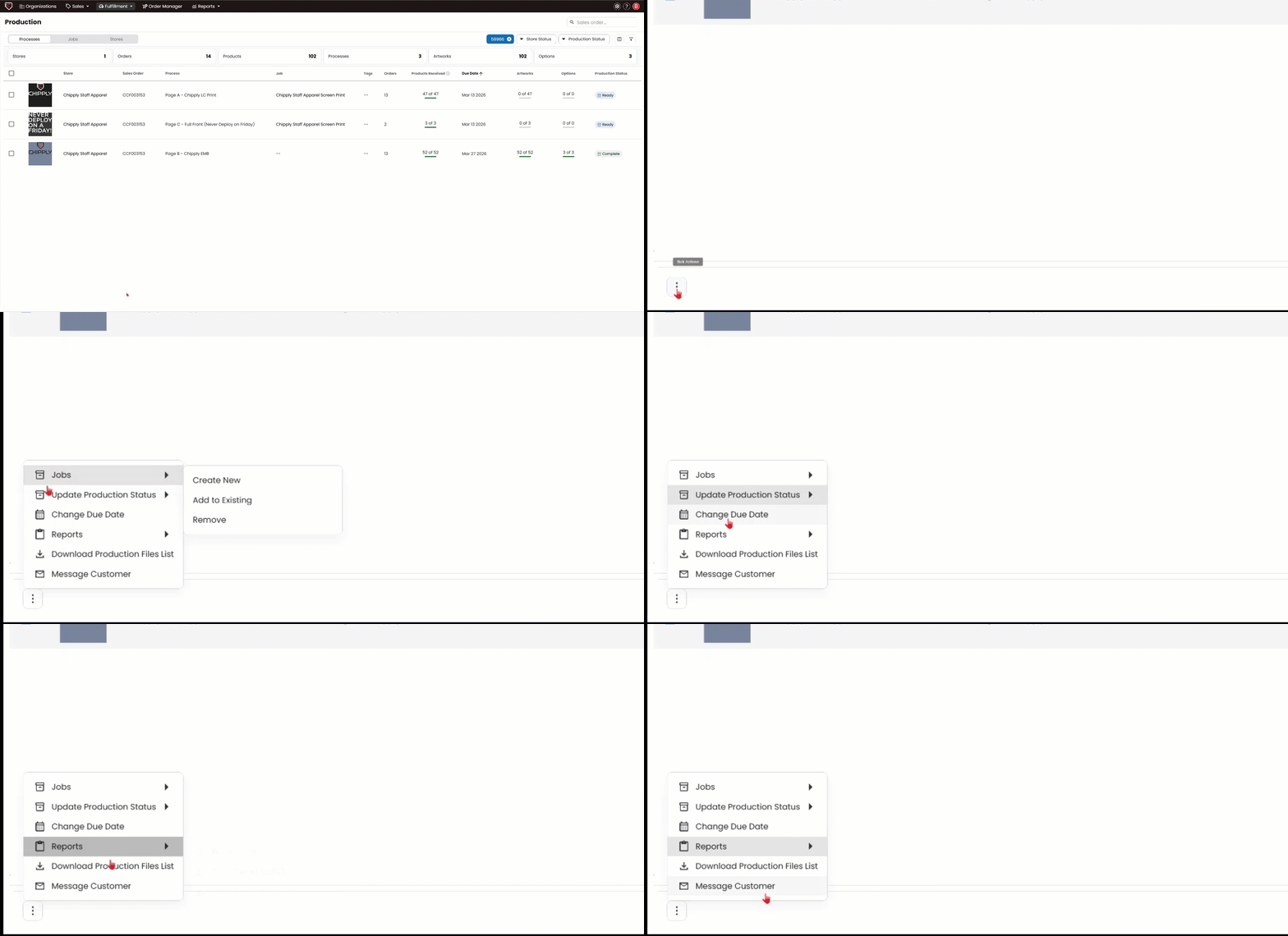
Bulk Actions allow you to manage work quickly and efficiently without opening each item individually.
Within Processes, Jobs, & Stores, you can update different things:
-
Manage/create Jobs – Processes, Stores
-
Update Production Status – Processes, Jobs, Stores
-
Change Due Date – Processes, Jobs, Stores
-
Download Reports – Processes, Jobs, Stores
-
Download Production Files List – Processes, Jobs, Stores
-
Message Customer – Processes, Jobs, Stores
-
Update Salesperson – Stores
-
Change Tags – Stores
Bulk Actions help your team move faster and keep production flowing.
Item Status vs Production Status
Chipply separates physical product tracking from decoration tracking.
Item Status
Item status tracks the physical lifecycle of the item.
You can mark products individually or in bulk as:
-
New (default)
-
Received / Pulled
-
Shipped / Picked Up
-
Backordered
Item Status can be updated in Order Manager (Items view) or within Production.
This helps your team track what is physically in-house and ready to decorate.
Production Status
Production Status tracks decoration readiness and completion.
You can mark production as:
-
New
-
Ready
-
Complete
Production Status is updated within Production.
“Ready” indicates that all garments tied to that specific artwork variation are ready for decoration.
“Partial” is the default status until everything required for that process has been marked appropriately.
Production Status reflects decoration progress, not shipping status.
Processes View
From this centralized view, you can quickly see:
Store/catalog batch name, Sales Order, Process Name, Assigned Job, Store Tags, number of Orders, Products Received progress, Due Date, linked Artworks, and overall Production Status.This gives your team immediate visibility into what is in progress, what is ready, and what requires attention.

Clicking Into a Process
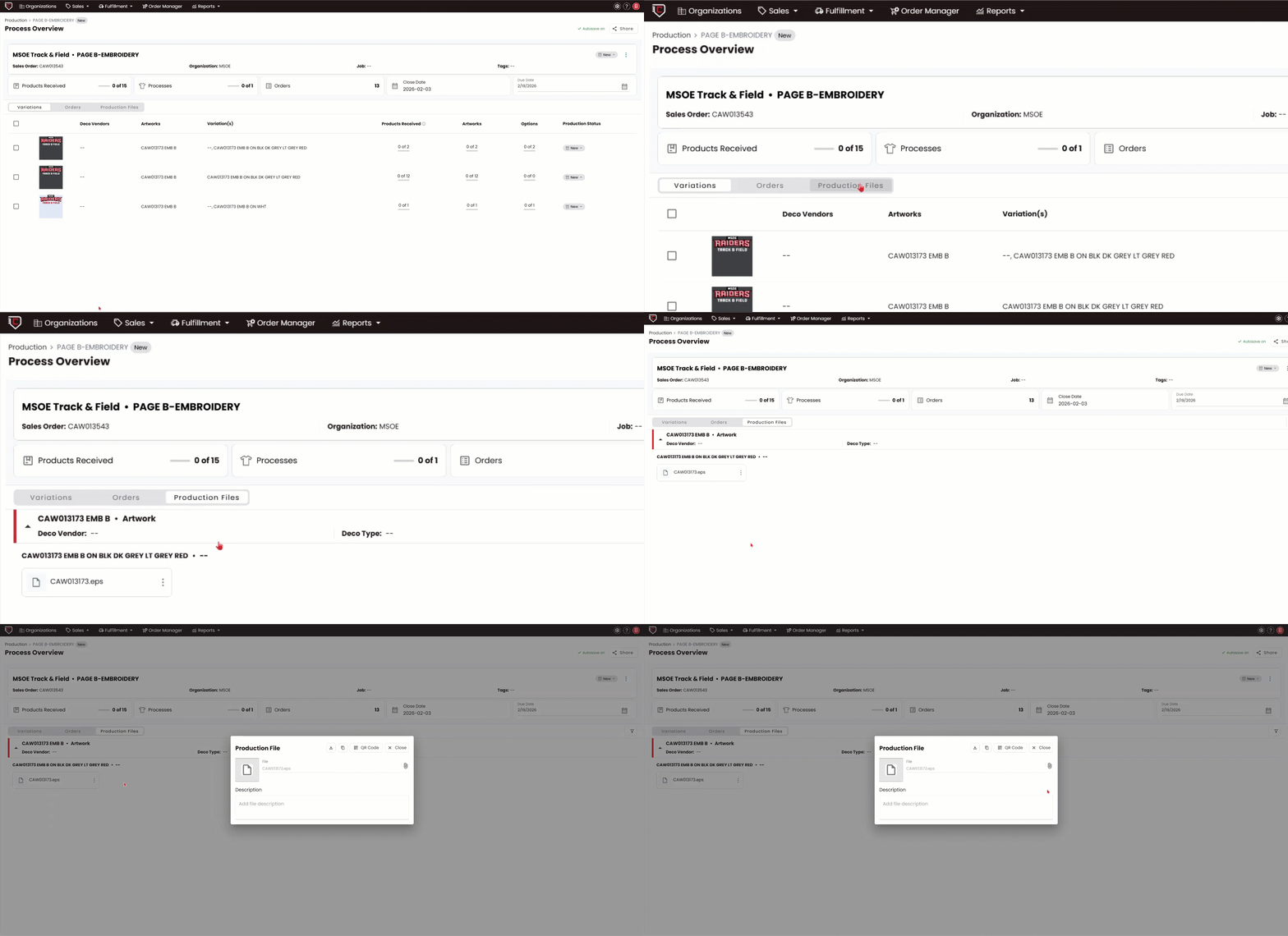
When you click into a Process, you can toggle between Variations, Orders, and Production Files to view different levels of production detail.
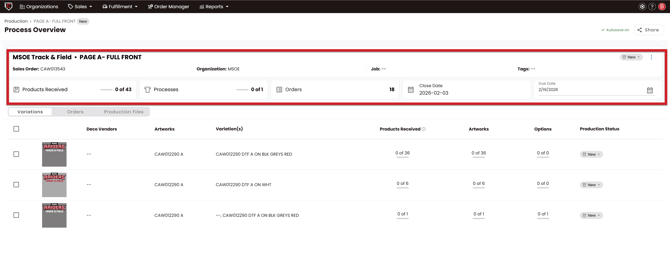
At the top of the Process view, you’ll see a snapshot summary that includes:
-
Products Received progress
-
Overall Production Status
-
Number of Orders
-
Close Date
-
Due Date
This high-level overview helps your team quickly understand what has been received, what is ready, and what still needs attention before diving deeper.
Variations, Orders, and Production Files - Overview
From this screen, you can toggle between three additional views to explore the details of the selected process: Variations, Orders, and Production Files.
Variation View displays all artwork variations included in the selected process, allowing you to see decoration-specific details and production progress for each variation.
Orders View shows every order associated with that process, giving you visibility into the customers and quantities tied to the work being produced.
Production Files View provides access to all downloadable production files connected to the variations within that process, keeping artwork and production assets centralized and easy to access.
Variation View
When you click into an Artwork Variation, Chipply Production displays a detailed, on-screen work order.
This interactive work order shows:
-
All products tied to that specific logo or decoration
-
Quantities required
-
Product Status
-
Production Status
-
Decoration details
From this screen, you can:
-
Update individual item Item Status
-
Update individual item Production Status
-
Mark items in bulk when work is completed
-
Manage partial completions or exceptions
This allows your team to handle real-world production scenarios without impacting unrelated items.
You can also easily share this page by clicking the Share button in the top-right corner of the screen. From there, you can:
-
Copy the direct page URL
-
Generate a QR code for scanning
QR codes can be downloaded or copied.
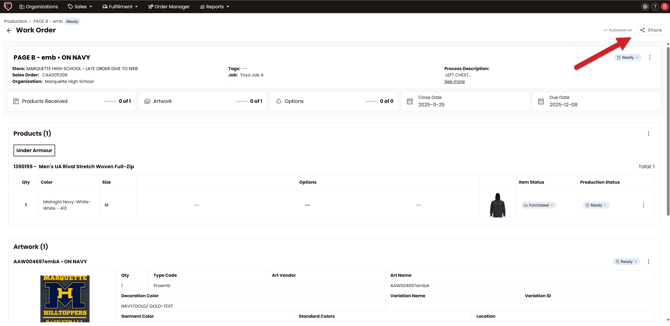
This variation-level view acts as a digital, real-time work order that keeps production aligned and reduces reliance on manual paperwork.
Orders View
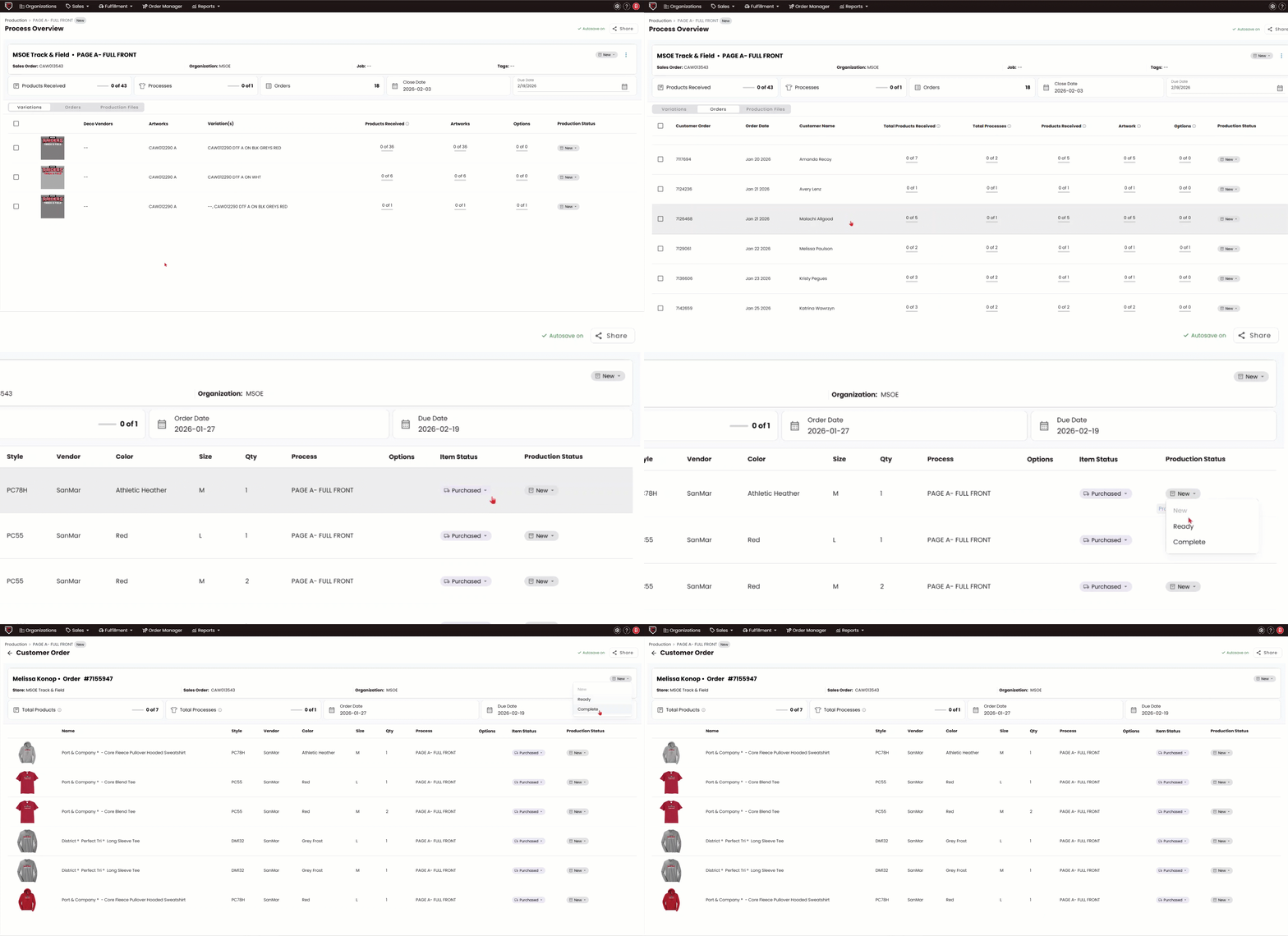
Orders View displays every order associated with the selected process, giving you visibility into the customers, quantities, and items tied to the work being produced.
When you click into an individual order, you will see the specific products included in that process, along with the details of what was ordered. From this view, you can update both the Item Status and the Production Status, allowing you to manage progress at the order level while keeping everything aligned within the larger production workflow.
Production Files View
Production Files View provides access to all downloadable production files connected to the artwork variations within the selected process. This keeps artwork and production assets centralized, organized, and directly tied to the work being produced.
When you click into Production Files, you will see all files that were uploaded on the Artwork page of your store. Files are organized by variation and remain connected to their corresponding process, ensuring your team always downloads the correct file for the correct decoration.
Production Files eliminates the need to search through emails, shared drives, or external folders. Everything your production team needs is accessible directly within Chipply, keeping decoration work accurate and streamlined.
Jobs - Overview
Jobs allow you to organize production based on how your shop operates.
A Job is a group of processes or stores that you choose to group together and move through production as one organized unit.
In the Jobs view, you can see all processes grouped within that job, their combined status, Products Received progress, and overall production readiness.
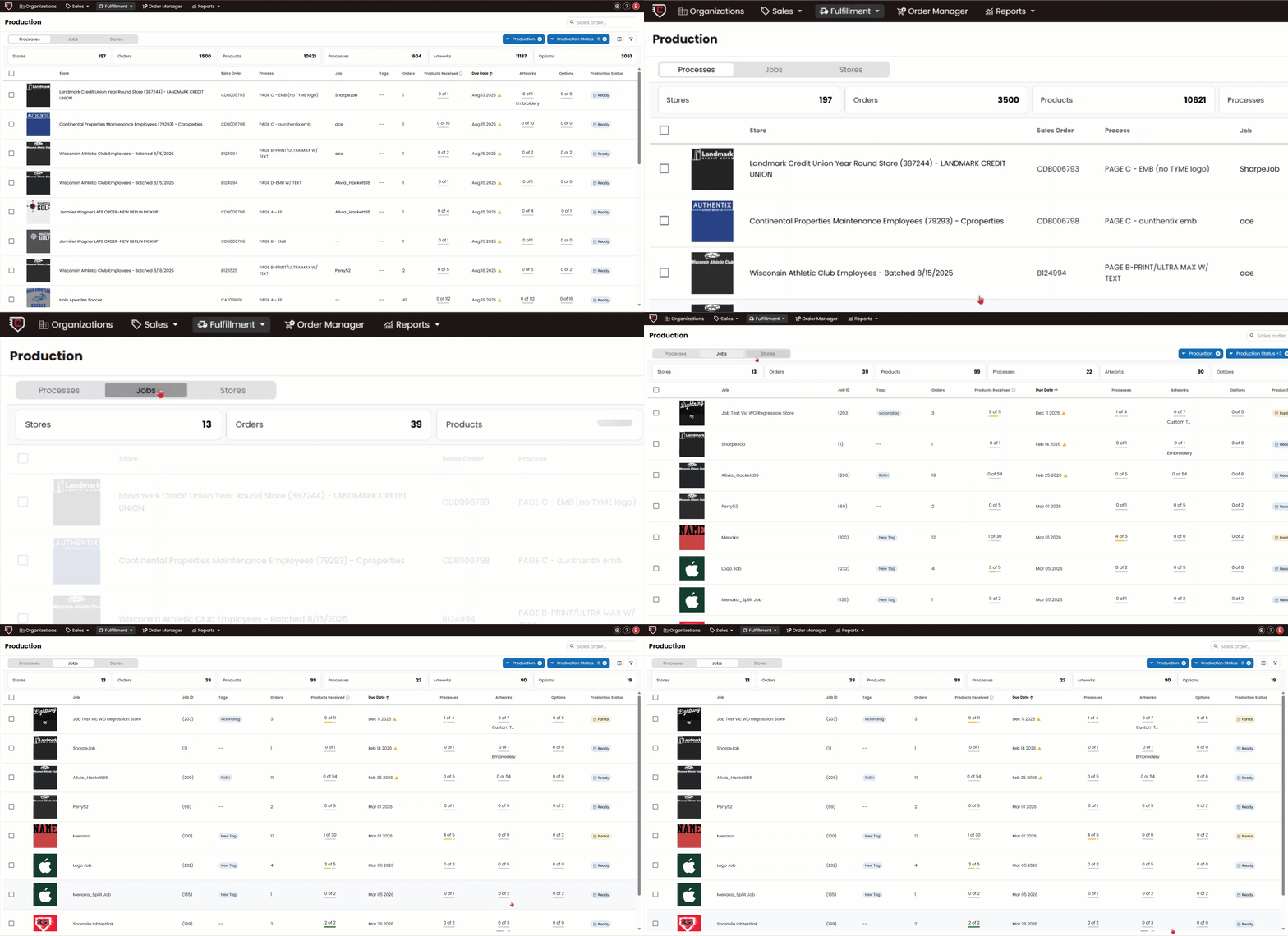
Jobs are especially useful when you want to batch embroidery, batch screen print work, group daily production runs, combine multiple stores, or manage print-on-demand programs.
How to Create a Job
Within the Processes or stores section, select one or more processes or stores and create a Job to route related work together. This improves efficiency and reduces fragmentation.
Jobs View
When clicking into a Job, you will see a view similar to the Process view. However, instead of showing artwork variations from a single process, it displays all artwork variations grouped within that job.
You can toggle between Variations, Orders, and Production Files to view different levels of detail tied to the entire job.
Variations, Orders, and Production Files - Overview
From this screen, you can toggle between three additional views to explore the details of the selected Job: Variations, Orders, and Production Files.
Variation View displays all artwork variations included in the selected Job, allowing you to see decoration-specific details and production progress for each variation.
Orders View shows every order associated with that Job, giving you visibility into the customers and quantities tied to the work being produced.
Production Files View provides access to all downloadable production files connected to the variations within that Job, keeping artwork and production assets centralized and easy to access.
Variation View
When you click into an Artwork Variation within a job, Chipply Production displays a detailed, on-screen work order.
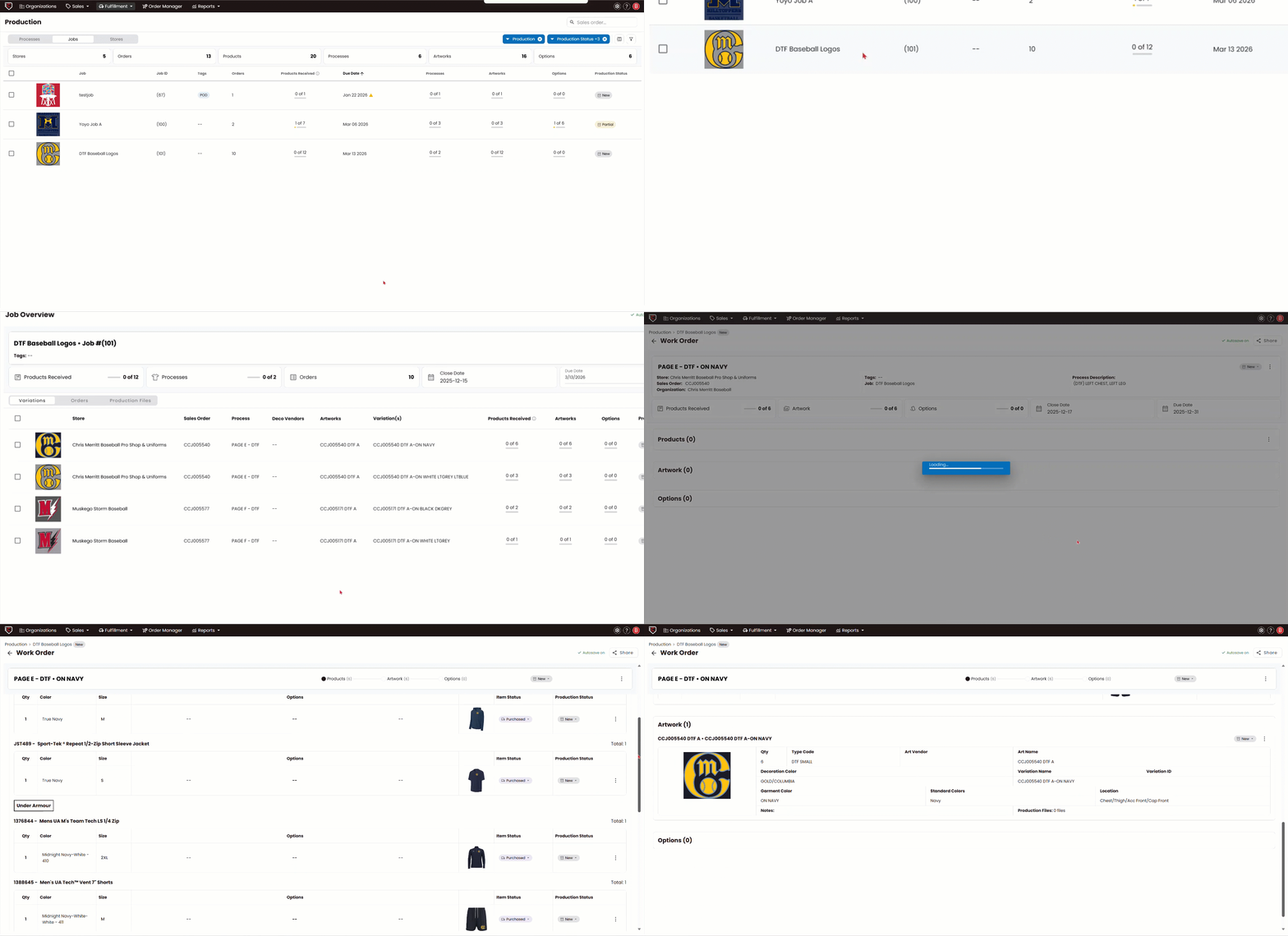
This interactive work order shows:
-
All products tied to that specific logo or decoration
-
Quantities required
-
Product Status
-
Production Status
-
Decoration details
From this screen, you can:
-
Update individual item Item Status
-
Update individual item Production Status
-
Mark items in bulk when work is completed
-
Manage partial completions or exceptions
This allows your team to handle real-world production scenarios without impacting unrelated items.
You can also easily share this page by clicking the Share button in the top-right corner of the screen. From there, you can:
-
Copy the direct page URL
-
Generate a QR code for scanning
QR codes can be downloaded or copied.
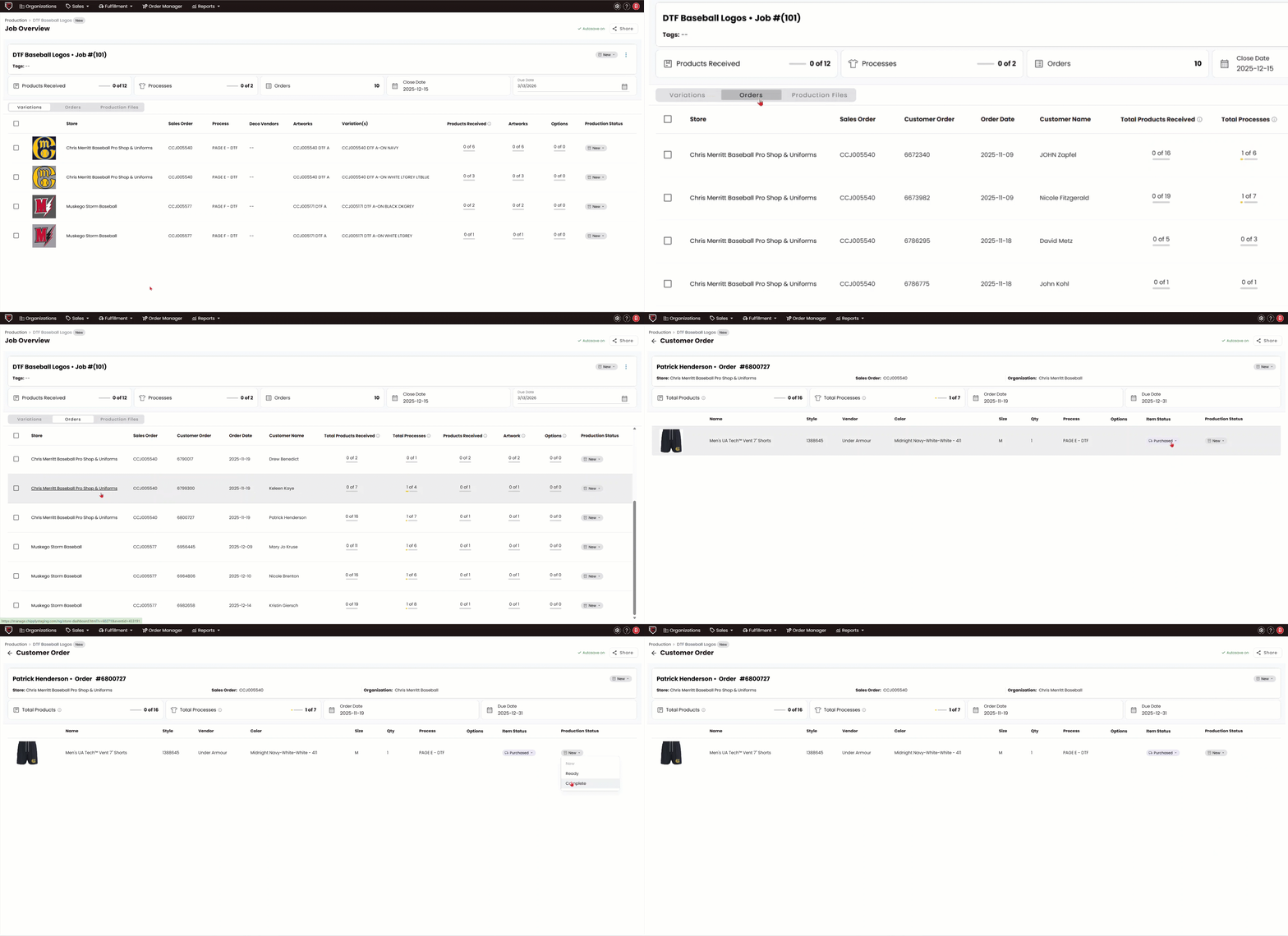
Orders View
Orders View displays every order associated within the selected job, giving you visibility into the customers, quantities, and items tied to the work being produced.
When you click into an individual order, you will see the specific products included in that process, along with the details of what was ordered. From this view, you can update both the Item Status and the Production Status, allowing you to manage progress at the order level while keeping everything aligned within the larger production workflow.
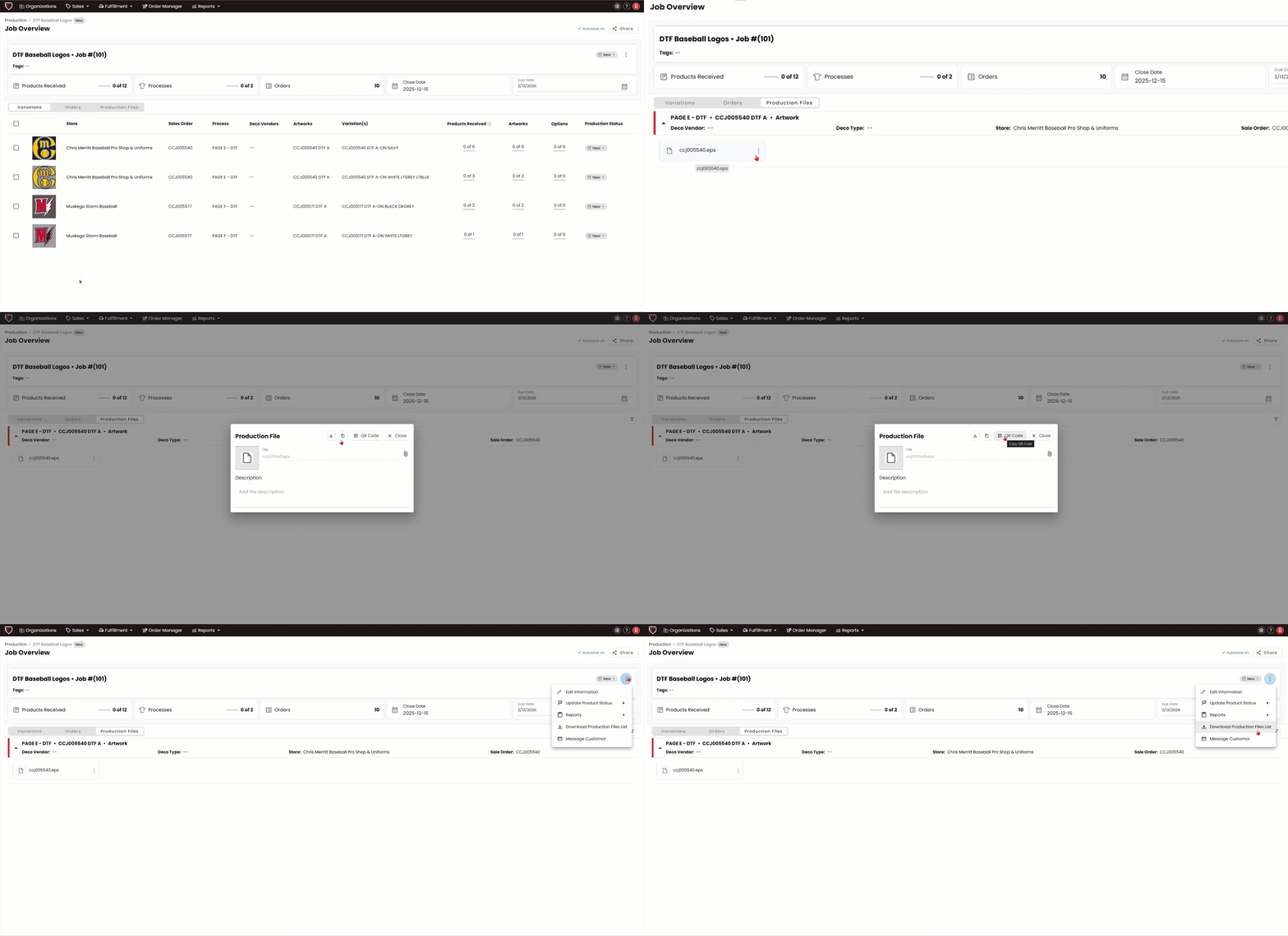
Production Files View
Production Files View provides access to all downloadable production files connected to the artwork variations within the selected Job. This keeps artwork and production assets centralized, organized, and directly tied to the work being produced.
When you click into Production Files, you will see all files that were uploaded on the Artwork page of your store. Files are organized by variation and remain connected to their corresponding process, ensuring your team always downloads the correct file for the correct decoration.
Production Files eliminates the need to search through emails, shared drives, or external folders. Everything your production team needs is accessible directly within Chipply, keeping decoration work accurate and streamlined.
This consolidated job-level view helps you manage grouped production runs efficiently while maintaining full visibility into the details.
Stores
When accessing Production from within a specific store or catalog batch, Chipply Production will automatically be filtered to display only that store or batch.
When accessing Global Production, Chipply will automatically filter by store status production to show all stores currently in production. From there, you can use the filters to adjust which stores, batches, or production statuses you would like to view.
The Stores view provides a higher-level snapshot of the overall production status of that store or batch that you are filtered by.
Instead of breaking out each process individually, this view shows the combined progress of all processes tied to that store.
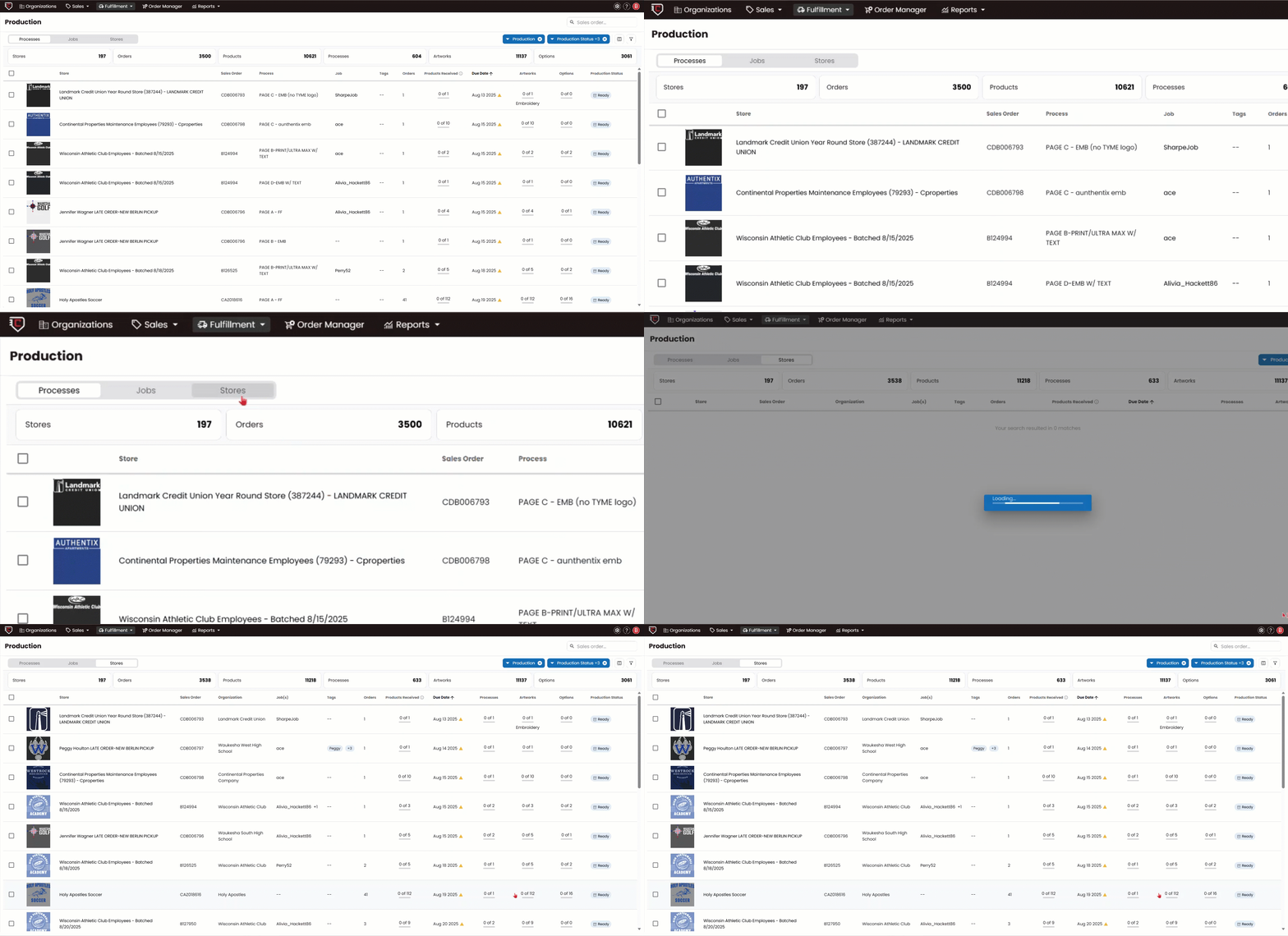
When clicking into a Store or Catalog Batch, you will see a view similar to the Process and job view. However, instead of showing artwork variations from a single process or job, it displays all artwork variations grouped within that Store.
You can toggle between Variations, Orders, and Production Files to view different levels of detail tied to the entire job.
Variations, Orders, and Production Files - Overview
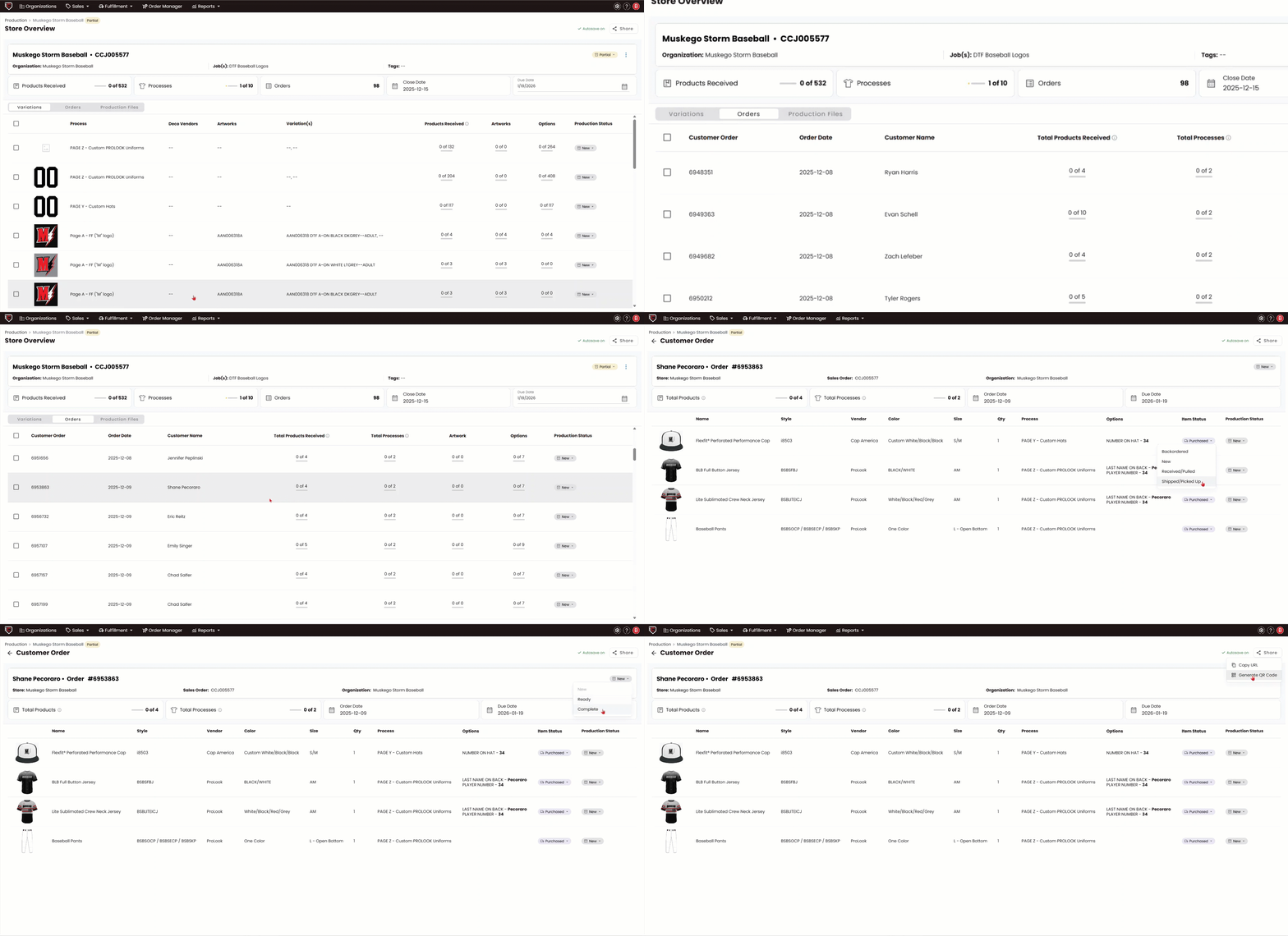
When clicking into a Store or a Catalog Batch, you can toggle between three additional views to explore the details of the selected store or catalog batch: Variations, Orders, and Production Files.
Variation View displays all artwork variations included in the selected store, allowing you to see decoration-specific details and production progress for each variation.
Orders View shows every order associated with that store, giving you visibility into the customers and quantities tied to the work being produced.
Production Files View provides access to all downloadable production files connected to the variations within that store, keeping artwork and production assets centralized and easy to access.
Variation View
When you click into an Artwork Variation within a store, Chipply Production displays a detailed, on-screen work order.
This interactive work order shows:
-
All products tied to that specific logo or decoration
-
Quantities required
-
Product Status
-
Production Status
-
Decoration details
From this screen, you can:
-
Update individual item Item Status
-
Update individual item Production Status
-
Mark items in bulk when work is completed
-
Manage partial completions or exceptions
This allows your team to handle real-world production scenarios without impacting unrelated items.
You can also easily share this page by clicking the Share button in the top-right corner of the screen. From there, you can:
-
Copy the direct page URL
-
Generate a QR code for scanning
QR codes can be downloaded or copied.
Orders View
Orders View displays every order associated within the selected Store/Catalog Batch, giving you visibility into the customers, quantities, and items tied to the work being produced.
When you click into an individual order, you will see the specific products included in that process, along with the details of what was ordered. From this view, you can update both the Item Status and the Production Status, allowing you to manage progress at the order level while keeping everything aligned within the larger production workflow.
Production Files View
Production Files View provides access to all downloadable production files connected to the artwork variations within the selected Store. This keeps artwork and production assets centralized, organized, and directly tied to the work being produced.
When you click into Production Files, you will see all files that were uploaded on the Artwork page of your store. Files are organized by variation and remain connected to their corresponding process, ensuring your team always downloads the correct file for the correct decoration.
Production Files eliminates the need to search through emails, shared drives, or external folders. Everything your production team needs is accessible directly within Chipply, keeping decoration work accurate and streamlined.