![Fabicaon.png]](https://44059364.hs-sites.com/hs-fs/hubfs/Fabicaon.png?width=40&height=40&name=Fabicaon.png)
We've made some updates to how our Sales Tax Report presents information. These updates are meant to give you more insight at a glance, with the ability to dive deeper when you need to.
On your top navigation, click Reports > Sales Tax Report, choose a date range, and generate the report. You'll notice we no longer offer a separate detailed PDF. The standard PDF is now the detailed version, since origin-based and mixed-sourcing states require a lot more information than a single combined rate can show. This same update applies to the sales tax report you'll find within an individual store or catalog batch.
PDF report
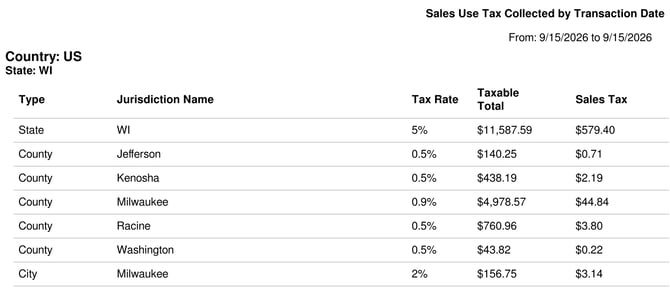
The pdf report breaks out each tax jurisdiction and rate (for example, state, county, city, or special district) and aggregates the sales and tax collected for each jurisdiction–rate combination. This format matches with how most state returns expect you to report sales and tax by jurisdiction.
Summary export (Excel)
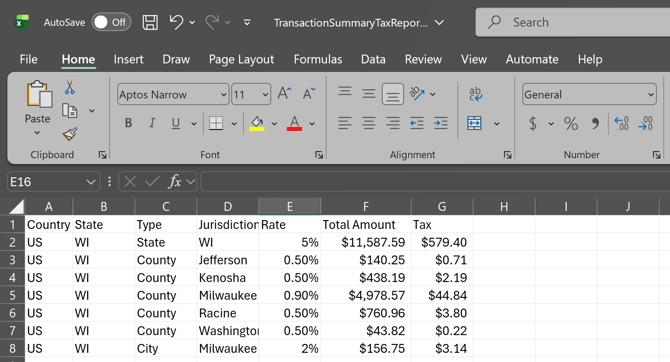
This is essentially the PDF report in spreadsheet form. It covers the same breakdown by country, state, and jurisdiction, so if you'd rather copy, paste, filter, or do your own work in Excel instead of reading a PDF, this is the one to use.
Detailed export (CSV/Excel)
This is a different level of detail entirely, every product, plus shipping and handling, gets its own row for every jurisdiction level it was taxed at. Each row includes:
- The order ID, store, and date
- The tax type and tax code (tax codes were introduced in the July update)
- The jurisdiction level (state, county, city, or special district), jurisdiction name, and rate applied
- The source used for that line: Origin or Destination
- The taxable amount, non-taxable amount, and sales tax collected for that line
- Both the full origin and destination addresses, so you can see each one regardless of which was used to calculate that line
Refunds and other negative adjustments show up the same way, as negative amounts in that row.

The Detailed Transactions Report provides line-item detail for each tax line associated with an order. Because a single order may appear across multiple rows based on the applicable tax jurisdictions and rates, the Taxable Amount column should not be used to validate an individual order total. Each row reflects only the taxable amount associated with that specific jurisdiction and rate.
A Note on Rounding
On orders with several jurisdiction breakouts (state, county, and multiple special districts, for example), you may notice a difference of a few cents between the sum of the individual line amounts and the total tax actually collected. This happens because rounding is applied at each jurisdiction level individually. It's expected behavior, not an error.