![Fabicaon.png]](https://44059364.hs-sites.com/hs-fs/hubfs/Fabicaon.png?width=40&height=40&name=Fabicaon.png)
This article explains the date fields available when configuring a store: Open Date, Close Date, Production Due Date, and Ship/Deliver Due Date. Understanding each field helps you control when your store opens and closes and keeps your internal team on schedule.
1) Open Date: The open date will default to the day/time the store is created or copied. If this date isn't changed and the store is made Store Ready, the store will open immediately. If you set this date to a future date and the store is made Store Ready, then the store will stay in the "Scheduled" category on your dashboard but it will say "Yes" under "Store Ready" (see below) and will open automatically to the date/time it was set to.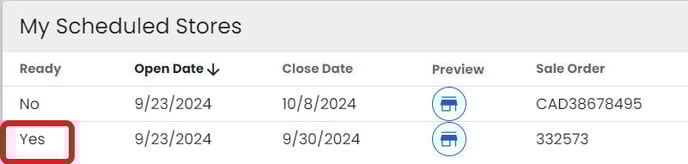
2) Close Date: This will set the day/time the store will close and stop accepting orders.
If you want to close the store on a Sunday night, we suggest setting the actual close date to the following Monday — around the time you arrive at the office and begin reviewing closed stores. You can still display Sunday night as the closing date to customers to maintain urgency around placing orders. This helps avoid early morning calls requesting that the store be reopened for late orders.
3) Production Due Date: The due date is completely internal and only appears on the Work Orders. Your customers will not see this date. This field is useful for communicating to your team when products should be completed and back from production, keeping everyone on schedule.
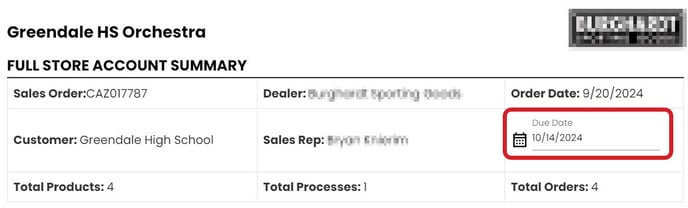
4) Ship/Deliver Due Date: This date is also internal and is not seen by the customer. Use this date to communicate to your team when completed products should be shipped, delivered, or ready for pick-up.