![Fabicaon.png]](https://44059364.hs-sites.com/hs-fs/hubfs/Fabicaon.png?width=40&height=40&name=Fabicaon.png)
To set up a store at -100% fundraising, price your products, then use Storewide Actions > Set Fundraising and enter -100%. Items will display as $0.00 to customers, while the back end calculates the full cost as a negative amount that the group owes once the store closes.
How do you set up your store at -100% fundraising?
- Click Products on the left-hand menu.
- Confirm that all products are priced correctly before proceeding.
- Click Storewide Actions, then select Set Fundraising.
- In the Change Fundraising box, enter
-100%in the percent field, then click Accept.
2) Make sure you have all your products priced exactly the way you want them to be.
3) Click STOREWIDE ACTIONS, then select Set Fundraising.
4) In the Change Fundraising box, input -100% in the percent field, then click ACCEPT.
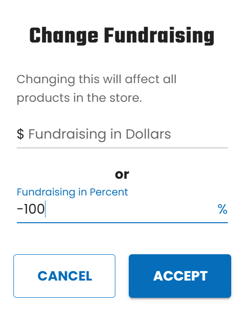
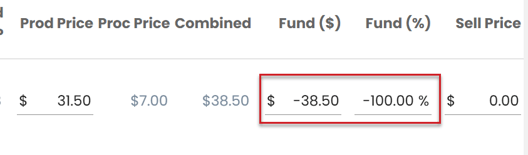
Since the items are set at -100% fundraising, they will show a price of $0.00. However, on the back end, every item is being calculated as a negative amount. Once the store closes down, the fundraising column will list the amount due from the group.

Important considerations
- Use the Use Size Upcharges function in Storewide Actions to turn off upsizes and ensure customers are not charged extra. To do this: click Storewide Actions, select Use Size Upcharges, and disable the upcharge option. Add a note in your store notes to record size upcharge amounts as an Organization Fee when the store closes, so the group is charged for those amounts.
- If you normally charge a Handling Fee to each shopper, add it as a per-order Organization Fee at the start of your store instead. This will automatically calculate and be added to what the group owes.
- You can also apply
-100%fundraising to only specific items. On the Products page, select the appropriate products, click Pricing at the bottom of the page, then select Set Fundraising.
• Do you typically charge a Handling Fee to each shopper? Add this instead as a per order Organization Fee at the start of your store. This will automatically calculate and be added to what the group owes.
• You also have the ability to apply -100% fundraising to only a select amount of items. WIthin the Products page, select the appropriate products, click Pricing at the bottom of the page, then select Set Fundraising.