![Fabicaon.png]](https://44059364.hs-sites.com/hs-fs/hubfs/Fabicaon.png?width=40&height=40&name=Fabicaon.png)
The Sales Activity Report is a scheduled email report that gives you a summary of sales activity across your stores and salespeople. You can choose who receives the report, how often it is sent, and whether it covers your entire dealer account or individual salespeople.
This report is configured in your Dealer Settings and is separate from your store-level notifications.
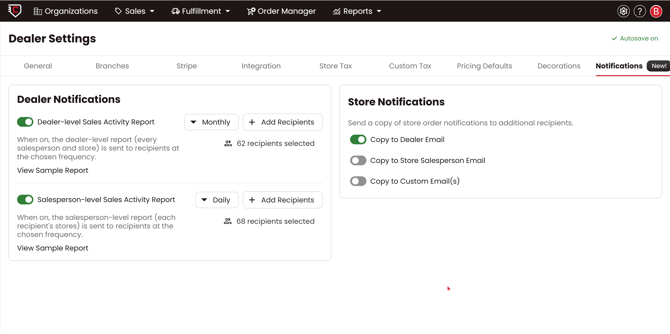
To get started, click the gear icon in the top right corner, select Dealer Settings, and go to the Notifications tab.
What report types are available?
There are two types of Sales Activity Reports available:
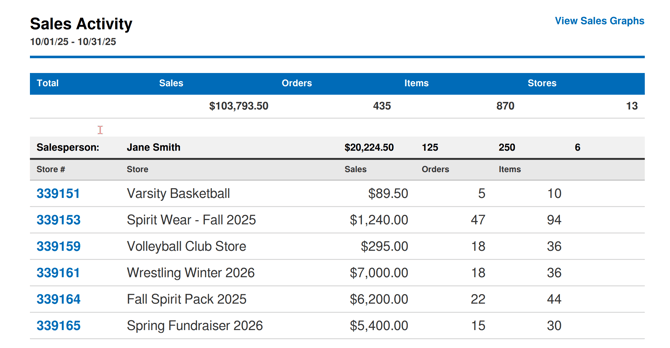
Dealer Level Sales Activity Report
This report includes sales activity for all salespeople across all of your stores. It is designed for owners or managers who need a full picture of activity across the entire account. For example, an account owner would receive a breakdown showing each salesperson and all of their associated stores.
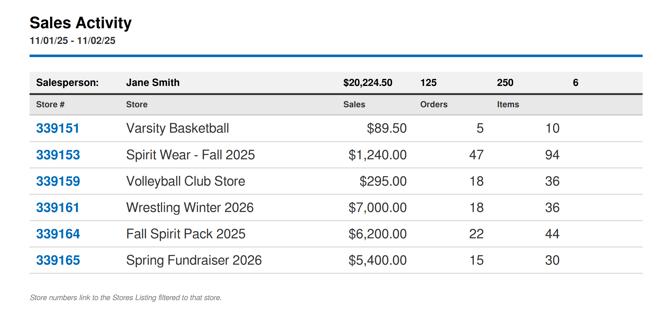
Salesperson Level Sales Activity Report
This report shows activity for a single salesperson and their stores only. It is designed for individual salespeople who should see their own performance without visibility into other salespeople's data. For example, adding a salesperson to this report means they will only receive data for their own stores.
How do I set up the Sales Activity Report?
-
Hover over the gear icon in the top right and click Dealer Settings.
- Click the Notifications tab.
- Under Dealer Notifications, locate the Sales Activity Report section.
- Toggle on the Dealer Level Sales Activity Report and/or the Salesperson Level Sales Activity Report, depending on what you need.
- Select the frequency for each report: daily, weekly, or monthly.
- Use the recipient selector to add the active users who should receive each report.
- Save your settings.
When are reports sent?
- Daily — every day at 6:00 AM Eastern (5:00 AM Central, 4:00 AM Mountain, 3:00 AM Pacific)
- Weekly — every Monday at 6:00 AM Eastern (5:00 AM Central, 4:00 AM Mountain, 3:00 AM Pacific)
- Monthly — the 1st of each month at 6:00 AM Eastern (5:00 AM Central, 4:00 AM Mountain, 3:00 AM Pacific)
Choosing the Right Report for Each Person
- Account owner or lead salesperson: Add to the Dealer Level report so they can see all stores and all salespeople.
- Individual salespeople: Add to the Salesperson Level report so they only see their own stores.
- Managers or additional admins: Add to either or both reports, depending on what access makes sense for your team.
Store Notifications
Your store-level notification settings — including who gets copied on order email receipts — have moved from Store Settings into the Dealer Settings > Notifications tab. The functionality is the same; everything is now in one place for easier management.