![Fabicaon.png]](https://44059364.hs-sites.com/hs-fs/hubfs/Fabicaon.png?width=40&height=40&name=Fabicaon.png)
Updating the store status helps you organize your workflow and communicate store progress to both your staff and customers. There are five store statuses: Scheduled, Closed (Ready To Process), Production, Sorting, and Complete. Note: Store Status also controls which dashboard folder your store appears in.
1) Scheduled: A "Scheduled" store is essentially a draft store. It is your "work-in-progress" store. Any changes can be made to a "Scheduled" store and the store will stay "Scheduled" until it is made "Store Ready". You can set the store to "Open" for a future date by making the open date of the store a future date and time then making make the store "Store Ready". The store will then open on the date and time you scheduled it to.
The store will never open unless you click "Store Ready"
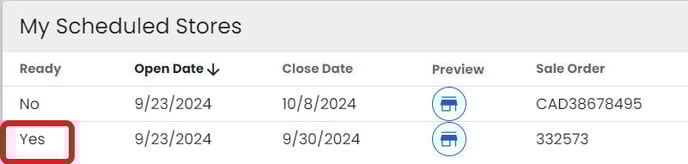
^ What a store set to open for a future date will look like on your dashboard.
2) Closed (Ready To Process): When the store reaches the scheduled close date, it will automatically be moved to "Closed Ready To Process" with a notification, letting you know how many stores or batches are in that folder.

Once the store is closed, no more orders can be placed on the store. If the customer requests to have the store reopen and you have not begun processing and purchasing items for the store then you can update the close date to a future date and the store will be open again.
If you have begun processing and placing orders on this store then you should copy the store instead of reopening the store. This keeps the original orders and any new orders separate.
3) Production: Moving the store to "Production" signals to your team that the store should not be changed or reopened. At this stage, you are placing orders for products and have begun fulfilling them.
4) Sorting: When the store is categorized into "Sorting" you are letting your team know the products have come back from production and are being sorted and packed into their individual orders.
5) Complete: Once all orders have been sorted and are ready for pickup or delivery, set the store to "Complete". This moves the store to your Completed folder on the dashboard and signals to your team that the fulfillment cycle is finished.