![Fabicaon.png]](https://44059364.hs-sites.com/hs-fs/hubfs/Fabicaon.png?width=40&height=40&name=Fabicaon.png)
Order Manager Items lets you update the status of any product in three ways: in bulk across all products, in bulk for a specific product, or individually per line item. Keeping statuses current helps you stay organized and track fulfillment progress across your store. Choose from four available manual statuses:
-
New (default)
-
Backordered
-
Received/Pulled
-
Shipped/Picked Up
How to Update a Product’s Status in Bulk:
Option 1 — Updating All Orders for One or More Products
-
Within Order Manager Items, select the product(s) you want to update.
-
Click Bulk Actions → Update Status and choose the appropriate status from the dropdown.
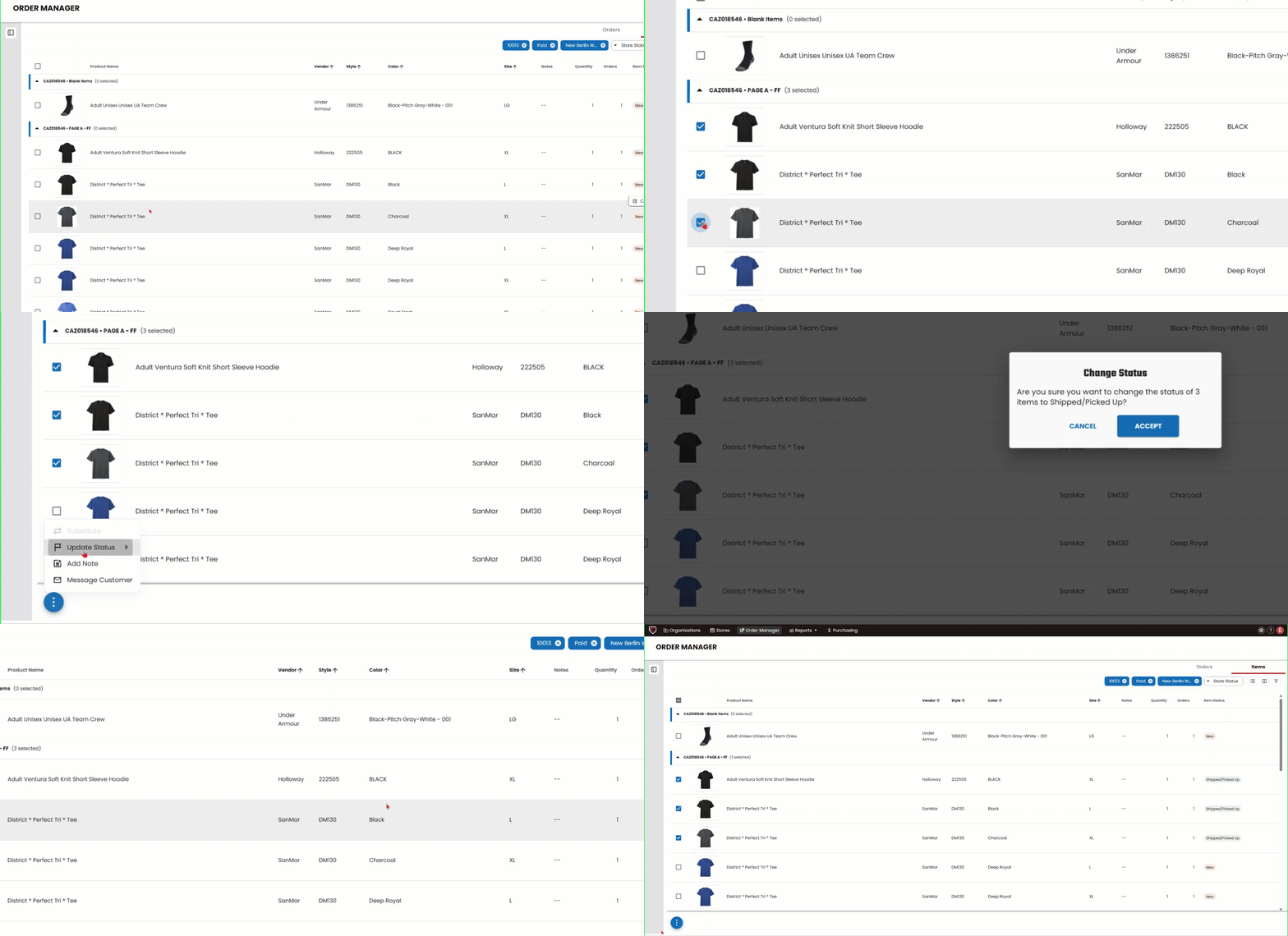
Option 2 — Updating Specific Orders Within a Single Product
- Within Order Manager Items, find the product you want to update, and click the Customer Orders Button.
- From here, find the specific products that will be updated and select them.
- Click Bulk Actions → Update Status and choose the appropriate status from the dropdown.
How to Update a Product’s Status Individually:
This is helpful when a customer has multiple quantities of a product on their order, but the quantities have different statuses.
- Within Order Manager Items, find the product you want to update, and click the Customer Orders Button.
- From here, find the customer order that is affected and click on the line item.
- Once you are on the ORDER DETAILS view, click the status drop-down for the product and choose the appropriate status from the drop-down. If there are multiple quantities on this line, you can adjust the quantity of items that will have the status changed.
Related Help Articles
Introducing Order Manager Items
How to Access Order Manager Items
Add a Note to a Product Within Order Manager Items
Filter Items Within Order Manager Items
How to Substitute a Product Within Order Manager Items