![Fabicaon.png]](https://44059364.hs-sites.com/hs-fs/hubfs/Fabicaon.png?width=40&height=40&name=Fabicaon.png)
How to Upload New Artwork
-
Within your store, click Artwork.
-
Click the + button in the top right corner and select New Artwork.
Option A: Upload from the Variation Preview
-
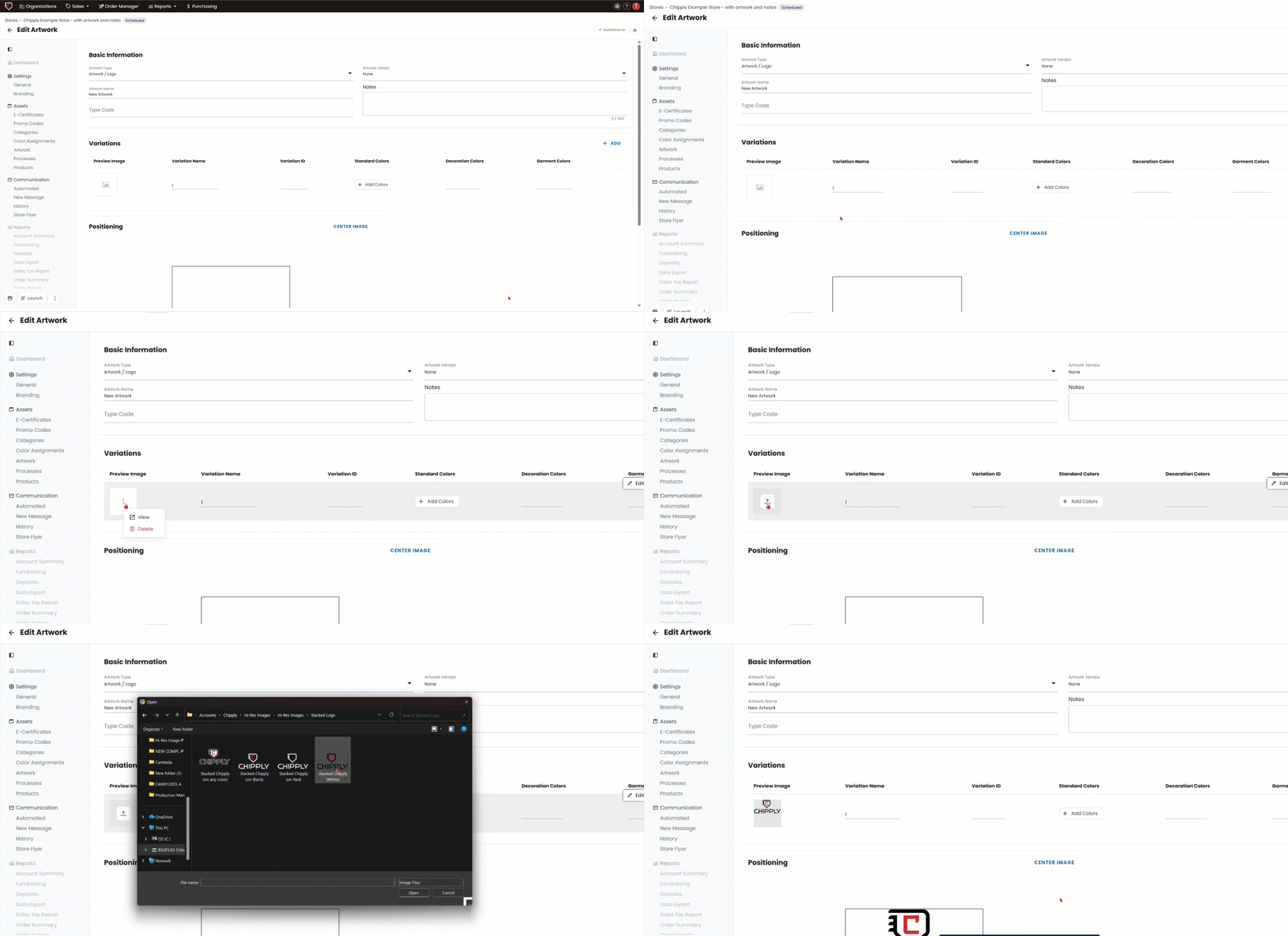
Under Variations, locate the Preview Image section.
-
Hover over the placeholder image and click the three dots, then select Delete.
-
Hover over the preview box again. An Upload button will appear.
-
Click Upload and select your artwork file from your computer.
After uploading, you can hover over the artwork variation and click Edit to update the artwork’s Basic Information, select Standard Colors, and add Additional Colors, keeping all variation details organized in one place.
Option B: Upload Through the Edit Drawer
-
Hover over the placeholder variation and click Edit.
-
In the drawer that opens, locate Preview Image.
-
Click Preview File to upload your artwork from your computer.
From this same drawer, you can also update the artwork’s Basic Information, select Standard Colors, and add Additional Colors, keeping all variation details in one place.