![Fabicaon.png]](https://44059364.hs-sites.com/hs-fs/hubfs/Fabicaon.png?width=40&height=40&name=Fabicaon.png)
Branding Page Overview
We’ve updated the Branding page to provide more flexibility and customization, while keeping all existing functionality intact. Everything you could previously do on the Branding page is still available, now organized in a cleaner, more intuitive layout. Most sections can be turned on or off, giving you full control over what appears on your storefront.
Live Preview
You can now view a live preview of your store while making updates. Toggle between desktop and mobile views to see how your changes will appear to customers in real time.
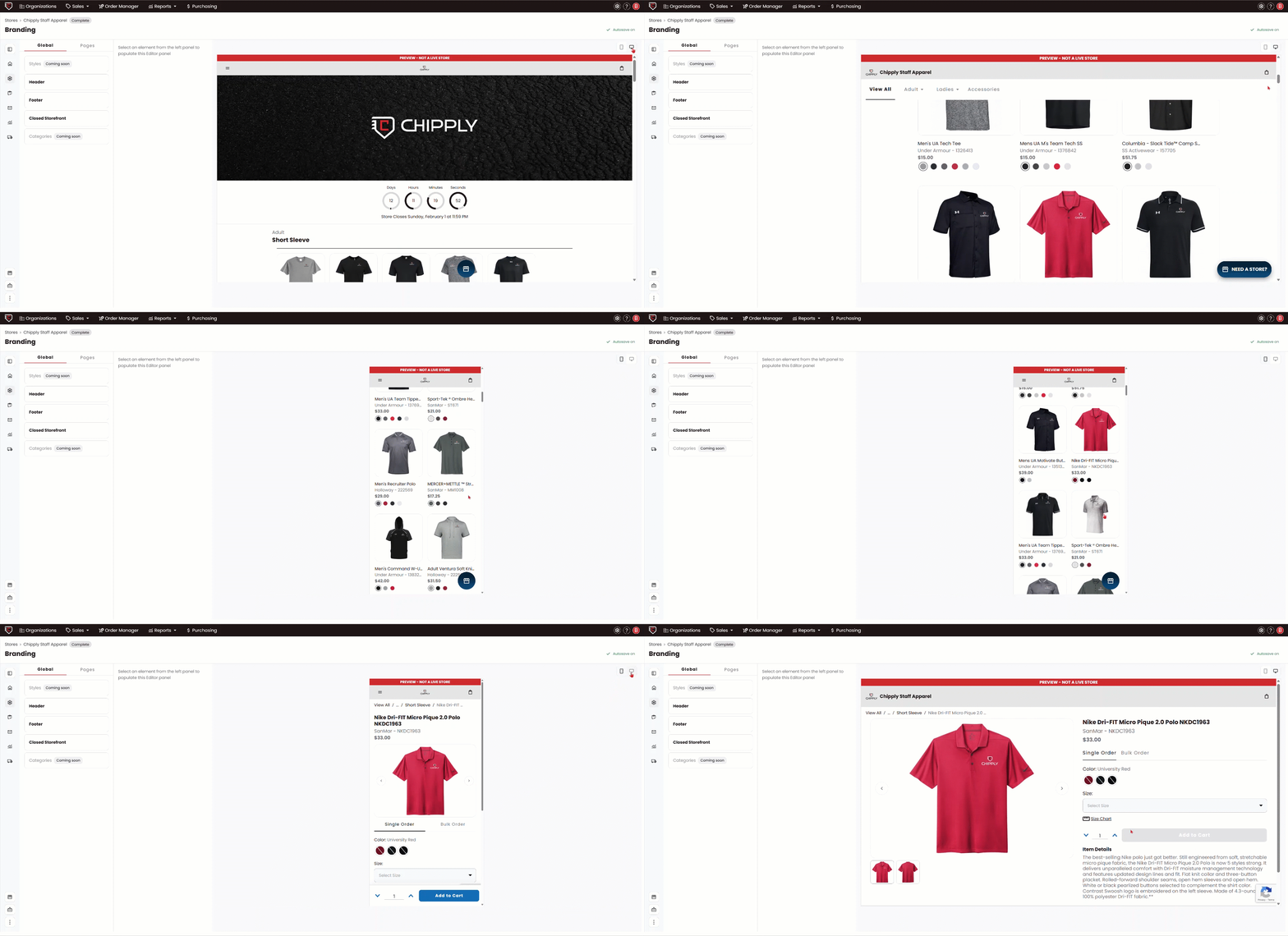
Note for Smaller Screens
When working on smaller screens or laptops, switching between Mobile and Desktop preview may not expand the preview to full width. For a larger preview area, minimize the left navigation panel to give the preview more space.
Global vs. Pages
We’ve organized Branding options into two tabs: Global and Pages—but what’s the difference?
Global settings apply to branding elements that appear across all (or most) pages of your store. This includes items like the Store Logo, Dealer Logo, Contact Information, and the Store Closed message.
Pages settings are specific to individual pages within your store. In the Pages tab, you can customize the branding for key areas like the Product Listing page (where shoppers first arrive) and the Checkout experience.
Global Settings
Header
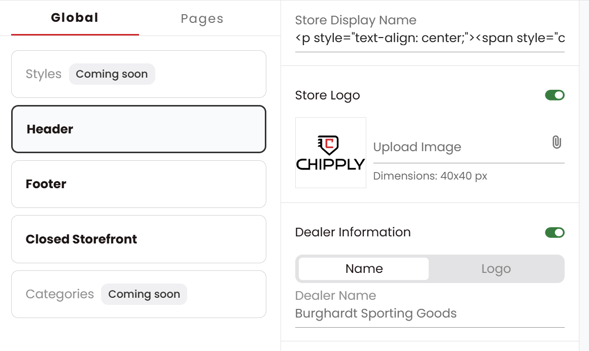
Set your Store Display Name, upload your Store Logo, and choose whether to display your dealer name or your logo in the header.
Footer
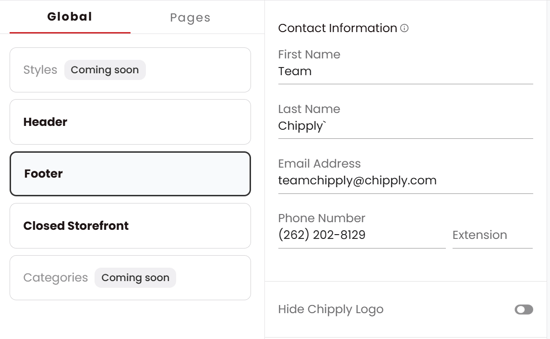
Enter your contact information and choose whether to hide the Chipply logo in the footer.
Closed Storefront
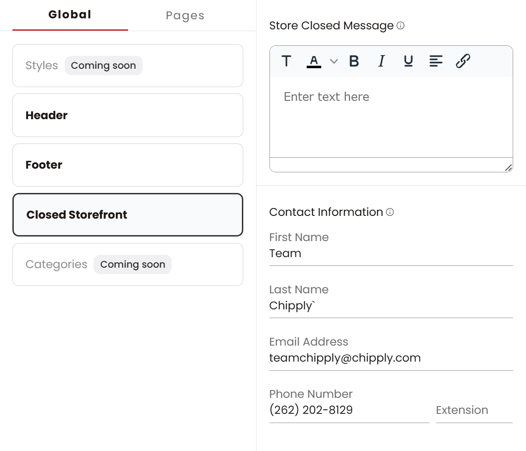
Add your store closed message and contact information. This content will display automatically when your store is closed.
Pages
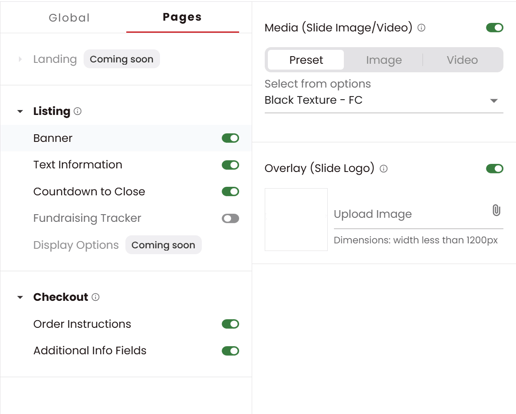
Listing Page – Banner
Choose from Chipply’s preset banner images, upload your own image, or add a YouTube video. You can also upload a slide logo to display over the banner.
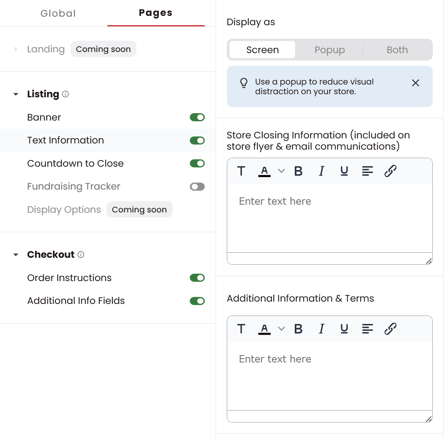
Listing Page – Text Information
Enter your Store Closing Information and any additional information or terms. Choose how this content is displayed: on screen, as a popup, or both.
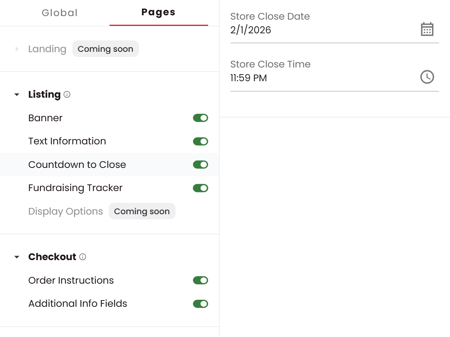
Listing Page – Countdown to Close
Set a store close date and time to display a countdown clock on your storefront.
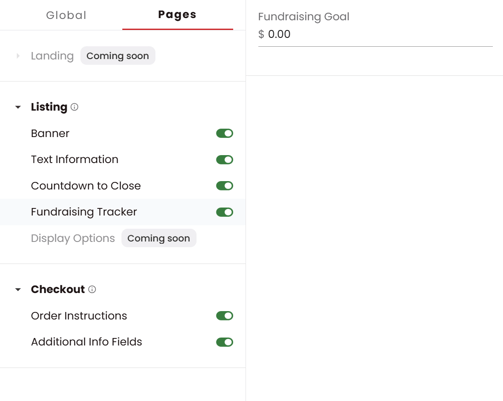
Listing Page – Fundraising Tracking
Enable a fundraising tracker on your store to display how much money has been raised on your store.
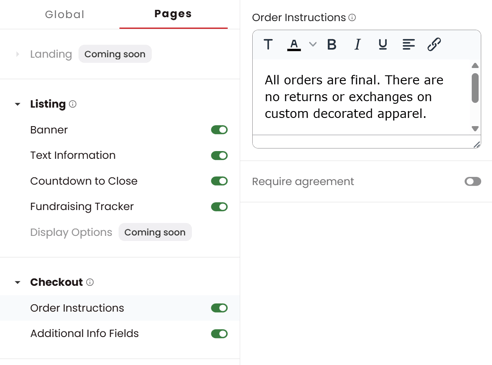
Checkout – Order Instructions
Enter your store’s order instructions and choose whether to require customer agreement. When enabled, shoppers must confirm they have read and acknowledged the instructions before placing an order.
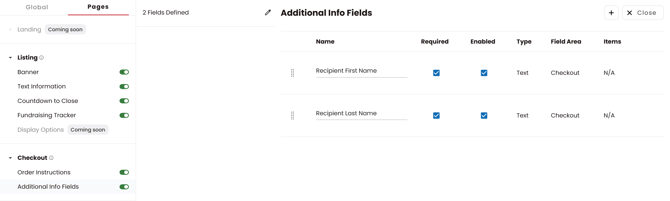
Checkout – Additional Info Fields
Customize the information collected from customers at checkout. Your store will always include Recipient First Name and Recipient Last Name by default, but these fields can be renamed. You can also add additional text fields, yes or no questions, or required dropdown selections for customers to choose from.
Closing
The updated Branding page gives you more control over how your store looks and functions, without changing the tools you already rely on. Use these settings to tailor each store to your needs while maintaining a consistent and professional shopping experience for your customers. Additional customization options will be coming soon to give you even more flexibility.
Looking Ahead
The updated Branding page is designed to make managing your store easier today, while setting the foundation for what’s coming next. This new structure allows us to continue expanding customization options, visual controls, and layout flexibility over time.
As we roll out future enhancements, this page will be the hub for how your store looks, feels, and evolves. More customization is coming soon, and this update ensures your stores are ready for it.