![Fabicaon.png]](https://44059364.hs-sites.com/hs-fs/hubfs/Fabicaon.png?width=40&height=40&name=Fabicaon.png)
You can use Store Status to clearly communicate where a store or catalog batch is in the production process and keep your team aligned. Store status helps organize your workflow and determines where the store appears on your Chipply dashboard. You can update the store status only when your catalog store batches or when a group store closes.
How to Update Store Status
1) From your closed group store or catalog batch, navigate to the General Settings page.
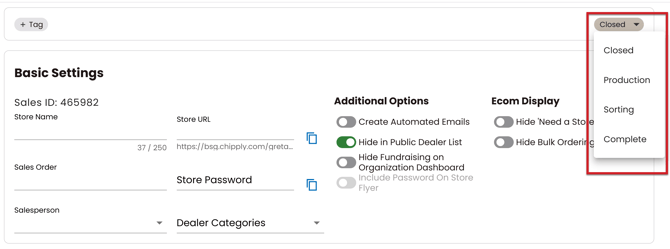
2) At the top of the store, use the Store Status dropdown to update the status to Production, Sorting, or Complete.
Store Status Breakdown
Closed (Ready To Process): The store has reached its close date, is no longer accepting orders, and is ready for processing.
Production: Items are being ordered, and production has started.
Sorting: Finished products have returned from production and are being sorted and packed into individual orders.
Complete: Orders are fully sorted and ready for pickup or delivery.
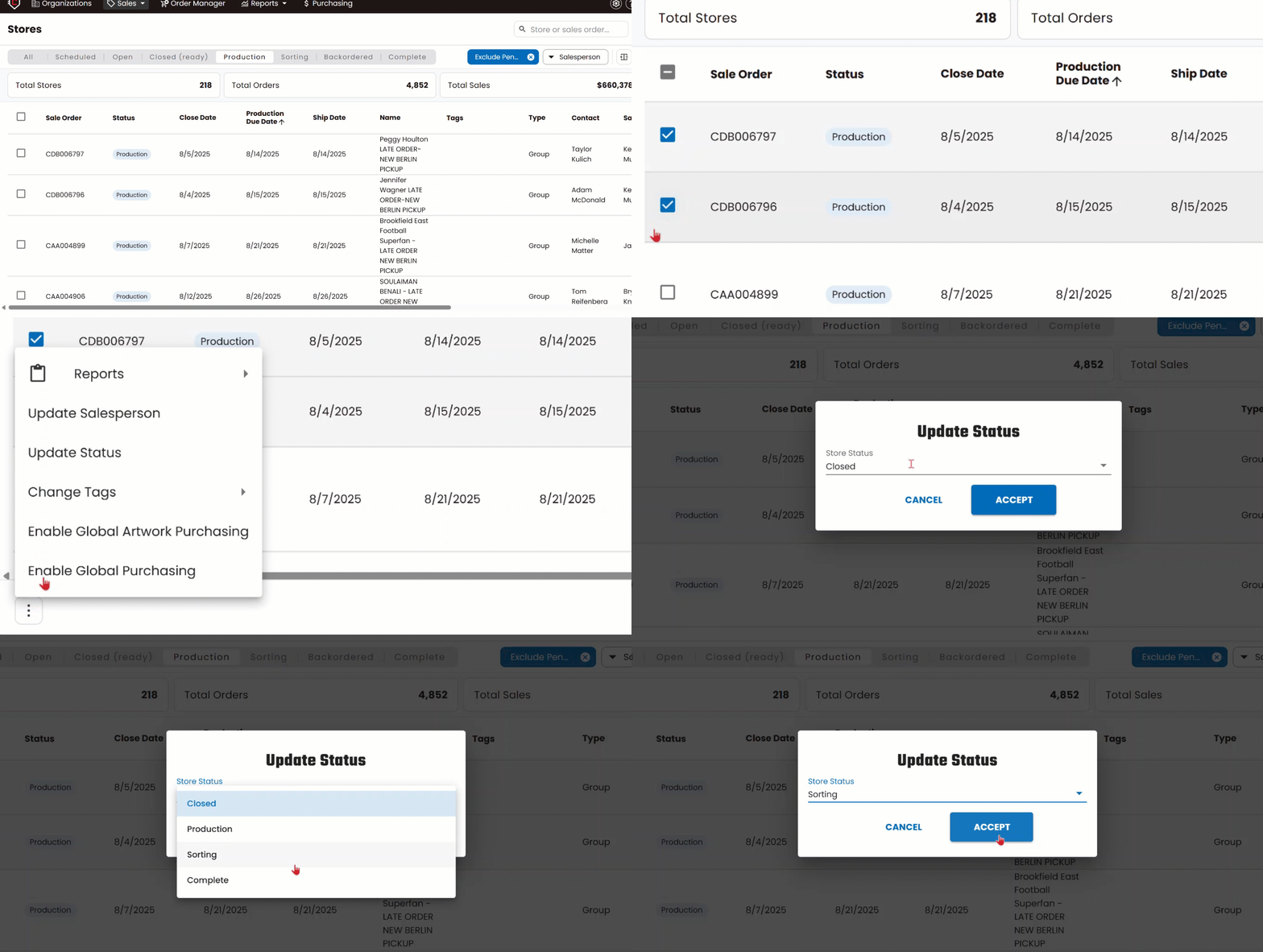
You can also update your group store or catalog batch status in bulk, which is helpful when changing multiple store statuses at once or clearing out closed stores.
You can also update your group store or catalog batch status in bulk, which is helpful when changing multiple store statuses at once or clearing out closed stores.
How to Update Store Status in Bulk
1) From your main Chipply dashboard, navigate to any tab under My Stores or All Stores.
2) Select the stores you want to update.
3) Click More Actions and choose Update Status.
4) Select the new status for your group store(s) or catalog batch(s), then click Accept.