![Fabicaon.png]](https://44059364.hs-sites.com/hs-fs/hubfs/Fabicaon.png?width=40&height=40&name=Fabicaon.png)
Want more creative control over your store flyer than the built-in version Chipply gives you? Use our free Canva template to design your own.
Chipply automatically generates a store flyer for every store (View How to Generate a Store Flyer within Chipply). For dealers who want a flyer with a bit more design polish, we've built a free, ready-to-edit template in Canva that you can fully customize with your own product photos, colors, and branding.
Click here to access the Team Store Flyer template
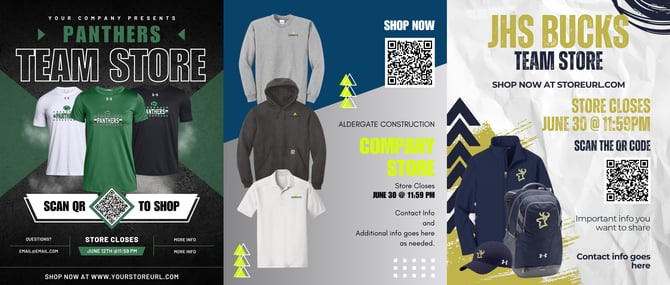
The template pack includes a few different looks, so you can pick the style that best fits your organization before you start customizing.
How to Customize Your Store Flyer
1) Add your product images
Once your store is built, copy your product images from the store and paste them into the Canva template. Click Remove Background to isolate the product on a clean background.
Tip: Want a lifestyle photo instead of a plain product shot? Upload your product image into ChatGPT and prompt it to generate an image of a person wearing the product.
2) Create and add your QR code
Generate a QR code using a free tool — we recommend Canva's QR Code Generator or Adobe's QR Code Generator. When placing your QR code on the flyer, don't resize it smaller than 0.8" × 0.8", or it may not scan properly.
3) Update your text and colors
Update every text field with your store's information — store name, close date, contact info, and store URL. To match your brand colors, enter a hex code if you know it, or use Canva's eyedropper tool to sample a color directly from your product images. Remove any placeholder text or images that don't apply to your store.
4) Review before you share
Before sending the flyer out, double-check that all store and contact information is accurate, and do a final scan of your QR code to confirm it links to the correct store page.