![Fabicaon.png]](https://44059364.hs-sites.com/hs-fs/hubfs/Fabicaon.png?width=40&height=40&name=Fabicaon.png)
Chipply now gives you the ability to create a landing page for your store. This page acts as the front door of your store, giving shoppers a branded introduction before they dive into the full product listing. It's a great fit for year-round stores, corporate employee stores, or any situation where you want to set the tone before customers start shopping. That said, this feature is completely optional, and you can continue to brand stores as normal.
Enabling the Landing Page
The Landing page is toggled off by default on all stores. Chipply will not automatically turn it on for you.
To enable it:
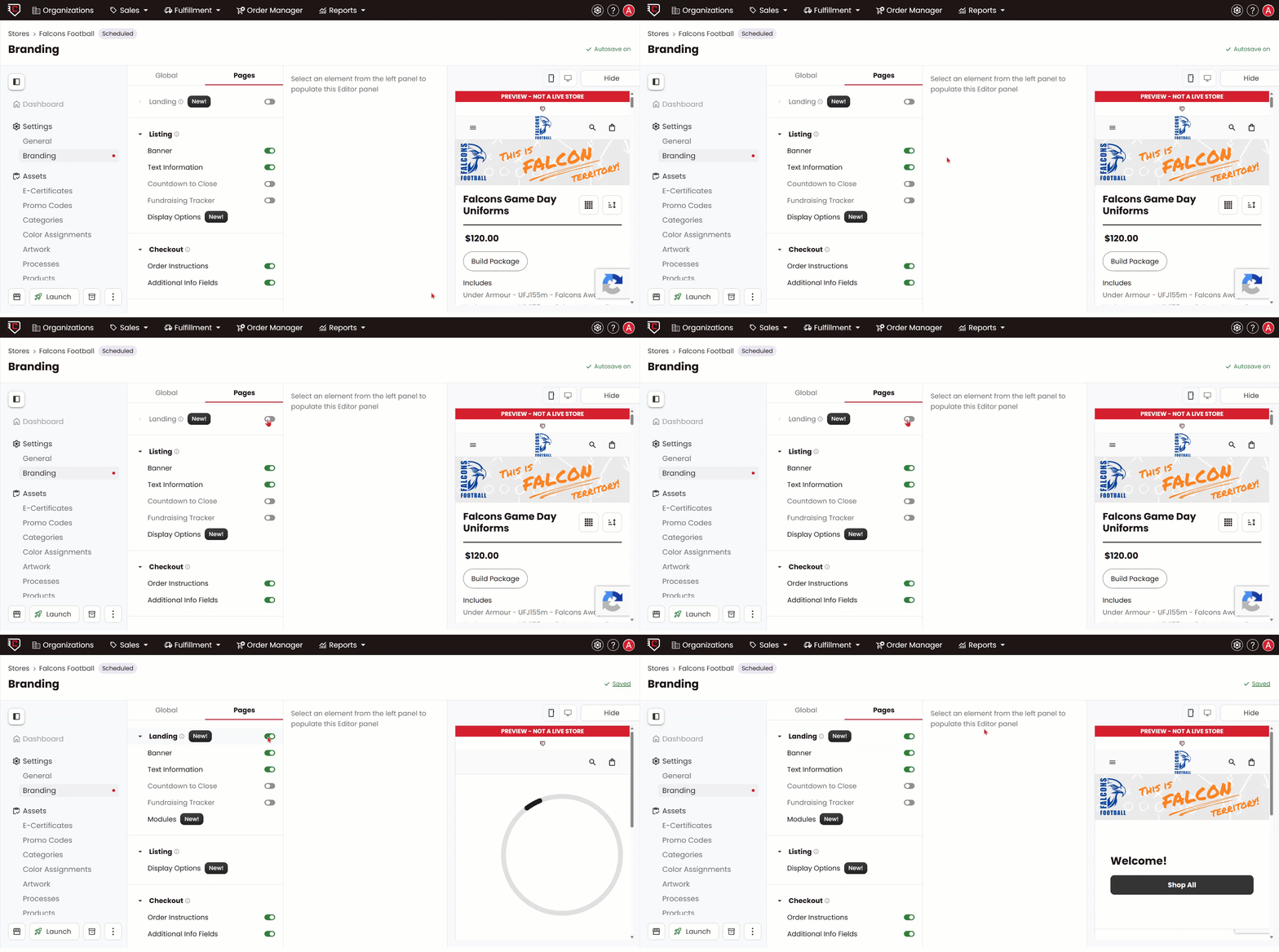
- Navigate to Branding within your store.
- Click the Pages tab at the top.
- Under the Landing section, toggle it on.
Once enabled, shoppers will land on your landing page first before reaching the product listing.
What Moves When You Turn Landing On
A few settings follow the landing page toggle. The following four items will move from the Listing section to the Landing section when Landing is turned on:
- Banner
- Text Information
- Countdown to Close
- Fundraising Tracker
These are an either/or situation. When Landing is off, they display on your listing page. When Landing is on, they move up to your landing page. The one exception is Display Options, which always stays under Listing since it controls how your products are displayed there.
Customizing Your Landing Page
Within the Landing section, you have several options to make the page your own:
Banner
Upload a landscape banner image (2000 x 500 px recommended) to display across the landing page. You can also upload an overlay logo on top of the banner.
Welcome Panel - This is a new text panel that sits alongside your banner. By default, it displays "Welcome" with a gray "Shop All" button. You can customize:
- Message Text - Update the welcome message to anything you'd like.
- Button Text - Change "Shop All" to something more fitting, up to 50 characters.
- Panel/Button Fill Color - Pick a color using the color picker or the eyedropper tool to match your store's branding.
- Panel Alignment - Choose whether the panel sits on the left or right side.
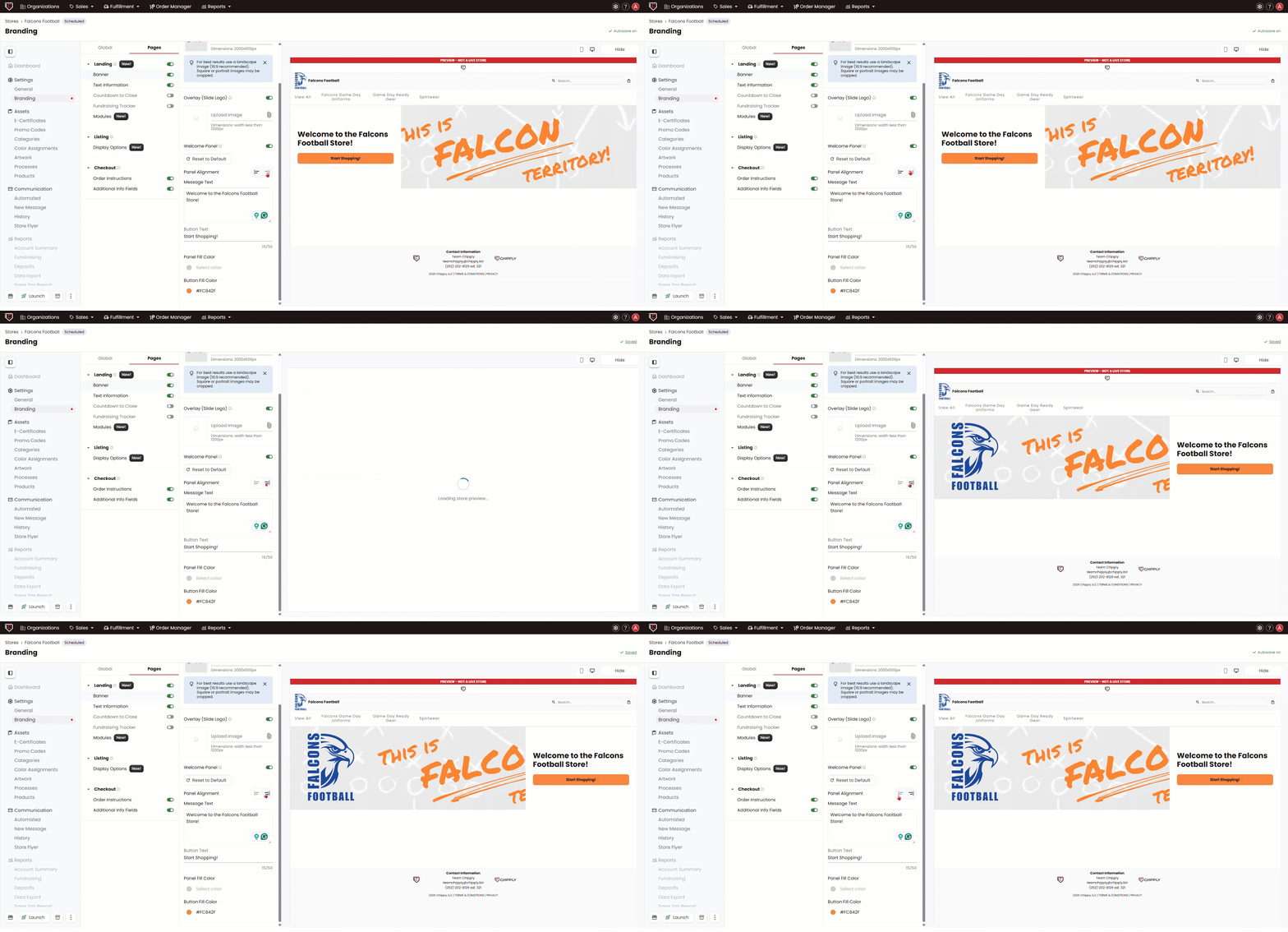
Selecting Reset to Default will bring all of these settings back to their original state.
Modules
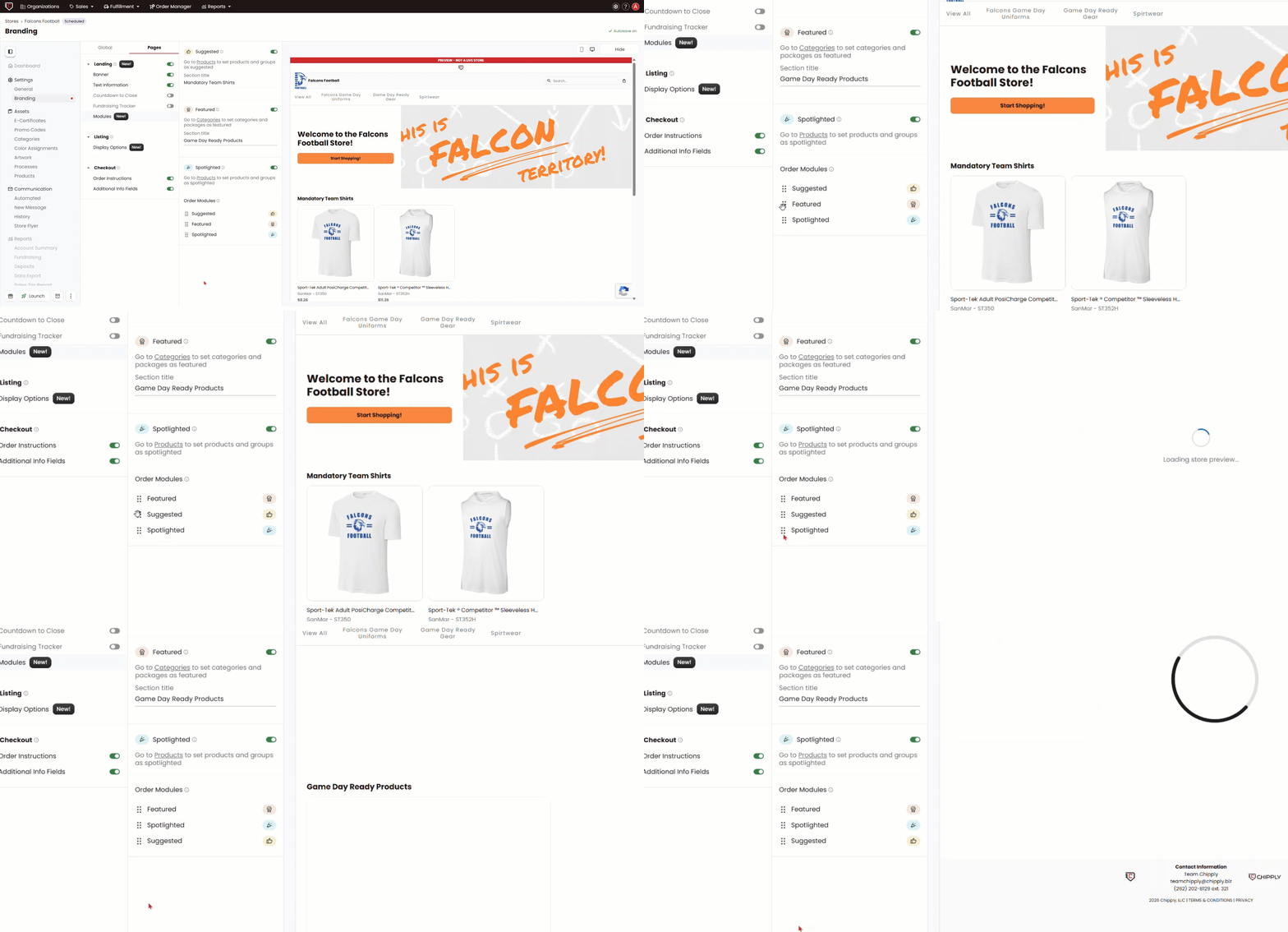
Modules allow you to showcase specific products and categories directly on your landing page. You can turn each module on or off individually depending on what you want to display.
There are three modules available:
Suggested - Displays individual products you have marked as suggested. To set products as suggested, go to the Products page, select the items you want to mark as suggested, Click Bulk Actions > eCom Display Options > Change Landing Page Module, and choose Suggested. You can also give this section a custom title back in the modules section of the branding page.
Featured - Displays categories or packages you have marked as featured. To set a category as featured, go to Categories, click Edit on the category, set the Landing Page Module to Featured, and select up to 2 images to represent it. You can pull images from your products or upload your own. You can also give this section a custom title back in the modules section of the branding page.
Spotlighted - Displays products that are set as spotlighted. Keep in mind that spotlighted products can still appear on your listing page as well. Turning this module off on the landing page does not remove the spotlight from the listing.
Click Here to Learn How to Spotlight a Product
Re-Order Modules
Once your modules are set up, you can control the order in which they appear on the landing page. Simply drag and drop the modules in the Order Modules section to arrange them however you'd like.
A Note on Inactive Products
If a product is marked as suggested or spotlighted and is later made inactive, it will be removed from the storefront. It's a good idea to periodically review your landing page to make sure everything displayed is still active and accurate.
Things to Keep in Mind
- The landing page is not a replacement for your product listing. Shoppers can always click through to browse all products.
- You do not have to use any modules. The landing page can be as simple as a banner, a welcome message, and a Shop All button.
- If a module requires items to be set up (such as suggested products), you will see a notification reminding you to do so in Branding